> ## Documentation Index
> Fetch the complete documentation index at: https://docs.xano.com/llms.txt
> Use this file to discover all available pages before exploring further.
# Function Stack
> Build a function stack in the visual builder
## What is the Function Stack?
The function stack is a hybrid between a traditional code view and a visual builder. It shows you each function in execution order, but in a way that is understandable for non-technical users.
## What does a Function Stack look like?
The Function Stack will be comprised of *up to* three different sections — **inputs**, the **function stack**, and the **response**. Different function stack types may not contain all of the available sections listed below.
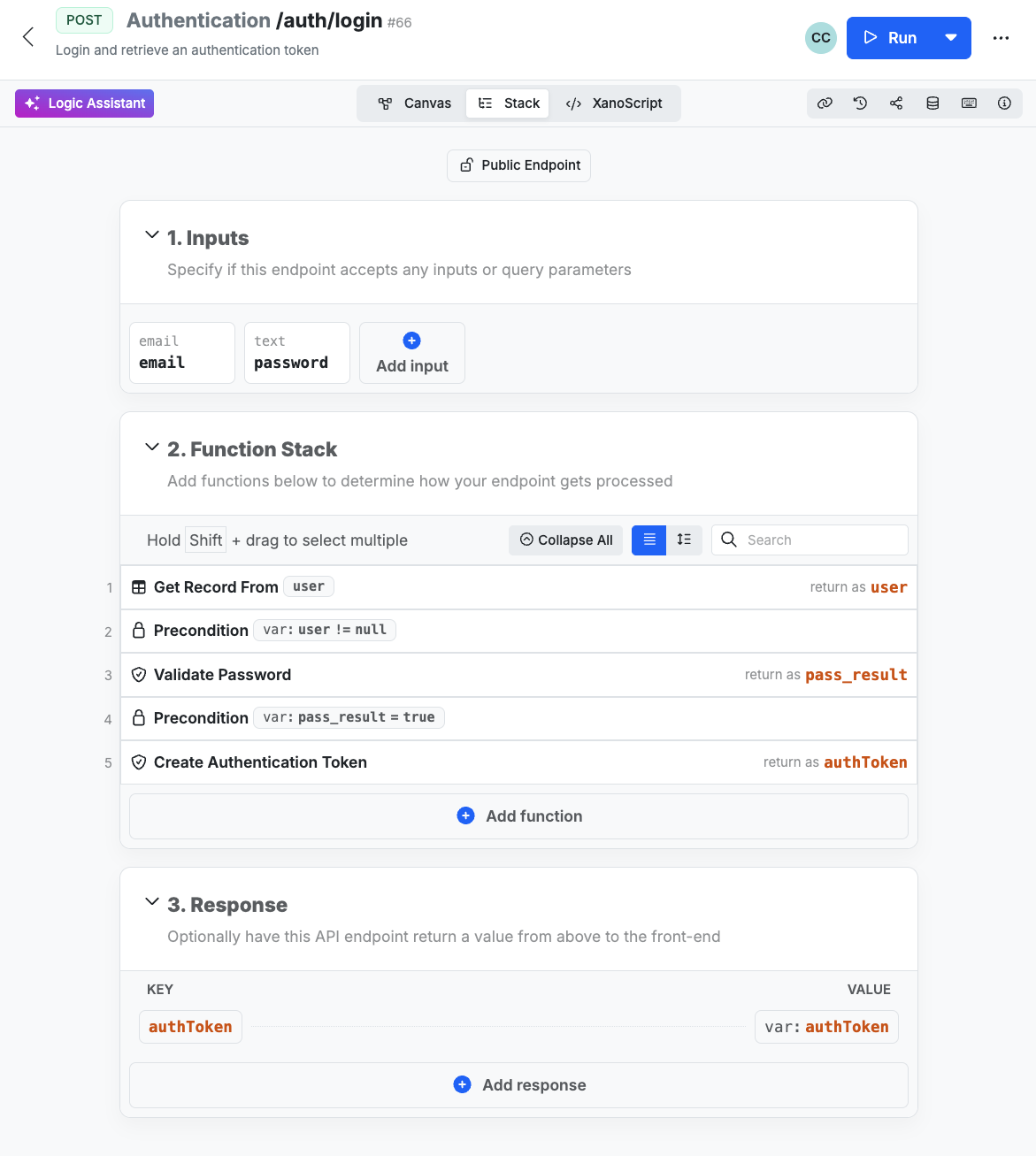 ## Navigating the Function Stack
The Function Stack can be navigated using mouse or keyboard shortcuts, or both. It's designed to feel similar to a traditional code editor, but with the added benefit of visual development and quick editing.
In the Function Stack view, you’ll see different sections depending on what you’re building.
## Navigating the Function Stack
The Function Stack can be navigated using mouse or keyboard shortcuts, or both. It's designed to feel similar to a traditional code editor, but with the added benefit of visual development and quick editing.
In the Function Stack view, you’ll see different sections depending on what you’re building.
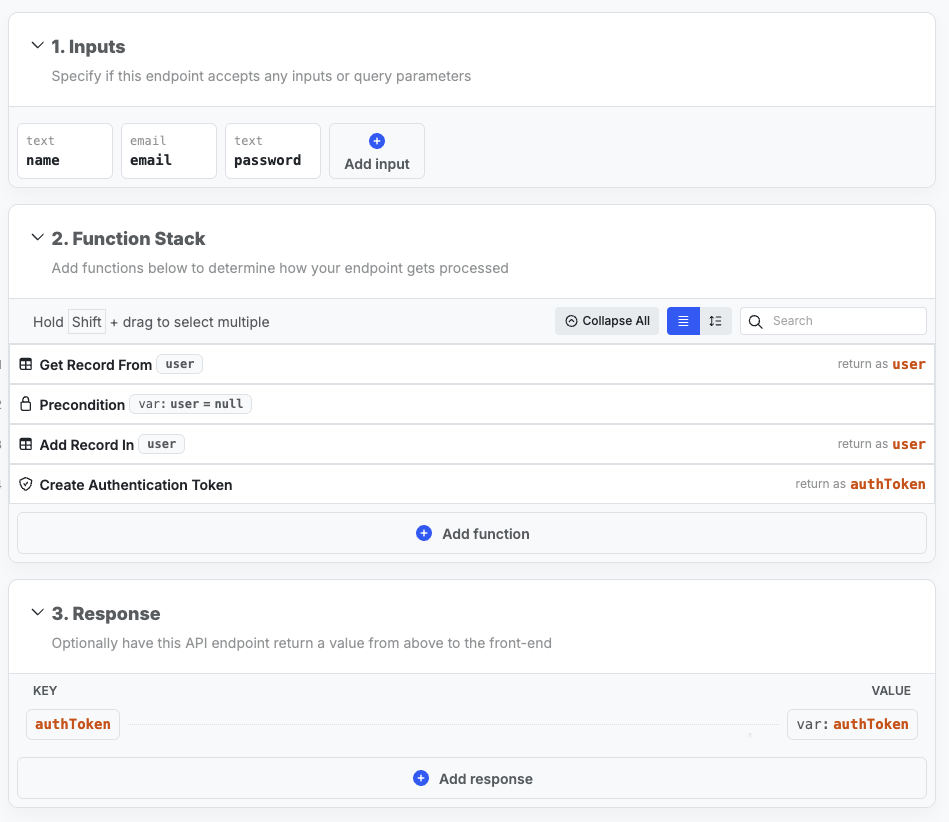 Each section has “Add” buttons that let you create new items in that area, such as inputs or functions.
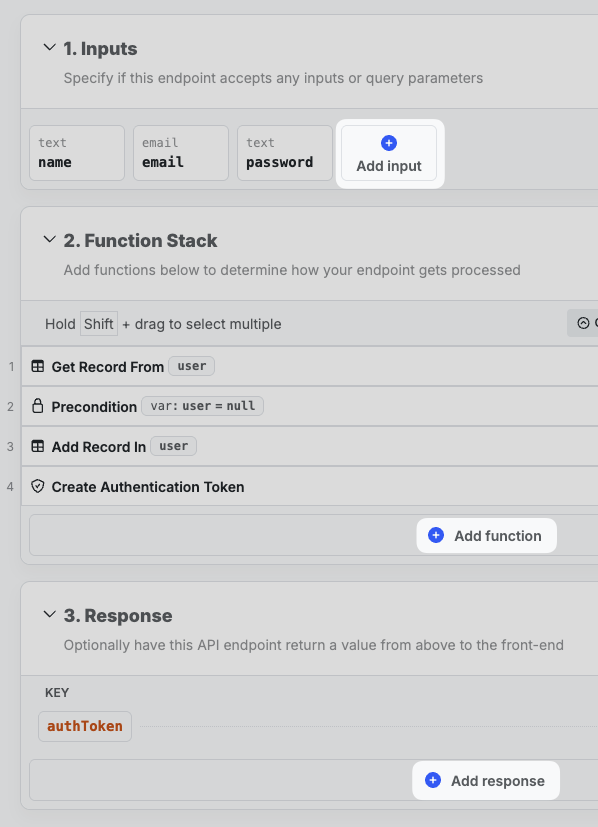 You can also hover over an existing function in the function stack and click the icon to insert a new function directly below it. Hovering over any function reveals additional options such as cloning, disabling, or deleting that step.
 You can click and drag functions to reorder them within the stack, giving you fine-grained control over execution flow.
To work more efficiently, hold Shift and select multiple functions to perform bulk actions such as disabling, deleting, or copying them to another workflow.
The Function Stack has two different layout modes that can be switched using the toggle right above the stack:
* Comfortable view, which spaces out functions for easy reading.
* Compact view, which condenses the layout for scanning large workflows.
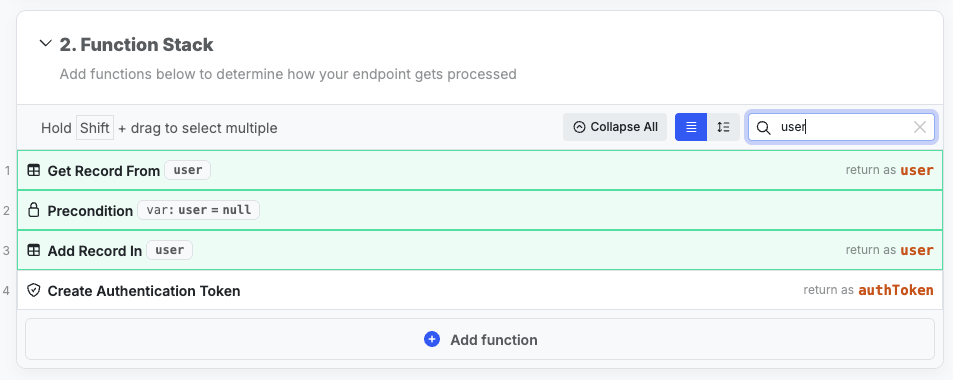
A built-in search bar lets you quickly find functions, variables, or any element in your stack without scrolling.
You can click and drag functions to reorder them within the stack, giving you fine-grained control over execution flow.
To work more efficiently, hold Shift and select multiple functions to perform bulk actions such as disabling, deleting, or copying them to another workflow.
The Function Stack has two different layout modes that can be switched using the toggle right above the stack:
* Comfortable view, which spaces out functions for easy reading.
* Compact view, which condenses the layout for scanning large workflows.
A built-in search bar lets you quickly find functions, variables, or any element in your stack without scrolling.
 Prefer working with your keyboard? Xano provides a range of keyboard shortcuts for power users. You can review and customize them from the shortcuts panel directly in the Function Stack view\..
## Building with the Function Stack
Add a function by clicking the Add Function button below the function stack, hover over a function and click the sign, or use your up and down arrow keys to select a row, and press A on your keyboard to add a new function.
Prefer working with your keyboard? Xano provides a range of keyboard shortcuts for power users. You can review and customize them from the shortcuts panel directly in the Function Stack view\..
## Building with the Function Stack
Add a function by clicking the Add Function button below the function stack, hover over a function and click the sign, or use your up and down arrow keys to select a row, and press A on your keyboard to add a new function.
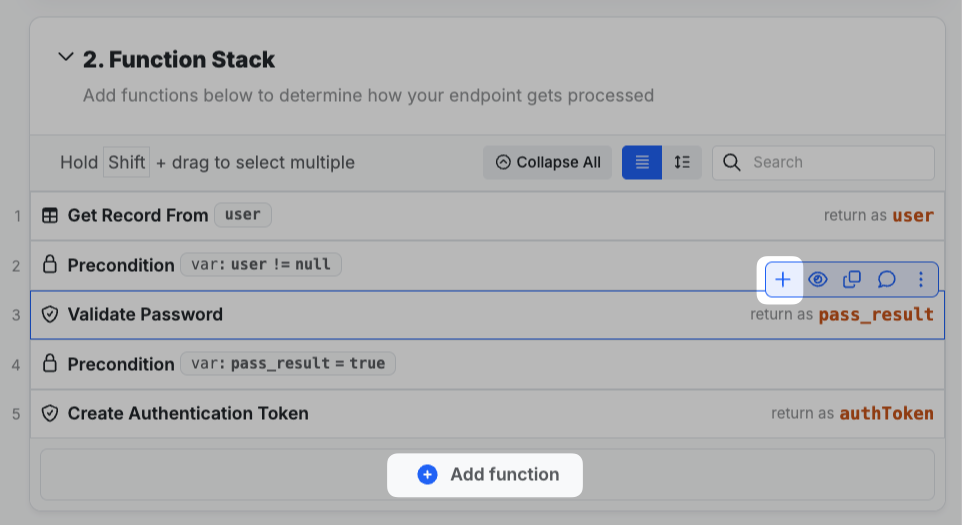
Each function will have a different set of options available to you, so it's best to consult that function's specific documentation for more information.
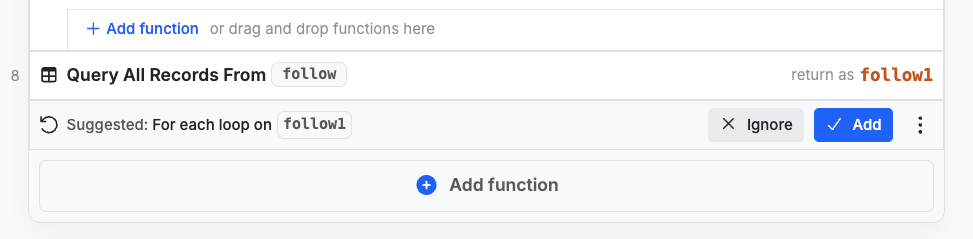
After you add a function, Xano will sometimes suggest the most likely next step; for example, adding a Query All Records will suggest a loop after. You can choose to add the suggestion, ignore it, or just continue working and Xano will dismiss the suggestion automatically.
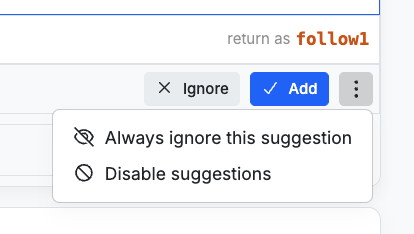
 You can click the icon to tell Xano to never suggest that specific addition again, or to disable suggestions.
 ## What's next?
Learn how deploying your changes to production works
Learn about the core components of building logic
Learn about the Canvas View, a visual first but more code-like building experience
## What's next?
Learn how deploying your changes to production works
Learn about the core components of building logic
Learn about the Canvas View, a visual first but more code-like building experience