> ## Documentation Index
> Fetch the complete documentation index at: https://docs.xano.com/llms.txt
> Use this file to discover all available pages before exploring further.
# Building with Code
> Learn how to build with code in Xano
With XanoScript able to represent everything you can build in Xano, you can utilize the power and speed of having Xano power your backend without leaving where you're most comfortable -- your favorite IDE.
Coding with XanoScript can happen a couple of different ways:
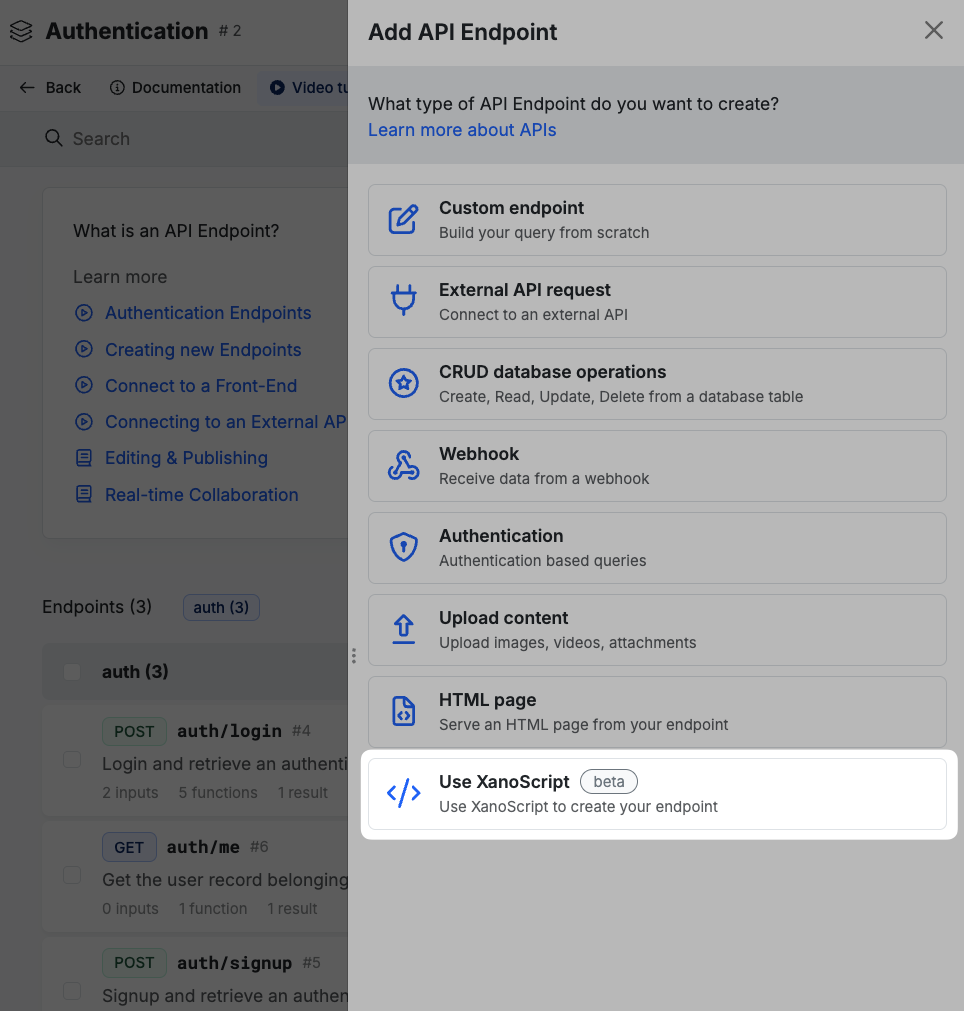
You can write XanoScript in Xano directly in the XanoScript view. This is a great way to get started with XanoScript and see how it works, especially if you've already used the visual builder.
This option will be available when creating most logic in Xano, such as APIs, Custom Functions, Background Tasks, and more.
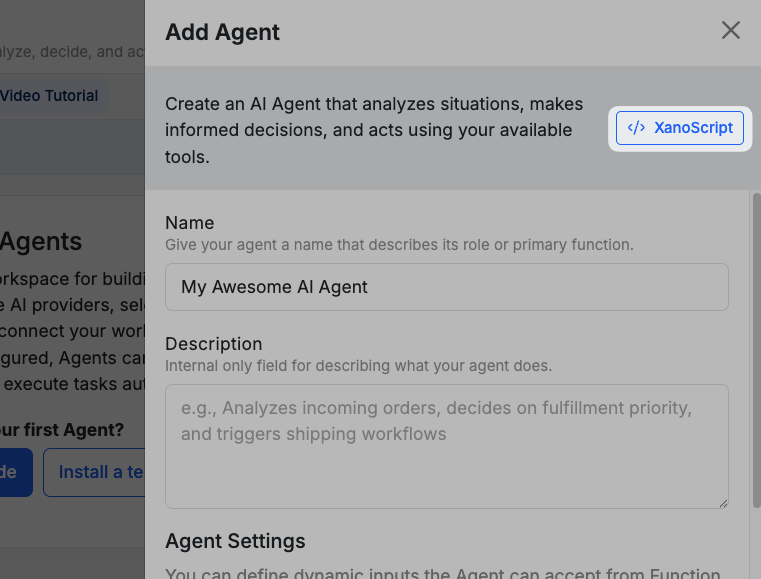
 In some areas, such as AI Agents that open with a settings panel immediately, you'll see a XanoScript option at the top of the panel.
You can also use the VS Code extension to write XanoScript in an IDE of your choice. You should be able to use any IDE that supports VS Code extensions, such as Cursor or Windsurf, as well as VS Code itself.
**Get the VS Code extension from the Marketplace [here](https://marketplace.visualstudio.com/items?itemName=xano.xanoscript)**
**Download directly from [here](https://storage.googleapis.com/xanoscript-vscode/vsix/xano.xanoscript-0.1.0.vsix)**
Using the Xano MCP server, you're able to connect an AI model to your Xano backend via an MCP client, like Claude or Cursor. The MCP server offers a number of tools to help you build your backend with AI.
All of these methods are powered by XanoScript, so you can use them interchangeably. If you want a deeper dive into XanoScript, you can learn more about it [here](/xanoscript/introduction).
**Switching between build modes?** Changes made in one build mode aren't automatically synced to another. For example, if you make changes in the visual builder and then want to continue working in the CLI, you'll need to [pull](/xano-cli/push-pull#pull) your workspace first to get the latest changes. The same applies when switching from any other mode back to the CLI.