> ## Documentation Index
> Fetch the complete documentation index at: https://docs.xano.com/llms.txt
> Use this file to discover all available pages before exploring further.
# Background Tasks in Xano
> Learn how to build and schedule background tasks (cron jobs) in Xano using the visual builder or XanoScript.
Before continuing, make sure you're familiar with:
* [Core Components](/building/logic/core-components)
* [Working with Data](/building/logic/working-with-data)
## Background Tasks in Xano
Background tasks (also called scheduled tasks or cron jobs) allow you to automate operations at specific times or intervals. They are ideal for recurring jobs like data cleanup, report generation, or sending notifications.
Each background task has:
* A name (unique identifier, e.g., `daily_sales_report`)
* Logic (the actions to perform)
* A schedule (when and how often to run)
Unlike APIs, background tasks **do not** have inputs or responses. They only contain logic and a schedule block.
## Creating a Background Task
You can create background tasks visually or with XanoScript.
### Visual Builder
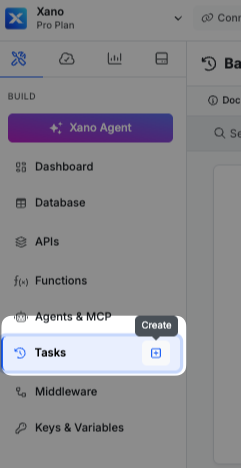
From the sidebar, click Tasks, then click Add Background Task. You can also just hover over Tasks and click the + icon.
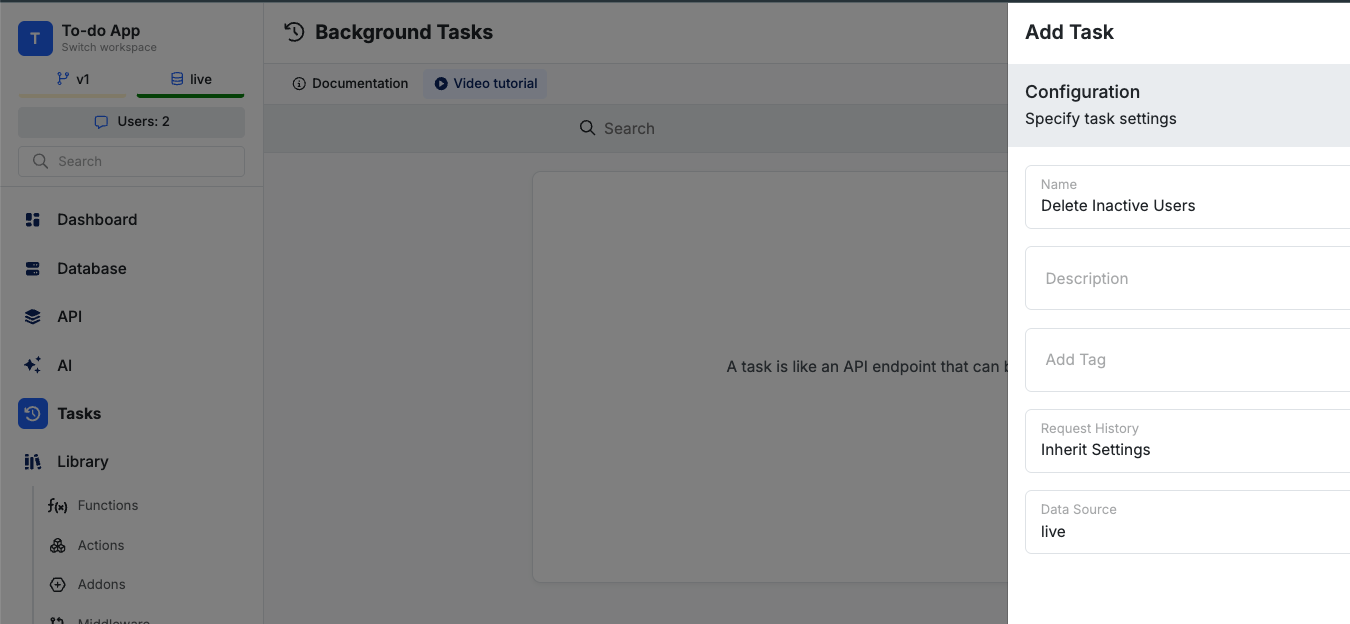
 Give your task a name and description, and choose the data source that the task will run against, by default. If you don't choose a data source, scheduled runs will always use the live data source.
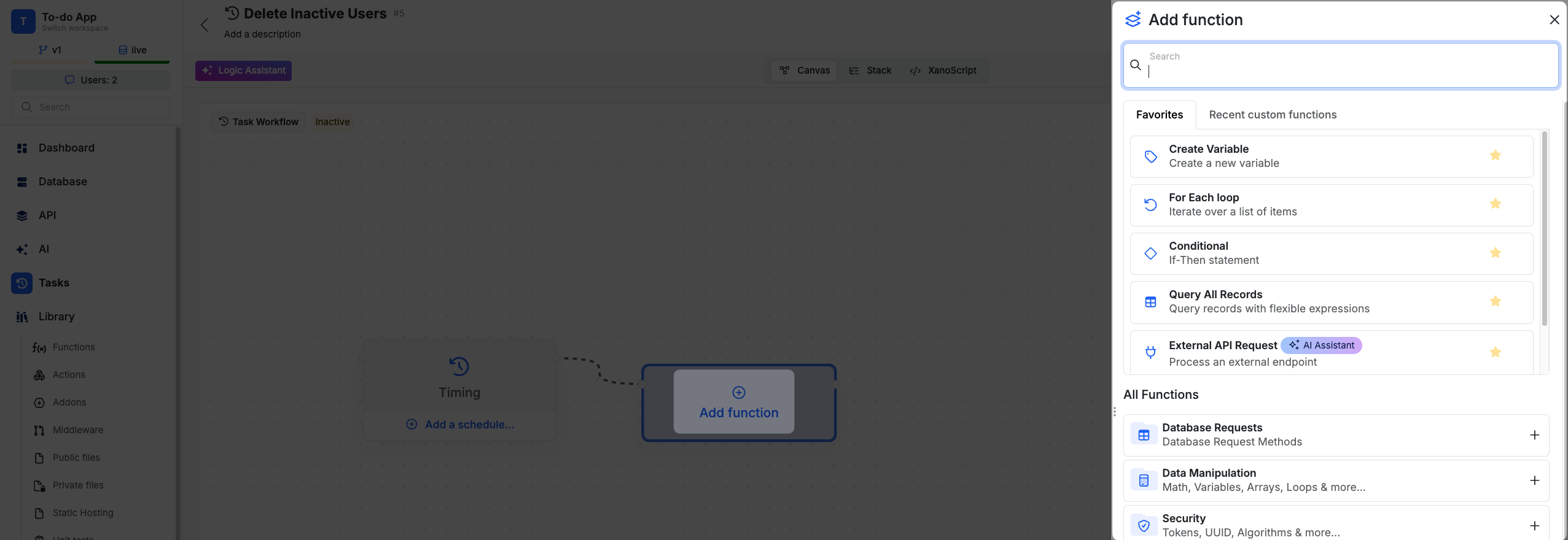
 Add functions to your task by clicking Add Function. You can use any function available in Xano, just like in APIs.
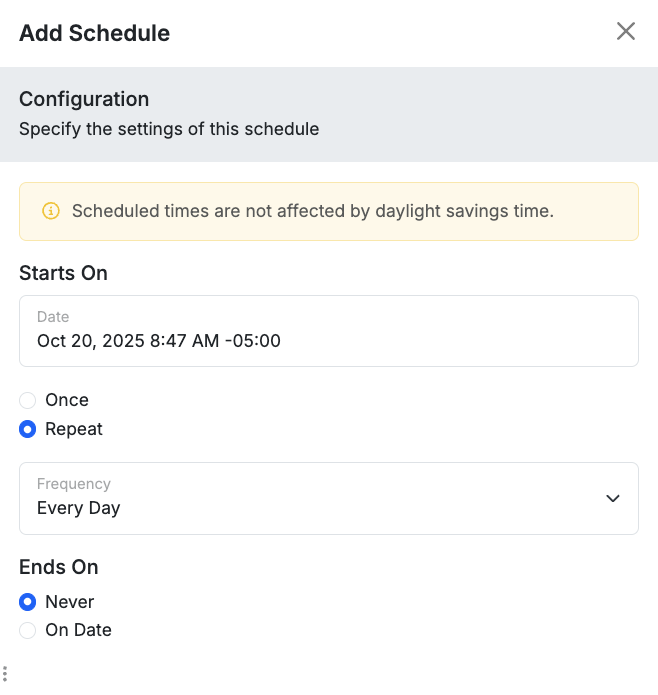
 When you've finished building your logic, you can set up the schedule by clicking the Add a schedule option.
Schedules have a start date / time, and can run once or on a repeating interval (e.g., every hour, day, week, etc.). For tasks that have a repeating schedule, you can also set an end date.
When you've finished building your logic, you can set up the schedule by clicking the Add a schedule option.
Schedules have a start date / time, and can run once or on a repeating interval (e.g., every hour, day, week, etc.). For tasks that have a repeating schedule, you can also set an end date.
 After configuring the schedule, click Save to create your background task.
You'll need to enable your task before publishing by selecting the option.
After configuring the schedule, click Save to create your background task.
You'll need to enable your task before publishing by selecting the option.
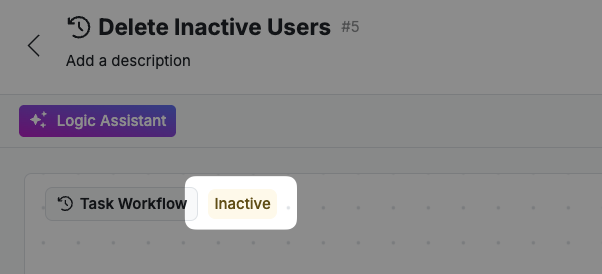
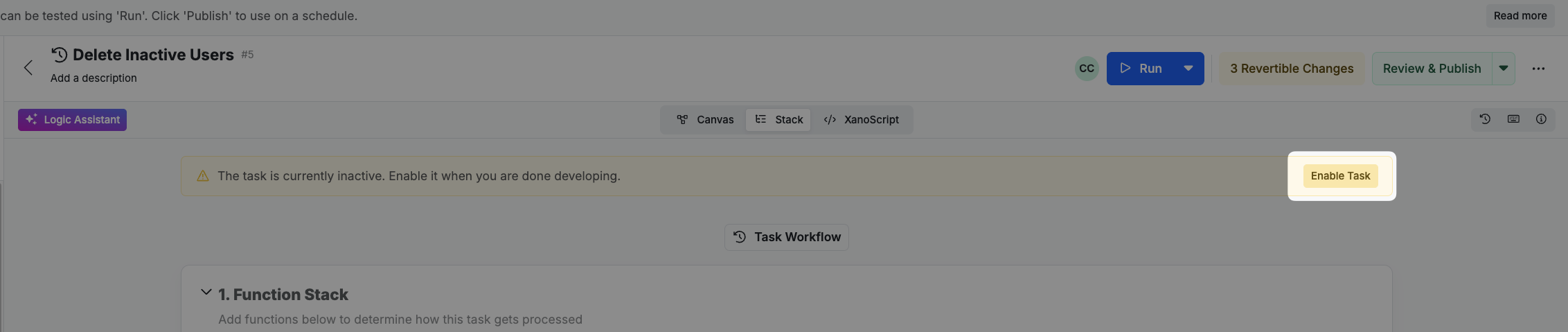 Once you've set your schedule and enabled the task, click Publish to deploy your background task.
### XanoScript
A basic background task in XanoScript has two parts — **logic** and **schedule**:
```javascript lines icon="code" Example of a basic background task in XanoScript theme={null}
// This task runs every day at 11 PM UTC and generates a sales report
task daily_sales_report {
description = "Generate a daily sales report at 11 PM UTC"
stack {
db.query payment_transactions {
description = "Get all transactions from the past 24 hours"
where = $db.payment_transactions.transaction_date >= (now|transform_timestamp:"24 hours ago":"UTC")
} as $daily_sales
var $transaction_count {
value = $daily_sales|count
description = "Count number of transactions"
}
var $total_sales {
value = ($daily_sales[$$].amount)|sum
description = "Calculate total sales amount"
}
db.add reports {
data = {
report_type : "daily_sales"
report_date : now
total_sales : $total_sales
transaction_count: $transaction_count
}
description = "Insert daily sales report"
} as $report_result
debug.log {
value = "Daily sales report generated"
description = "Log report generation"
}
}
schedule = [{starts_on: 2025-10-20 13:47:35+0000, freq: 86400}]
}
```
For more information on how to build background tasks in XanoScript, see the XanoScript Task documentation.
Once you've set your schedule and enabled the task, click Publish to deploy your background task.
### XanoScript
A basic background task in XanoScript has two parts — **logic** and **schedule**:
```javascript lines icon="code" Example of a basic background task in XanoScript theme={null}
// This task runs every day at 11 PM UTC and generates a sales report
task daily_sales_report {
description = "Generate a daily sales report at 11 PM UTC"
stack {
db.query payment_transactions {
description = "Get all transactions from the past 24 hours"
where = $db.payment_transactions.transaction_date >= (now|transform_timestamp:"24 hours ago":"UTC")
} as $daily_sales
var $transaction_count {
value = $daily_sales|count
description = "Count number of transactions"
}
var $total_sales {
value = ($daily_sales[$$].amount)|sum
description = "Calculate total sales amount"
}
db.add reports {
data = {
report_type : "daily_sales"
report_date : now
total_sales : $total_sales
transaction_count: $transaction_count
}
description = "Insert daily sales report"
} as $report_result
debug.log {
value = "Daily sales report generated"
description = "Log report generation"
}
}
schedule = [{starts_on: 2025-10-20 13:47:35+0000, freq: 86400}]
}
```
For more information on how to build background tasks in XanoScript, see the XanoScript Task documentation.