> ## Documentation Index
> Fetch the complete documentation index at: https://docs.xano.com/llms.txt
> Use this file to discover all available pages before exploring further.
# Filters
> Use filters to manipulate data throughout your logic
Filters are used to manipulate data throughout your logic. They can be applied almost anywhere that data is generated or referenced; anything from creating a variable to manipulating the response object on the fly.
## Adding Filters
Hover over a value box and click **Add Filter.**
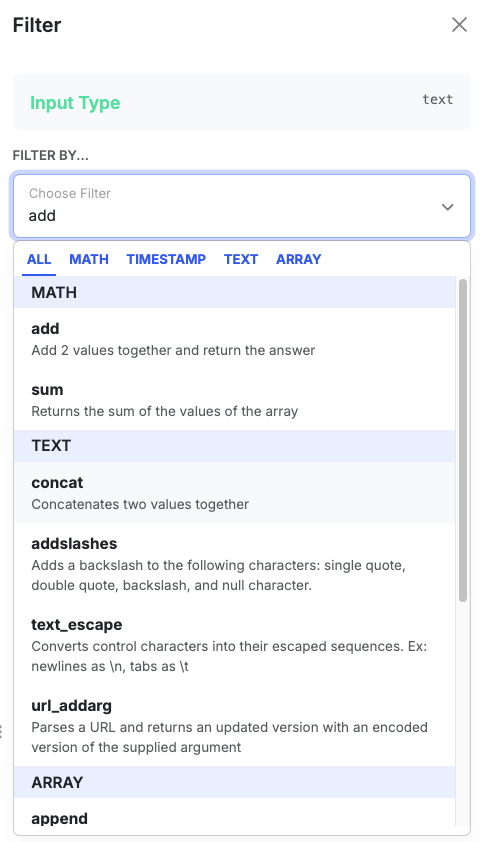
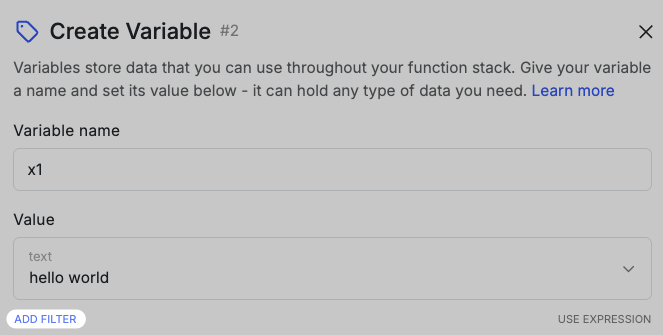 You can search for filters using the search bar, navigate using the categories, or scroll through the list.
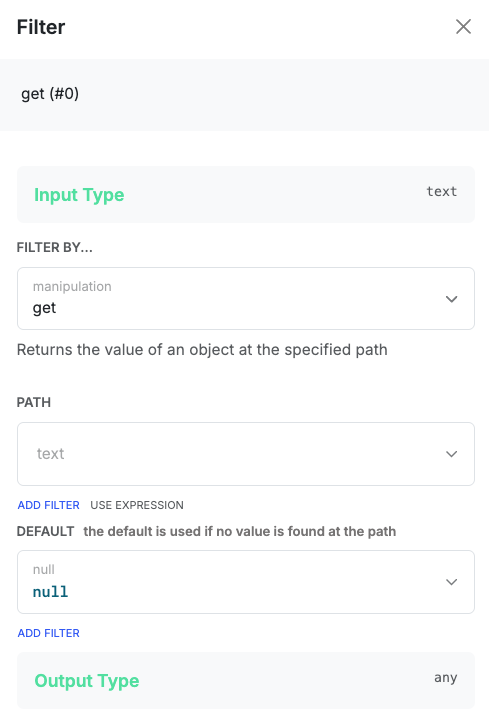
 Filters will have various options available depending on the filter chosen, so it's best to consult that filter's specific documentation for more information.
 Hover over an existing filter to see some additional actions.
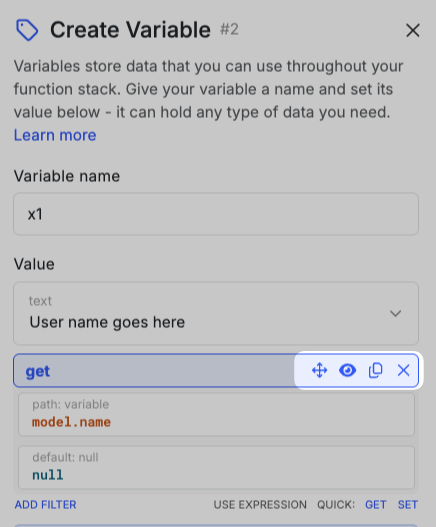 | | Action |
| --------------------------------------------------- | ------------------------------------------------------------------------- |
| | Click and drag to reorder filters. |
| | Click to disable the filter. Upon execution, this filter will be skipped. |
| | Click to clone the filter. |
| | Click to delete the filter. |
You can nest filters by adding them to an existing filter's value box(es).
| | Action |
| --------------------------------------------------- | ------------------------------------------------------------------------- |
| | Click and drag to reorder filters. |
| | Click to disable the filter. Upon execution, this filter will be skipped. |
| | Click to clone the filter. |
| | Click to delete the filter. |
You can nest filters by adding them to an existing filter's value box(es).
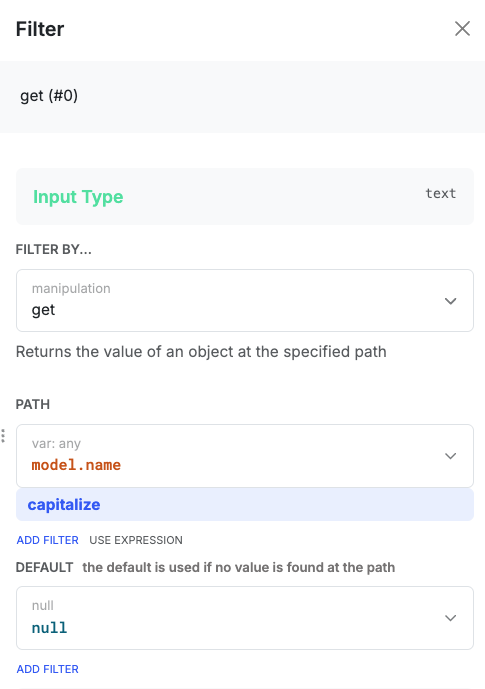 Filters are defined immediately after the target value using the `|` pipe character.
```javascript lines icon="code" Filter syntax format theme={null}
|::
```
You can also nest filters by adding them to an existing filter's values in parantheses.
```javascript lines icon="code" Nested filter syntax format theme={null}
|(::)|
```
## Filter Reference
Review all available filters below by selecting the section you're interested in.
Transform or traverse data using conditional or object-based filters.
Perform arithmetic operations.
Convert or adjust timestamps.
Trim, format, or modify text.
Add, remove, or manipulate array items.
Convert data between types or formats.
Compare values for equality or other conditions.
Encrypt, validate, or secure data.
Filters are defined immediately after the target value using the `|` pipe character.
```javascript lines icon="code" Filter syntax format theme={null}
|::
```
You can also nest filters by adding them to an existing filter's values in parantheses.
```javascript lines icon="code" Nested filter syntax format theme={null}
|(::)|
```
## Filter Reference
Review all available filters below by selecting the section you're interested in.
Transform or traverse data using conditional or object-based filters.
Perform arithmetic operations.
Convert or adjust timestamps.
Trim, format, or modify text.
Add, remove, or manipulate array items.
Convert data between types or formats.
Compare values for equality or other conditions.
Encrypt, validate, or secure data.