> ## Documentation Index
> Fetch the complete documentation index at: https://docs.xano.com/llms.txt
> Use this file to discover all available pages before exploring further.
# Functions
> The functions that make up your logic
Functions are the building blocks of logic. They can be used to perform actions, such as retrieving a record from the database, or generating a random number.
## Adding a Function
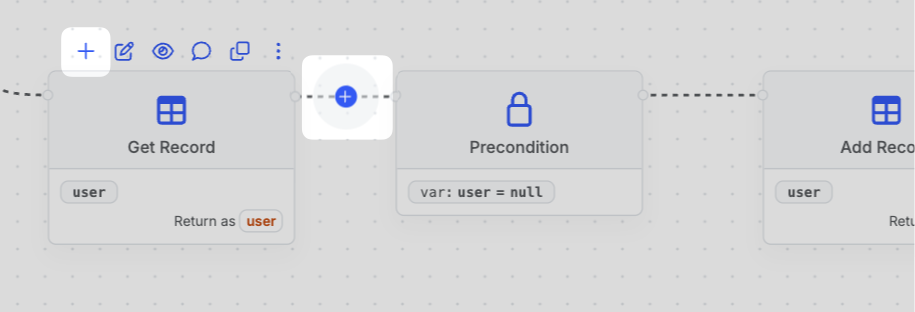
Hover over a node and click the plus icon to insert a new function after it. You can also hover over the connecting lines to insert a function at that point in the flow.
 In the panel that opens on the right, you can select the function you want to add. Use the search at the top, or navigate through the function categories.
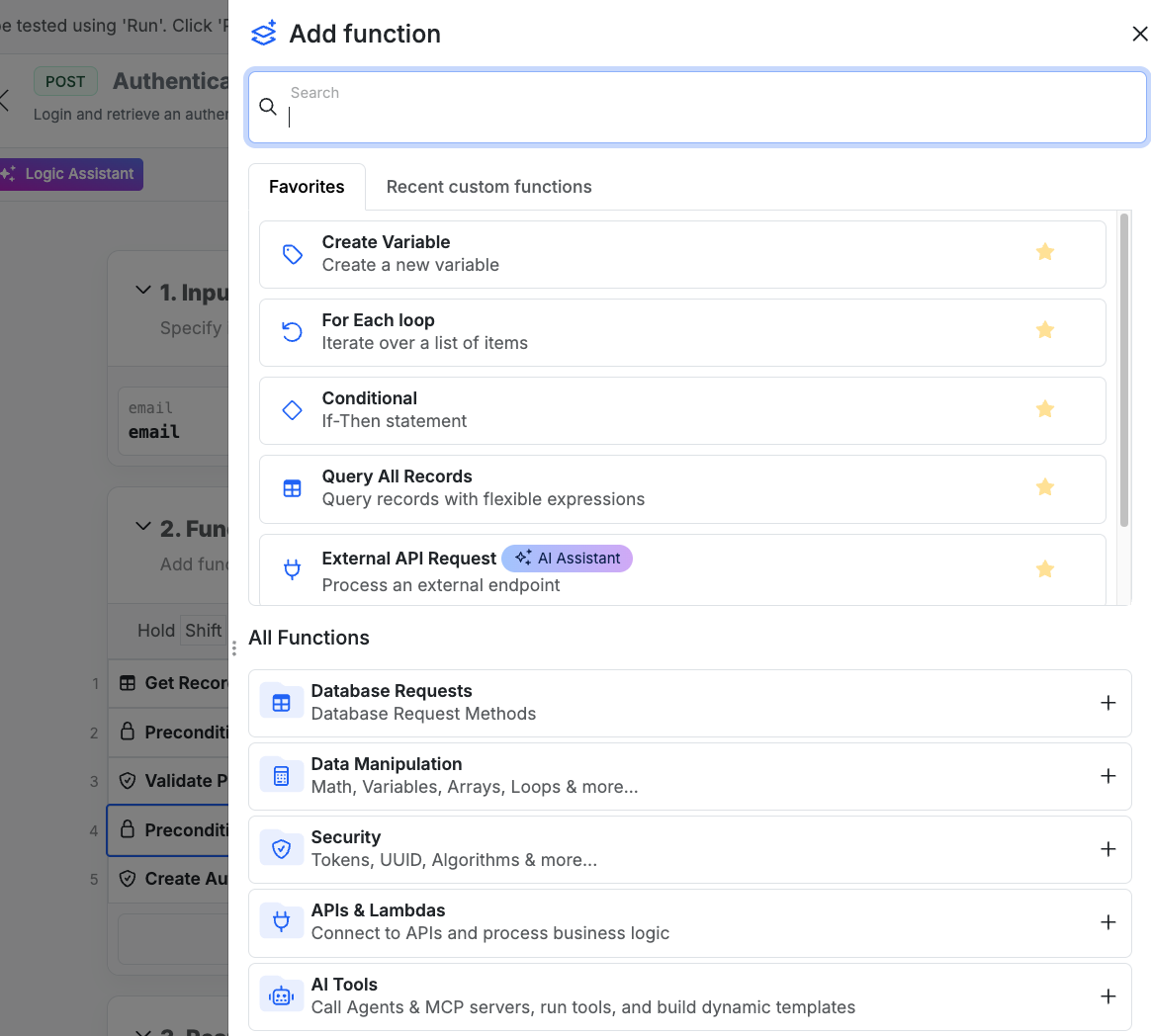
Each function will have a different set of options available to you, so it's best to consult that function's specific documentation for more information.
Add a function by clicking the **+ Add Function** button below the function stack, hover over a function and click the **+** sign, or use your up and down arrow keys to select a row, and press A on your keyboard to add a new function.
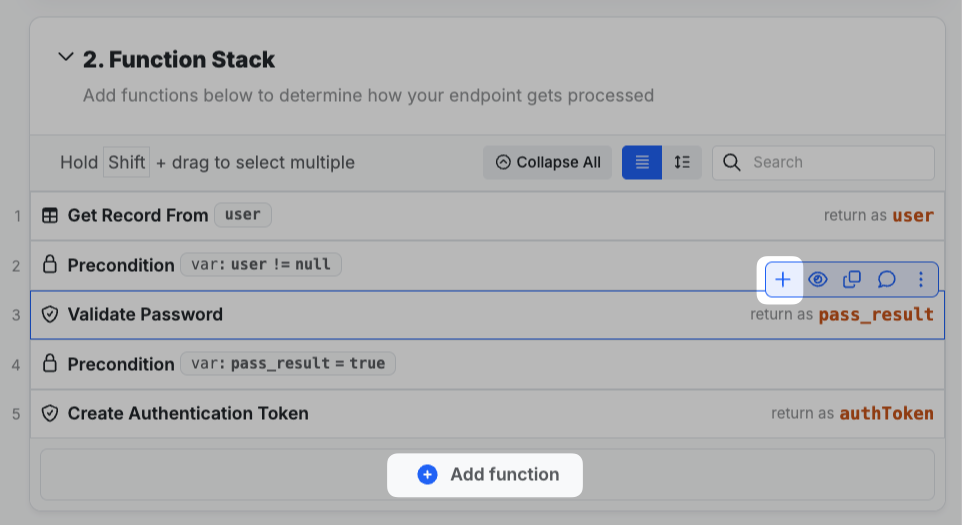 In the panel that opens on the right, you can select the function you want to add. Use the search at the top, or navigate through the function categories.
Each function will have a different set of options available to you, so it's best to consult that function's specific documentation for more information.
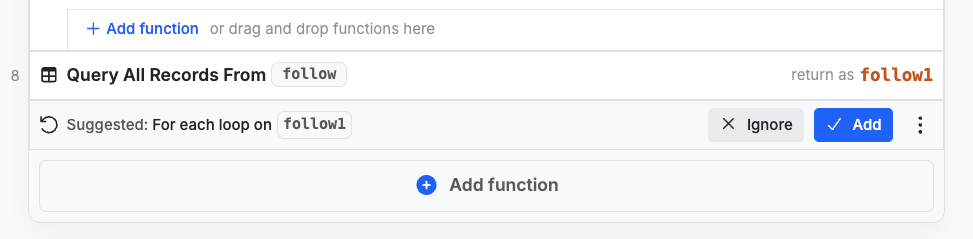
After you add a function, Xano will sometimes suggest the most likely next step; for example, adding a Query All Records will suggest a loop after. You can choose to add the suggestion, ignore it, or just continue working and Xano will dismiss the suggestion automatically.
 Functions are defined in the `stack` block, placed immediately after the declaration and accompanying parameters, such as the description.
```javascript lines icon="code" Example of the stack block and positioning theme={null}
stack {
db.query user {
search = $db.user.name ==? $input.name
return = {type: "list"}
} as $model
}
```
Functions begin with a **namespace** — basically, a category that the function is a part of. Each namespace is followed by a period, with the function name immediately after. After that, you'll declare any parameters the function requires. Functions can also have a description, which is optional.
```javascript lines icon="code" Stack with function declaration theme={null}
stack {
function_namespace.function_name {
description = ""
=
}
}
```
## Function Reference
Review all available functions below by selecting the section you're interested in.
Database Requests are used perform operations against your database tables,
such as retrieving, creating, updating, and deleting records.
Data Manipulation is used to parse and manipulate data, such as looping,
filtering, sorting, and transforming data.
Security is used to secure your data, such as encrypting data, and validating
data.
APIs and Lambdas are used to create APIs and lambdas, such as creating APIs
and lambdas.
Functions for using AI and related tools, such as Agents, the Template Engine,
and MCP Servers.
Data Caching (Redis) is used to cache data, such as caching data in Redis.
Actions are reusable building blocks by the Xano team and community that you
can use in your own workspace.
Custom Functions contain all of the custom functions you've created.
Utility Functions are used for things like debugging, error handling,
grouping, and more.
File Storage functions are used to store, retrieve, and manage files in your
Xano files library.
Cloud Services are used to connect to cloud services, such as Algolia, AWS
OpenSearch, S3, and more.
Functions are defined in the `stack` block, placed immediately after the declaration and accompanying parameters, such as the description.
```javascript lines icon="code" Example of the stack block and positioning theme={null}
stack {
db.query user {
search = $db.user.name ==? $input.name
return = {type: "list"}
} as $model
}
```
Functions begin with a **namespace** — basically, a category that the function is a part of. Each namespace is followed by a period, with the function name immediately after. After that, you'll declare any parameters the function requires. Functions can also have a description, which is optional.
```javascript lines icon="code" Stack with function declaration theme={null}
stack {
function_namespace.function_name {
description = ""
=
}
}
```
## Function Reference
Review all available functions below by selecting the section you're interested in.
Database Requests are used perform operations against your database tables,
such as retrieving, creating, updating, and deleting records.
Data Manipulation is used to parse and manipulate data, such as looping,
filtering, sorting, and transforming data.
Security is used to secure your data, such as encrypting data, and validating
data.
APIs and Lambdas are used to create APIs and lambdas, such as creating APIs
and lambdas.
Functions for using AI and related tools, such as Agents, the Template Engine,
and MCP Servers.
Data Caching (Redis) is used to cache data, such as caching data in Redis.
Actions are reusable building blocks by the Xano team and community that you
can use in your own workspace.
Custom Functions contain all of the custom functions you've created.
Utility Functions are used for things like debugging, error handling,
grouping, and more.
File Storage functions are used to store, retrieve, and manage files in your
Xano files library.
Cloud Services are used to connect to cloud services, such as Algolia, AWS
OpenSearch, S3, and more.