> ## Documentation Index
> Fetch the complete documentation index at: https://docs.xano.com/llms.txt
> Use this file to discover all available pages before exploring further.
# Middleware
> Middleware is used to add additional logic that executes before or after other logic.
Before continuing, make sure you're familiar with:
* [Core Components](/building/logic/core-components)
* [Working with Data](/building/logic/working-with-data)
You'll also want to make sure you've already built something to apply middleware to.
Middleware enables additional control of your logic at pivotal points of execution. They are separate pieces of logic that can run before the logic executes (before input validation) or after the logic executes (after the response is generated, but before it is delivered).
Middleware can be applied to:
* APIs
* Custom Functions
* Background Tasks
* AI Tools
Middleware is available on any paid plan. You may be limited on the amount of middleware you can create depending on your plan; if you have questions, check your [billing screen](https://app.xano.com/billing) or contact our support team.
There are two types of middleware:
* **Pre-middleware** that runs before input validation
* **Post-middleware** that runs after the logic executes and a response is generated, but before it is delivered
You'll need to understand response and exception types when building your middleware.
Response types are used to determine how the middleware handles generating a response once it's done executing.
| Response Type | Description |
| ------------- | ---------------------------------------------------------------------------------------------------------------------------------------------------------------------------------- |
| `merge` | Merges the response of the middleware with the existing response. If the middleware response contains a key that already exists in the generated response, it will be overwritten. |
| `replace` | Replaces the existing response entirely with the new response |
Exception methods are used to determine how the middleware handles errors that occur during execution.
| Exception Method | Description |
| ---------------- | ------------------------------------------------------------------------------------------------------------------------------------------------------------- |
| `critical` | Stops execution completely and returns an error |
| `silent` | Silently ignores errors |
| `rethrow` | When paired with post-middleware, it allows the post-middleware to run even when an error occurs in the pre-middleware. Good for error logging or monitoring. |
Middleware has predefined inputs that can not be changed. These inputs are:
* `vars` - The variables from the parent object. This could be either the inputs sent to the workflow for a pre-middleware, or the response generated by the parent object for a post-middleware.
* `type` - The type of middleware (pre or post).
## Building Middleware in Xano
From the sidebar, click Middleware.
Click the Add Middleware button in the top-right corner.
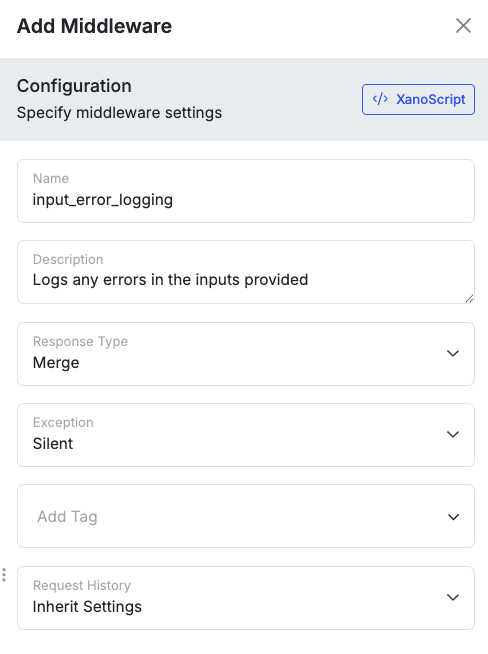
Give your middleware a name, description, and any tags you'd like to apply. Choose your response type and exception method.
 A basic middleware in XanoScript has three parts — **inputs**, **functions**, and **response** — just like in the visual builder:
```javascript lines icon="code" Example of a basic middleware in XanoScript theme={null}
middleware check_banned_user {
description = "Checks to see if a banned user is attempting to perform any action, and if so, blocks it"
input {
json vars
enum type {
values = ["pre", "post"]
}
}
stack {
db.get user {
field_name = "id"
field_value = $auth.id
} as $user1
precondition ($user1.banned == false) {
error_type = "unauthorized"
error = "Your account has been suspended."
}
}
response {
value = {user1: $user1}
}
response_strategy = "merge"
exception_policy = "critical"
tags = ["user actions"]
```
For more information on how to build middleware in XanoScript, see the XanoScript Middleware documentation.
Once you've build your middleware, you'll need to apply it to the workflows you want it to run with.
## Applying Middleware to Workflows
Middleware can be applied at the workspace level, workflow group level (like API groups), or onto individual workflows. If no customizations are set on a workflow, it will inherit middleware settings from their parent object, such as the group they reside in or the workspace.
You can quickly disable middleware by clicking the toggle and remove it completely from the object by clicking the .
### Workspace level
Click Middleware in the left-hand navigation. On the middleware screen, click Manage Global Defaults.
Alternatively, you can click the in the top right anywhere in Xano and choose Middleware Defaults from the modal that opens.
Middleware Defaults will only be available once you have at least one middleware built. Until then, you'll simply be redirected to the Middleware section.
Select the workflow type you want to apply your middleware to. You can choose from:
* APIs
* AI Tools
* Functions
* Tasks
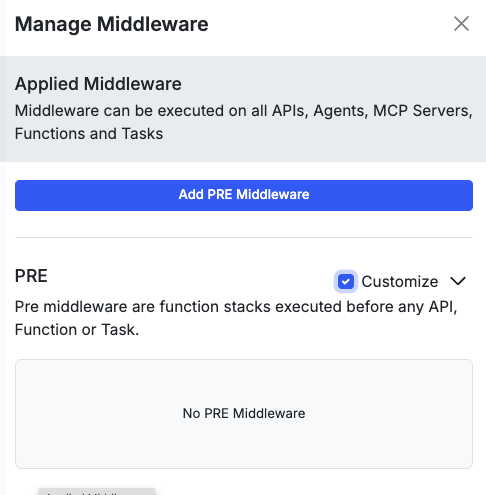
Click Add on either PRE or POST middleware to apply one of your created middleware to that section.
### Applying middleware to a workflow group
Group level middleware only applies to APIs.
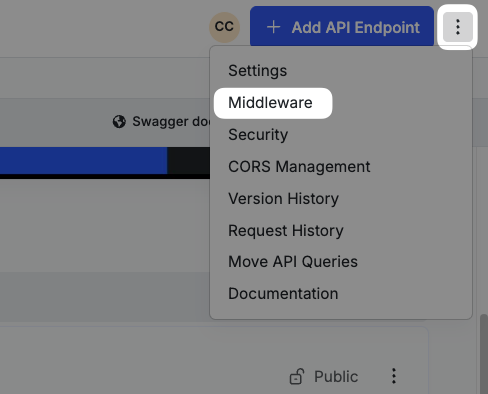
From an API group, click and select Middleware.
A basic middleware in XanoScript has three parts — **inputs**, **functions**, and **response** — just like in the visual builder:
```javascript lines icon="code" Example of a basic middleware in XanoScript theme={null}
middleware check_banned_user {
description = "Checks to see if a banned user is attempting to perform any action, and if so, blocks it"
input {
json vars
enum type {
values = ["pre", "post"]
}
}
stack {
db.get user {
field_name = "id"
field_value = $auth.id
} as $user1
precondition ($user1.banned == false) {
error_type = "unauthorized"
error = "Your account has been suspended."
}
}
response {
value = {user1: $user1}
}
response_strategy = "merge"
exception_policy = "critical"
tags = ["user actions"]
```
For more information on how to build middleware in XanoScript, see the XanoScript Middleware documentation.
Once you've build your middleware, you'll need to apply it to the workflows you want it to run with.
## Applying Middleware to Workflows
Middleware can be applied at the workspace level, workflow group level (like API groups), or onto individual workflows. If no customizations are set on a workflow, it will inherit middleware settings from their parent object, such as the group they reside in or the workspace.
You can quickly disable middleware by clicking the toggle and remove it completely from the object by clicking the .
### Workspace level
Click Middleware in the left-hand navigation. On the middleware screen, click Manage Global Defaults.
Alternatively, you can click the in the top right anywhere in Xano and choose Middleware Defaults from the modal that opens.
Middleware Defaults will only be available once you have at least one middleware built. Until then, you'll simply be redirected to the Middleware section.
Select the workflow type you want to apply your middleware to. You can choose from:
* APIs
* AI Tools
* Functions
* Tasks
Click Add on either PRE or POST middleware to apply one of your created middleware to that section.
### Applying middleware to a workflow group
Group level middleware only applies to APIs.
From an API group, click and select Middleware.
 ### Applying middleware to an individual workflow
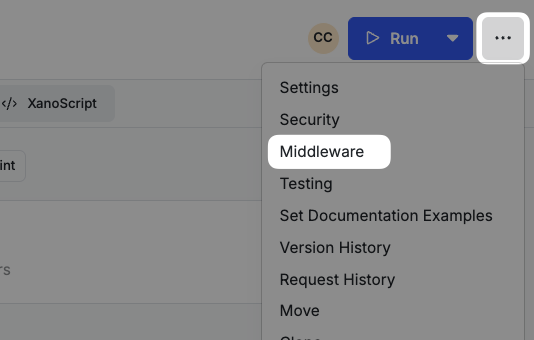
From the workflow, click and select Middleware.
### Applying middleware to an individual workflow
From the workflow, click and select Middleware.
## Handling public and authenticated requests
When you apply middleware globally — such as an audit log that runs on every API — it will execute on both authenticated **and** public endpoints. Public endpoints (and any endpoint reached without a valid token) don't have an authenticated user, so you can't assume `$auth` is populated.
If your middleware references `$auth.id` directly, an unauthenticated request can fail. The two things to watch for are:
* **Reading the user.** On a request without a valid token, there is no authenticated user, so `$auth.id` throws an error when referencing normally, or a `0` in expressions, rather than a real record ID. Looking up `$auth.id` via an expression is a quick and easy way to handle both cases.
* **Writing the user.** If you store the user ID on a record (like an audit log), the column must accept an empty value. Make the `auth_id` (or `user_id`) column **nullable** in your table so the Add Record step succeeds when no user is present.
Give logging or monitoring middleware an exception method of `silent` so a hiccup in the middleware never blocks the underlying request. Use `critical` only when the middleware is meant to gate access (like the banned-user check above).
The pattern below normalizes the missing user to `null` before logging, so the same middleware works on public and authenticated endpoints alike.
Add a **Create Variable** step (for example, `user_id`) and set its value to an expression, `$auth.id` -- if `auth.id` is populated, this will contain the user ID. If it isn't, it will contain `0`.
Add a **Conditional** step to check if `user_id` = `0`, and if it does, update it to `null`.
Add an **Add Record** step that writes `user_id` along with any other details you want to capture. Make sure the target column allows null values. This will write `null` if no token was sent, or the actual `$auth.id` if a valid token is sent with the request.
```javascript theme={null}
// Logs every request; user_id is null for unauthenticated calls
middleware audit_log {
input {
json vars
enum type {
values = ["pre", "post"]
}
}
stack {
var $user_id {
value = `$auth.id`
}
// Turn the anonymous 0 into a real null for the column.
conditional {
if ($user_id == 0) {
var.update $user_id {
value = null
}
}
}
db.add audit_log {
data = {
user_id : $user_id
request_type: $input.type
created_at : now
}
} as $log_entry
}
response = {log_entry: $log_entry}
response_strategy = "merge"
exception_policy = "silent"
tags = ["logging"]
}
```