> ## Documentation Index
> Fetch the complete documentation index at: https://docs.xano.com/llms.txt
> Use this file to discover all available pages before exploring further.
# Workspace Triggers
> Workspace triggers are workflows that will run when certain actions happen in the workspace.
Workspace triggers are workflows that will run when certain actions happen in the workspace.
Workspace triggers have predefined inputs that can not be changed. These inputs are:
* `to_branch` - The branch that is being merged into
```json theme={null}
{
"id": 1,
"label": "main"
}
```
* `from_branch` - The branch that is being merged from
```json theme={null}
{
"id": 2,
"label": "dev"
}
```
* `action` - The action that triggered the trigger (`branch_live`, `branch_merge`, `branch_new`)
## Creating a Workspace Trigger
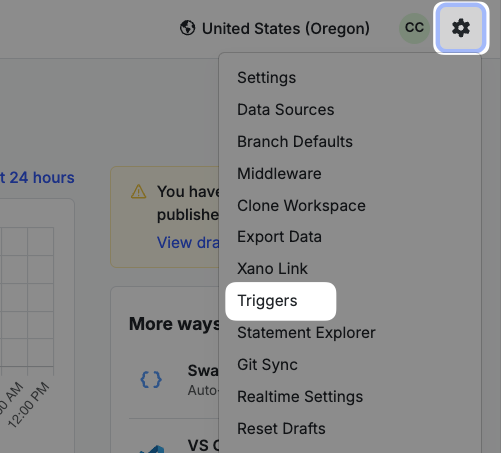
Click the⚙️ button in the top-right corner of your workspace dashboard and select Triggers.
Click Add Workspace Trigger.
Give your trigger a name, a description, and any tags you'd like.
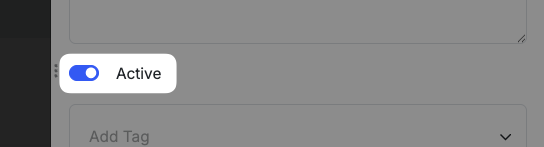
Make sure to toggle your Active status to off if you don't want the trigger to run as you build and test.
 Select the **action(s)** that will execute this trigger.
**Branch Live**\
Any time a branch status is set to live
**Branch Merge**\
When a branch is merged
**Branch New**\
When a new branch is created
Click Save.
Now, you can build your trigger logic.
Triggers in XanoScript have three sections: **inputs**, **logic**, and **actions**.
**Inputs** are the data that will be available to the trigger.
**Logic** is the actual logic that will be executed when the trigger fires.
**Actions** are the actions that will be executed when the trigger fires.
Here's an example of a basic workspace trigger in XanoScript:
```javascript lines icon="code" Example of a basic workspace trigger in XanoScript theme={null}
workspace_trigger notify_on_branch_change {
description = "Sends an email to the admin on branch activities"
input {
object to_branch {
schema {
int id
text label
}
}
object from_branch {
schema {
int id
text label
}
}
enum action {
values = ["branch_live", "branch_merge", "branch_new"]
}
}
stack {
util.send_email {
api_key = ""
service_provider = "xano"
subject = "Branch activity has occurred"
message = $input.action
bcc = []
cc = []
from = ""
reply_to = ""
scheduled_at = ""
} as $x1
}
actions = {branch_live: true, branch_merge: true, branch_new: true}
}
```
For more information on how to build workspace triggers in XanoScript, see the XanoScript Workspace Triggers documentation.
Select the **action(s)** that will execute this trigger.
**Branch Live**\
Any time a branch status is set to live
**Branch Merge**\
When a branch is merged
**Branch New**\
When a new branch is created
Click Save.
Now, you can build your trigger logic.
Triggers in XanoScript have three sections: **inputs**, **logic**, and **actions**.
**Inputs** are the data that will be available to the trigger.
**Logic** is the actual logic that will be executed when the trigger fires.
**Actions** are the actions that will be executed when the trigger fires.
Here's an example of a basic workspace trigger in XanoScript:
```javascript lines icon="code" Example of a basic workspace trigger in XanoScript theme={null}
workspace_trigger notify_on_branch_change {
description = "Sends an email to the admin on branch activities"
input {
object to_branch {
schema {
int id
text label
}
}
object from_branch {
schema {
int id
text label
}
}
enum action {
values = ["branch_live", "branch_merge", "branch_new"]
}
}
stack {
util.send_email {
api_key = ""
service_provider = "xano"
subject = "Branch activity has occurred"
message = $input.action
bcc = []
cc = []
from = ""
reply_to = ""
scheduled_at = ""
} as $x1
}
actions = {branch_live: true, branch_merge: true, branch_new: true}
}
```
For more information on how to build workspace triggers in XanoScript, see the XanoScript Workspace Triggers documentation.