> ## Documentation Index
> Fetch the complete documentation index at: https://docs.xano.com/llms.txt
> Use this file to discover all available pages before exploring further.
# Variables
> Variables are used to store temporary information that you need to access later in a workflow
## What are variables?
Variables are like containers or labels that store information you want to use later in a workflow. Think of them as named boxes where you can keep different types of items, such as numbers, words, or lists. You give each box a name so you can easily find and use the information it holds whenever you need it in your project. This makes it simple to update or change the data without needing to rewrite everything.
Variables are temporary and exist only while a workflow is running, used for storing information you need to access quickly, whereas values in a database are like records in a filing cabinet, stored permanently until you decide to update or delete them, accessible across various workflows and sessions. This makes databases ideal for managing large sets of data over time, and variables more appropriate for temporary data handling.
## Creating a variable
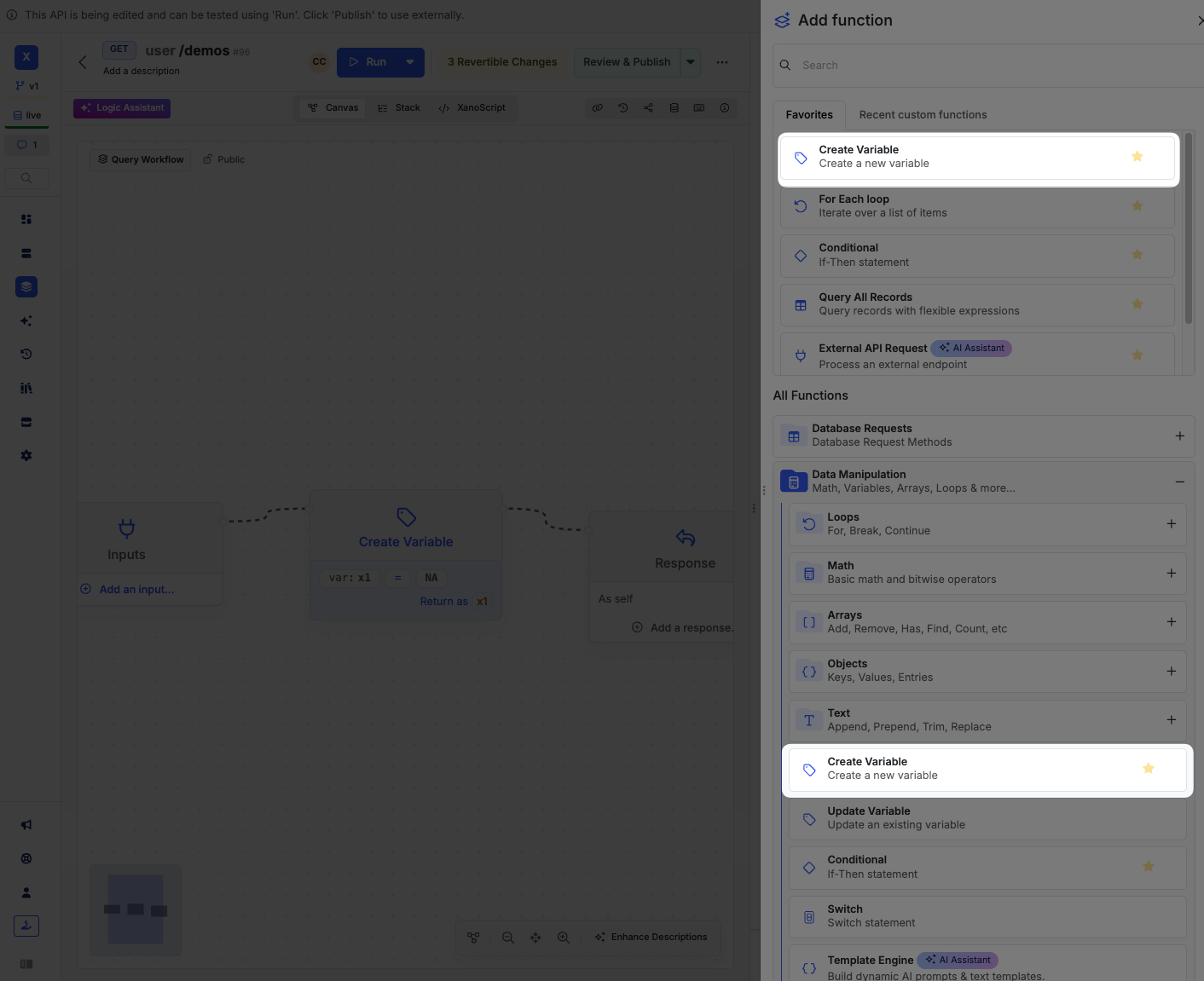
You'll find this function as a default favorite at the top of the function menu, or inside of the Data Manipulation section.
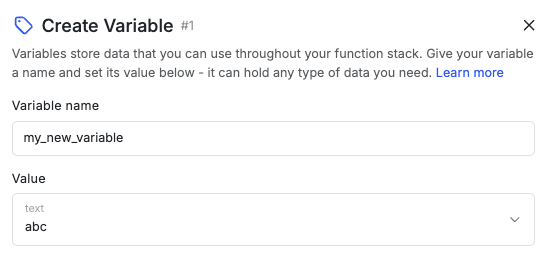
 The variable name should be a descriptive name that you can easily recognize. Names can only contain letters, numbers, and underscores, and must start with a letter. The value can be anything you'd like, from simple text and integers all the way to large, complex data types.
You can also just establish an empty variable by leaving the value blank if you're going to add a value later.
The variable name should be a descriptive name that you can easily recognize. Names can only contain letters, numbers, and underscores, and must start with a letter. The value can be anything you'd like, from simple text and integers all the way to large, complex data types.
You can also just establish an empty variable by leaving the value blank if you're going to add a value later.
 ## Using a variable
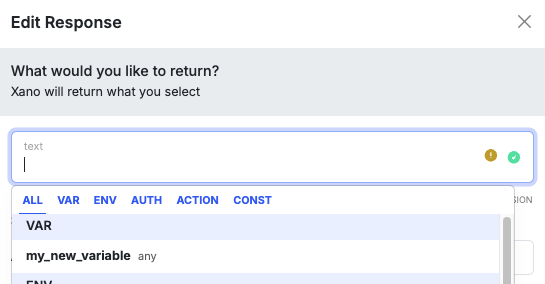
Inside of your logic, you can reference the variable by using the variable name. You'll find it under the **VAR** dropdown, or you can just type the variable name directly into the value field.
## Using a variable
Inside of your logic, you can reference the variable by using the variable name. You'll find it under the **VAR** dropdown, or you can just type the variable name directly into the value field.
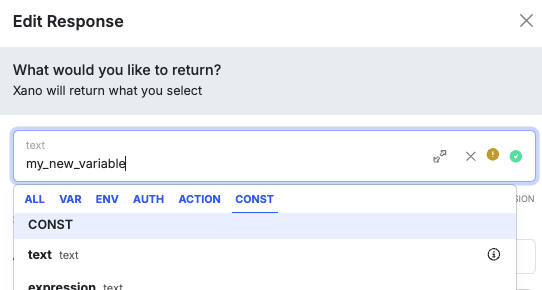
Need to specify a value that's the same as the variable name? Click the **CONST** section and choose the `text` data type.
 ## Updating a variable
If you need to update a variable, you can use the **Update Variable** function. This will overwrite the existing value with the new one.
## Updating a variable
If you need to update a variable, you can use the **Update Variable** function. This will overwrite the existing value with the new one.
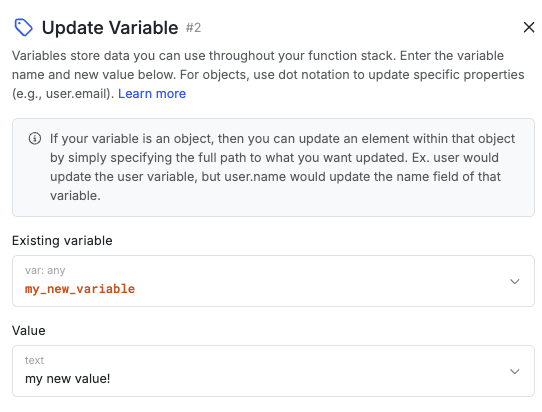 Remember, you can use [dot notation](/building/logic/working-with-data/dot-notation) to target a specific piece of data inside of the variable if it's an array or object.
## Deleting a variable
There is no 'delete variable' function, but you can overwrite the variable with an empty value to effectively delete it. However, usually this is not necessary, as variables are automatically deleted when the logic is complete.
Remember, you can use [dot notation](/building/logic/working-with-data/dot-notation) to target a specific piece of data inside of the variable if it's an array or object.
## Deleting a variable
There is no 'delete variable' function, but you can overwrite the variable with an empty value to effectively delete it. However, usually this is not necessary, as variables are automatically deleted when the logic is complete.