---
description: Deploy LLMs as a part of your Xano instance
---
# Ollama
{% hint style="info" %}
## Quick Summary
Through Xano's Microservice feature, you can deploy [Ollama](https://ollama.com/) as a part of your Xano instance, enabling secure communication with an off-the-shelf or customizable LLM tailored specifically to your needs.
{% endhint %}
{% embed url="https://youtu.be/rOvBC1nppCs" %}
## What is Ollama?
Ollama is a platform that enables seamless integration of large language models (LLMs) into various applications. It provides an environment where businesses can deploy pre-built or customized LLMs, facilitating secure and efficient communication tailored to specific business needs.
This makes it easier for companies to leverage advanced AI technology without extensive in-house development, and without the concerns of sending data to a third-party AI provider. In addition, deploying Ollama as a part of your Xano instance can be a significant cost-saving measure in comparison to leveraging a third party service.
## What can I do with Ollama + Xano?
Deploying Ollama as a microservice in Xano helps address a **critical data privacy challenge** when building AI-enabled applications that handle sensitive information.
By processing data within your controlled infrastructure boundary rather than sending it to external AI providers, using Xano with microservices removes one significant barrier to developing secure applications that can still leverage the benefits of AI models.
{% hint style="success" %}
_While this approach addresses an important technical aspect of data privacy, comprehensive security and compliance will require implementing additional safeguards appropriate to your specific regulatory environment._
{% endhint %}
## Getting Started
{% stepper %}
{% step %}
### If you're not on an Enterprise plan, reach out to our team to get started.
Talk to Sales
{% endstep %}
{% step %}
### Head to your instance settings, and select Microservices
{% endstep %}
{% step %}
### Choose a model to deploy
You'll want to know which model you're deploying so we understand the resources that need to be allocated. Check out the resource linked below if you need help choosing a model.
[choosing-a-model](ollama/choosing-a-model "mention")
{% endstep %}
{% step %}
### Add a persistent volume
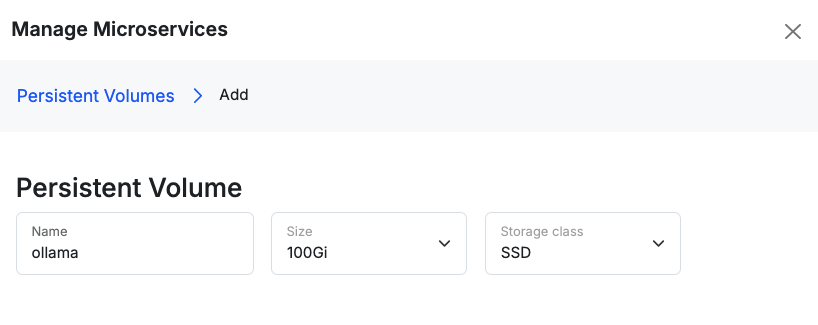
A persistent volume is just a place that the microservice can store data that remains between restarts. Ollama will use this volume to store the model(s) that you're working with.
{% hint style="info" %}
## How much storage do I need?
When browsing Ollama models, use the Size column for your chosen model to determine how large of a volume you should deploy. Make sure to add a little extra when creating your volume, just for some breathing room.

{% endhint %}
Name the volume `ollama`, select the size, and choose `SSD` as the storage class. When you're ready, click Add
{% endstep %}
{% step %}
### Add a deployment
Click Add under Deployments
Fill out the following information. For this example, we'll be deploying the `phi3:mini` model, which should work with the following example values.
| Parameter | Purpose | Example Value |
| ---------------------- | ---------------------------------------------------------------------- | ---------------------- |
| Deployment Name | Name of the deployment | `ollama` |
| Replicas | Number of container instances | `1` |
| Docker Config | Source of the Docker image | `public repo` |
| Deployment Strategy | Update strategy | `RollingUpdate` |
| Container Name | Name of the container | `ollama` |
| Container Type | Container type | `Standard` |
| Docker Image | Docker image to use | `ollama/ollama` |
| Container Port | Port the container listens on | `11434` |
| Service Port | Port exposed to the service | `11434` |
| Persistent Volume Name | Name of the persistent storage volume you created in the previous step | `ollama` |
| Volume Type | Volume type | `Persistent Volume` |
| Mount Path | Path in container where volume is mounted | `/root/.ollama/models` |
| Min CPU | Minimum CPU allocation | `500m` |
| Max CPU | Maximum CPU allocation | `2000m` |
| Min RAM | Minimum RAM allocation | `4096Mi` |
| Max RAM | Maximum RAM allocation | `8192Mi` |
Click Add and then Update & Deploy
{% endstep %}
{% step %}
### Deploy your chosen model
All interactions with Xano microservices are facilitated by the Microservice function, which is a REST API request to your chosen microservice.
Use the cURL below to get started. Add a Microservice function to your function stack, and click Import cURL
```bash
curl -X POST http://localhost:11434/api/pull \
-H "Content-Type: application/json" \
-d '{
"name": "phi3:mini"
}'
```
{% hint style="warning" %}
Please note that the **`Content-Type: application/json`** header is **required**, or your requests will fail.
{% endhint %}
Click on the `host` dropdown and choose your deployment, likely called `ollama`
Change the timeout to a value that will allow you to monitor the deployment right inside of Xano. Below are some recommended values. You can also monitor the deployment via the logs of the microservice, available from your instance settings where you deployed the microservice earlier.
| `phi3:mini` (\~5 GB) | 10–60 seconds | **5 min (300s)** |
| -------------------- | ------------- | ---------------- |
| `mistral:7b` (\~8 GB) | 30–120 seconds | **5–10 min (300–600s)** |
| --------------------- | -------------- | ----------------------- |
| `llama3:70b` (\~40 GB) | 5–20 minutes or more | **15–30 min** |
| ---------------------- | -------------------- | ------------- |
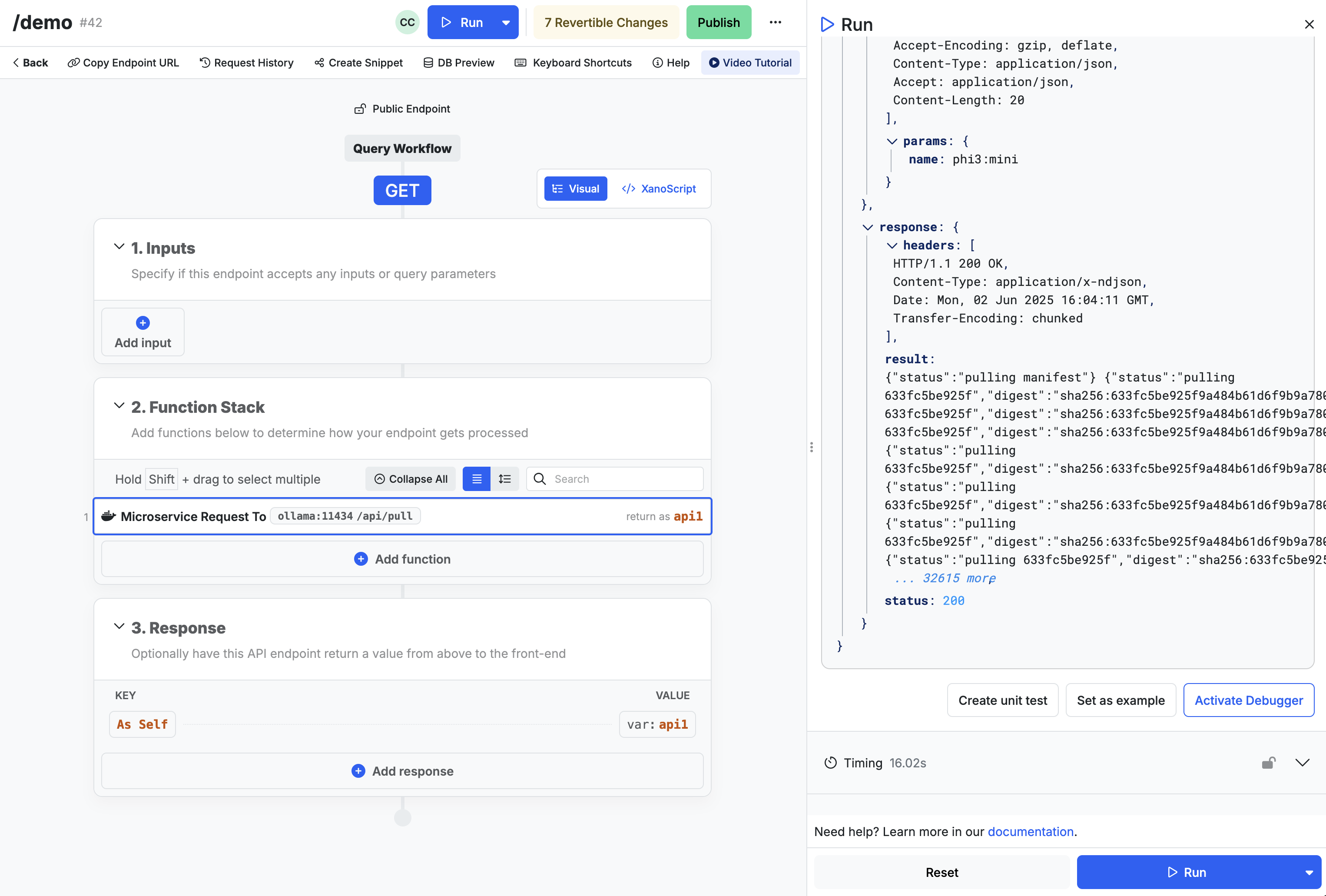
Once the model has downloaded, you'll be returned a 200 status response, as shown below. The model will be saved to your persistent storage volume, so you should only have to do this once.
{% endstep %}
{% step %}
### Interact with your Ollama deployment
You're ready to receive generations from your Ollama microservice. Here's an example cURL command to get you started.
```bash
curl -X POST http://localhost:11434/api/generate \
-H "Content-Type: application/json" \
-d '{
"model": "phi3:mini",
"prompt": "Explain the difference between supervised and unsupervised learning.",
"stream": false
}'
```
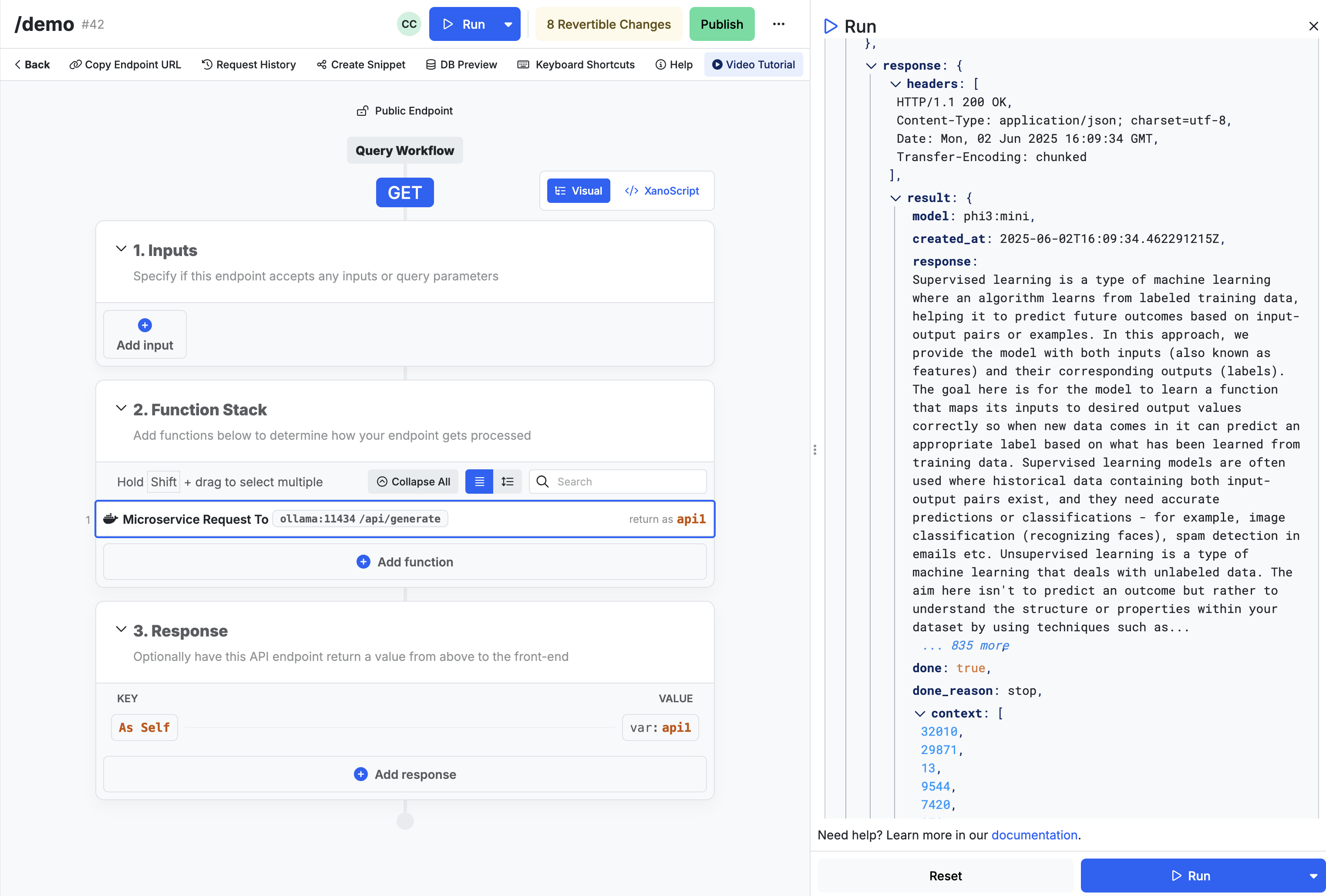
The above command will return an output like the one shown below.
{% endstep %}
{% step %}
### What's next?
Ollama offers a set of standard commands that can be issued via REST API endpoints. You can review them [here](https://www.postman.com/postman-student-programs/ollama-api/documentation/suc47x8/ollama-rest-api), and use them as necessary inside of your function stacks.
{% endstep %}
{% endstepper %}