> ## Documentation Index
> Fetch the complete documentation index at: https://docs.xano.com/llms.txt
> Use this file to discover all available pages before exploring further.

# Get Started

> Go from zero to a live backend in minutes.

export const BrowserFrame = props => {
  const {url = "xano.run", maxWidth = 820, className = "", lightSrc, darkSrc, alt = "", children} = props || ({});
  const style = typeof maxWidth === "number" ? {
    maxWidth: `${maxWidth}px`,
    margin: "16px 0"
  } : {
    maxWidth,
    margin: "16px 0"
  };
  const hasSwapImages = Boolean(lightSrc && darkSrc);
  return <div className={`browser-frame ${className}`.trim()} style={style}>
      <div className="browser-frame__top">
        <div className="browser-frame__controls" aria-hidden="true">
          <span className="browser-frame__dot browser-frame__dot--red" />
          <span className="browser-frame__dot browser-frame__dot--yellow" />
          <span className="browser-frame__dot browser-frame__dot--green" />
        </div>
        <div className="browser-frame__address">{url}</div>
      </div>

      <div className="browser-frame__body">
        {hasSwapImages ? <>
            <img className="browser-frame__img--light" src={lightSrc} alt={alt} />
            <img className="browser-frame__img--dark" src={darkSrc} alt={alt} />
          </> : children}
      </div>
    </div>;
};

Xano is a secure, scalable backend-as-a-service platform that gives you everything you need to build and operate your backend — without managing infrastructure. Build fast with AI, then validate and refine visually with full transparency into your core business logic.

* Build your backend with AI using [Xano Agent](/building/xano-agent), code-first tools like Claude Code and Cursor, or the built-in AI assistants
* Power your entire backend — APIs, workflows, database, runtime, CI/CD, and observability
* Maintain complete visibility into your business logic with visual validation, audit trails, and standardized architecture
* Deploy and scale on enterprise-grade infrastructure with HIPAA compliance, SOC 2 certification, GDPR readiness — without managing DevOps

***

## Build your first backend

Xano gives you multiple ways to build — pick whichever fits how you like to work. Everything you create in one mode is fully visible and editable in the others, so you can switch freely at any time.

<div className="hero-tabs">
  <Tabs>
    <Tab title="Xano Agent" icon="wand-magic-sparkles">
      Xano Agent is an AI assistant built into Xano that can build your entire backend from a prompt. Describe what you need — tables, APIs, auth, business logic — and Xano Agent writes the XanoScript, presents a plan, and lets you review every change before publishing.

      <Steps>
        <Step title="Open Xano Agent">
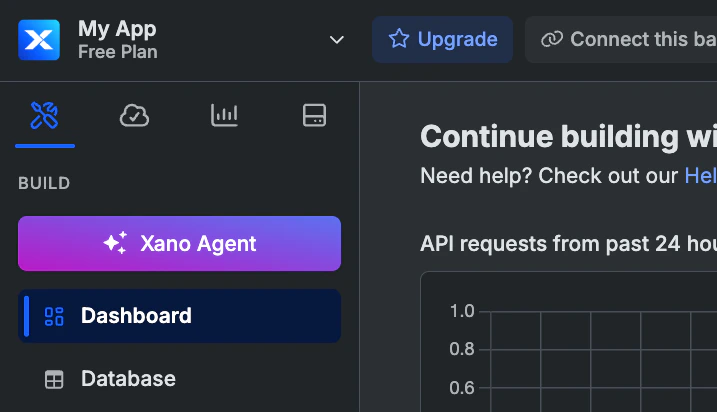
          Open Xano Agent from inside your workspace by clicking <span class="ui-bubble"><Icon icon="sparkles" /> Xano Agent</span>. You'll see a chat interface where you can describe what you want to build.

          <img src="https://mintcdn.com/xano-997cb9ee/u_g5-r-qvFva-q2Y/images/index-20260420-153047.png?fit=max&auto=format&n=u_g5-r-qvFva-q2Y&q=85&s=3201b3d9d28291d7c541784b6a031c21" alt="index-20260420-153047" width="717" height="412" data-path="images/index-20260420-153047.png" />
        </Step>

        <Step title="Describe your backend">
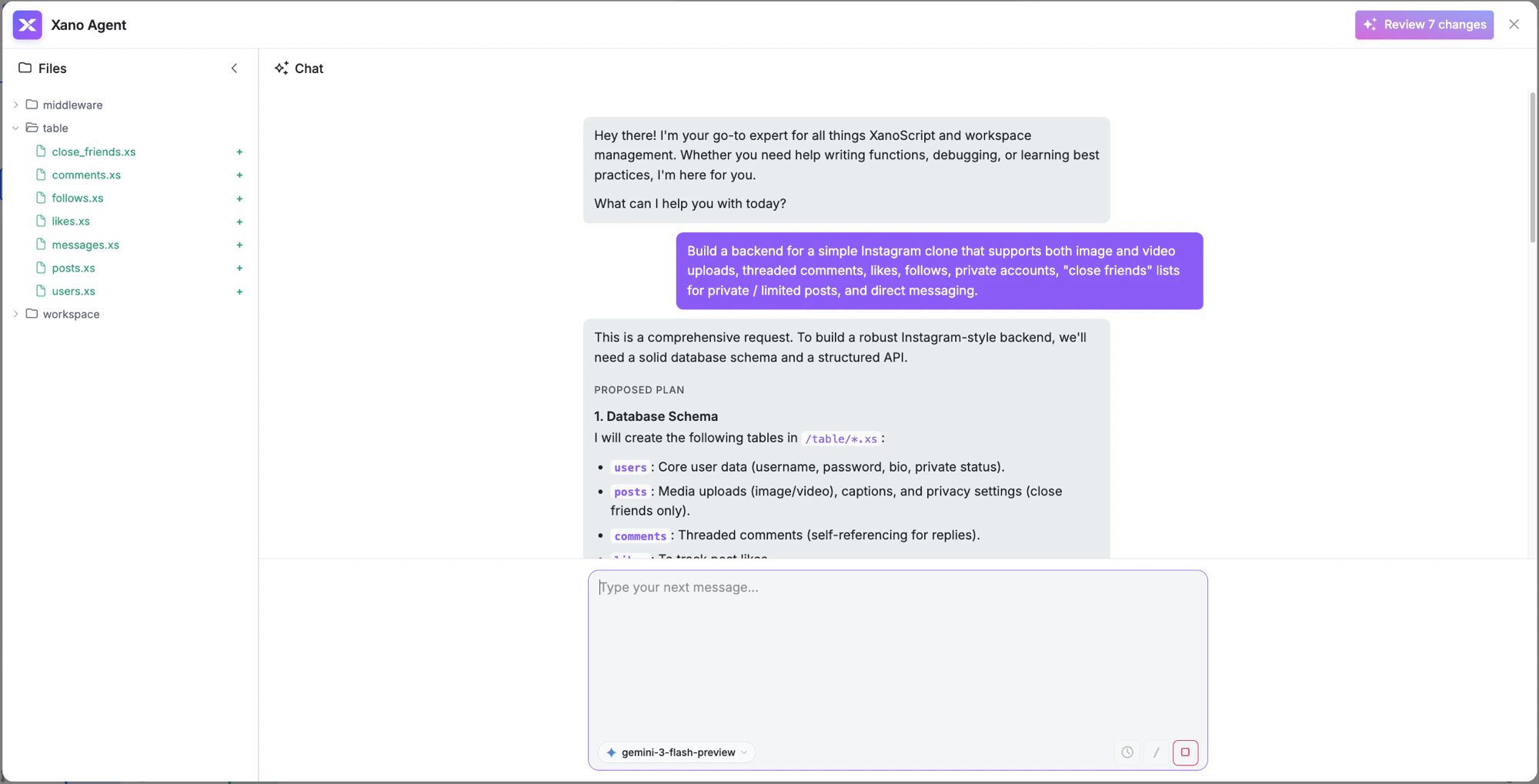
          Tell Xano Agent what you need. Be as specific as you like — it handles everything from simple CRUD to complex multi-table schemas with auth, relationships, and business logic.

          For example:

          > Build a backend for a simple Instagram clone that supports both image and video uploads, threaded comments, likes, follows, private accounts, "close friends" lists for private / limited posts, and direct messaging.

          <img src="https://mintcdn.com/xano-997cb9ee/GGKkNaTQIWPG92tN/images/xano-agent-chat.png?fit=max&auto=format&n=GGKkNaTQIWPG92tN&q=85&s=41c2dd01f64c486a5f81998691d64322" alt="Xano Agent chat" width="2000" height="1019" data-path="images/xano-agent-chat.png" />
        </Step>

        <Step title="Review the output">
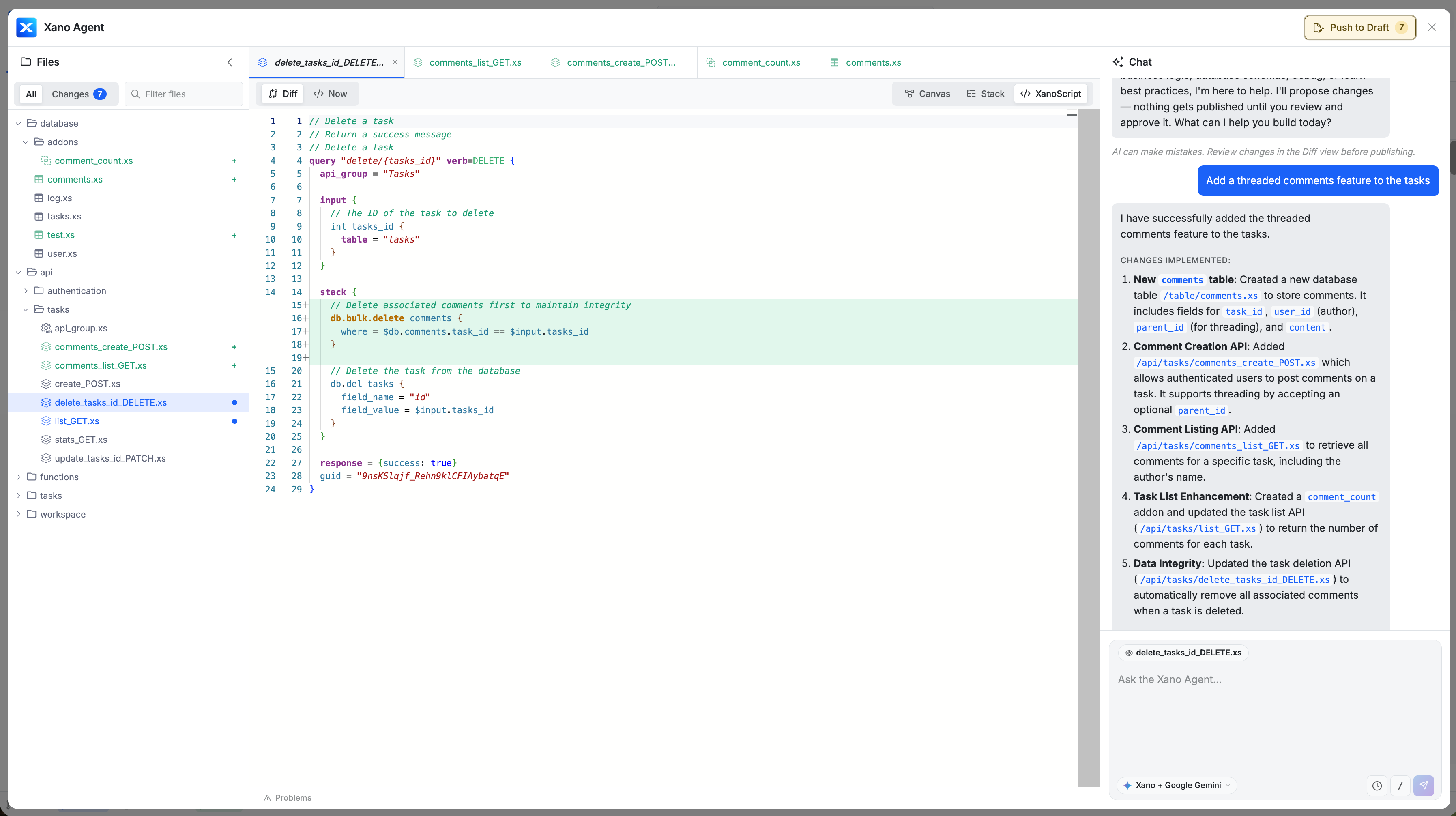
          Xano Agent creates database tables, API endpoints, middleware, and any other resources your backend needs. You can inspect the generated XanoScript in the code editor and toggle between Canvas, Stack, and XanoScript views.

          <img src="https://mintcdn.com/xano-997cb9ee/GGKkNaTQIWPG92tN/images/xano-agent-code-view.png?fit=max&auto=format&n=GGKkNaTQIWPG92tN&q=85&s=507b8c57d197bb6151592c031af2d888" alt="Xano Agent code view" width="2000" height="1021" data-path="images/xano-agent-code-view.png" />
        </Step>

        <Step title="Review changes and publish">
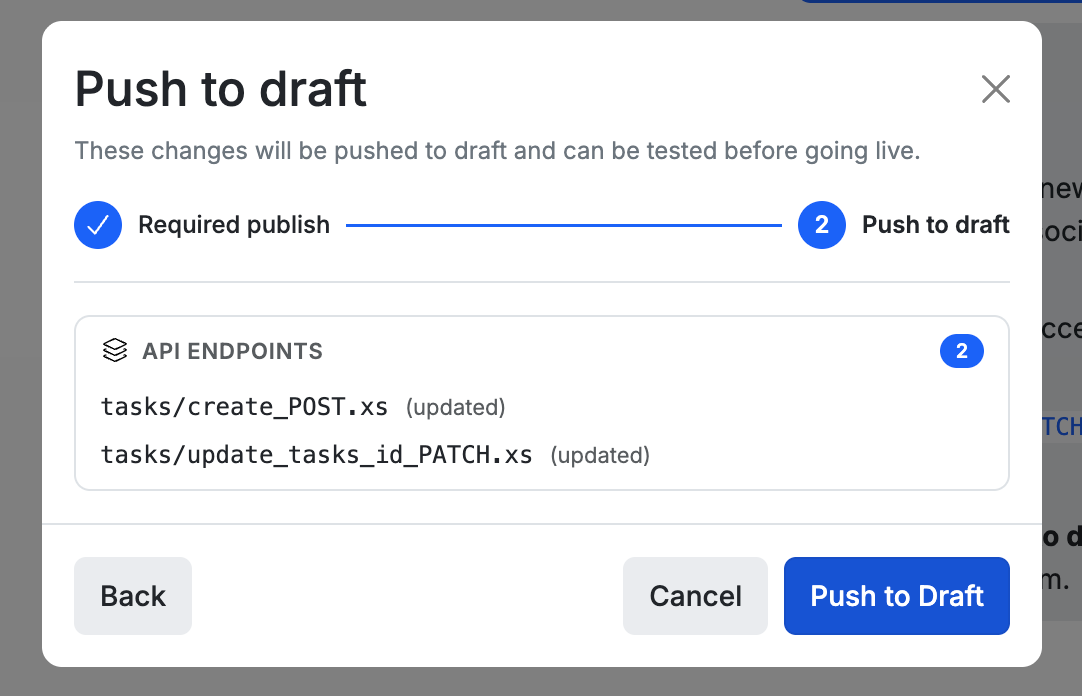
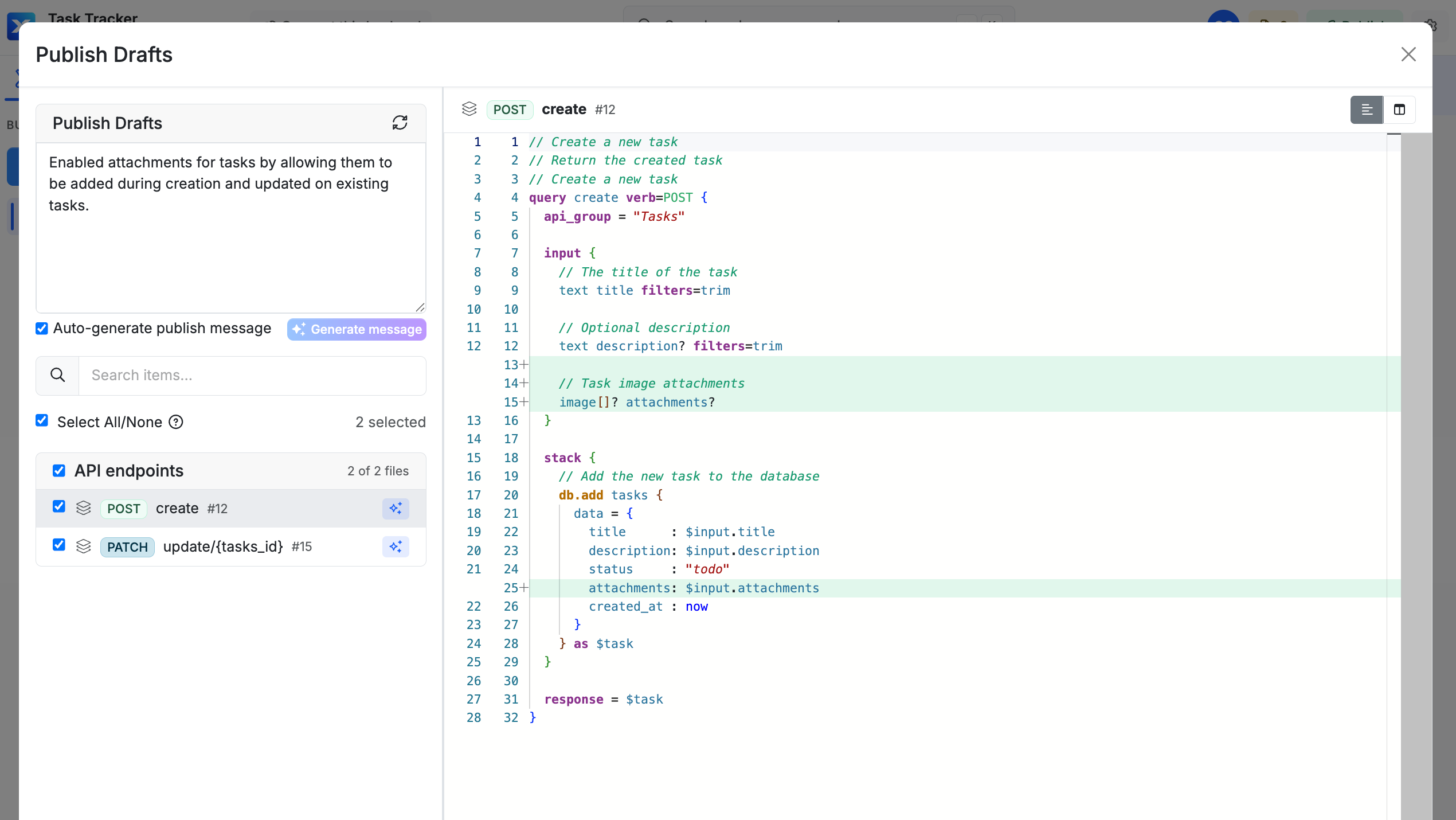
          Click **Review Changes** to see a full diff of everything that was created or modified. When you're ready, push to draft or publish directly.

          <img src="https://mintcdn.com/xano-997cb9ee/GGKkNaTQIWPG92tN/images/xano-agent-review-changes.png?fit=max&auto=format&n=GGKkNaTQIWPG92tN&q=85&s=e7344d2cae05e62c5658699e6a873376" alt="Xano Agent review changes" width="2000" height="1021" data-path="images/xano-agent-review-changes.png" />

          Your backend is now live. Open it in the Xano dashboard to see everything the agent built — fully visible and editable in the visual builder.
        </Step>
      </Steps>

      <Card title="Learn more about Xano Agent" icon="wand-magic-sparkles" href="/building/xano-agent">
        See the full guide — tips for effective prompts, what Xano Agent can build, and how it compares to other AI tools in Xano.
      </Card>
    </Tab>

    <Tab title="CLI or IDE" icon="terminal">
      This guide walks you through setting up a local XanoScript development workflow using the **Xano CLI** and **Claude Code**. The CLI syncs your workspace to Xano; Claude Code writes the XanoScript.

      **Prerequisites:** [Node.js](https://nodejs.org/) 18+, [VS Code](https://code.visualstudio.com/), and [Git](https://git-scm.com/downloads) installed.

      <div className="qs-step">
        <div className="qs-step-number">1</div>

        ### Install Claude Code

        Install [Claude Code](https://docs.anthropic.com/en/docs/claude-code/overview) — the AI assistant you'll use to write and modify XanoScript locally.

        ```bash theme={null}
        npm install -g @anthropic-ai/claude-code
        ```
      </div>

      <div className="qs-step">
        <div className="qs-step-number">2</div>

        ### Install the Xano CLI

        Install the [Xano CLI](/xano-cli/get-started) globally using npm:

        ```bash theme={null}
        npm install -g @xano/cli
        ```
      </div>

      <div className="qs-step">
        <div className="qs-step-number">3</div>

        ### Authenticate

        Connect the CLI to your Xano account. This opens your browser to log in, then guides you through selecting your instance, workspace, and branch.

        ```bash theme={null}
        xano auth
        ```

        If you don't have a Xano account yet, you can create one for free during this step.
      </div>

      <div className="qs-step">
        <div className="qs-step-number">4</div>

        ### Pull your workspace

        Download your workspace as local XanoScript files — this is where Claude Code will read and write changes.

        ```bash theme={null}
        xano workspace pull -d ./my-workspace
        ```

        <Tip>
          **Starting fresh?** Create a new workspace first with `xano workspace create "My App"`, then pull it.
        </Tip>

        <Icon icon="https://mintcdn.com/xano-997cb9ee/aZQYcxhIvSDTNEim/images/icons/githublogo_light.svg?fit=max&auto=format&n=aZQYcxhIvSDTNEim&q=85&s=7dca4ac53d7714c0be1c31479bf09a64" size={16} width="1024" height="1024" data-path="images/icons/githublogo_light.svg" /><Icon icon="https://mintcdn.com/xano-997cb9ee/aZQYcxhIvSDTNEim/images/icons/githublogo_dark.svg?fit=max&auto=format&n=aZQYcxhIvSDTNEim&q=85&s=f7cbc0394ba9e71c3ec33e07c86b85ae" size={16} width="1024" height="1024" data-path="images/icons/githublogo_dark.svg" /> We recommend initializing a Git repository in your workspace folder so you can track and review exactly what changed before each push.
      </div>

      <div className="qs-step">
        <div className="qs-step-number">5</div>

        ### Open in VS Code

        Open the workspace folder in VS Code, then install the [XanoScript Language Server](https://marketplace.visualstudio.com/items?itemName=xano.xanoscript-language-server) extension. This provides syntax highlighting, inline validation, and autocomplete for `.xs` files — without it, they appear as plain text with no error feedback.

        <Warning>
          **Already using the full XanoScript extension?** If you want to keep it for push/pull, that's fine — but delete any `agents.md` or other `.md` artifact files it created in your workspace root, as these can conflict with the Developer MCP and confuse AI assistants.
        </Warning>
      </div>

      <div className="qs-step">
        <div className="qs-step-number">6</div>

        ### Connect the Developer MCP

        In the VS Code terminal, add the [Developer MCP](/developer-mcp/get-started) to your project. This gives Claude Code direct access to XanoScript documentation and real-time code validation — significantly improving the quality of AI-generated XanoScript.

        ```bash theme={null}
        claude mcp add xano -- npx -y @xano/developer-mcp
        ```

        <Tip>
          **Install Xano Skills too.** Alongside the MCP, Xano ships two agent skills — `xano-init` for guided workspace setup and `xanoscript-docs-expert` for deep XanoScript reference. Install both into Claude Code globally:

          ```bash theme={null}
          npx skills add xano-inc/xano-developer-mcp -a claude-code -g
          ```

          Skills work with Codex, Cursor, Windsurf, and other agents too. See [Xano Skills](/developer-mcp/get-started#xano-skills) for more options.
        </Tip>
      </div>

      <div className="qs-step">
        <div className="qs-step-number">7</div>

        ### Build, review, and push

        Launch Claude Code and describe what you want to build:

        ```bash theme={null}
        claude
        ```

        For example:

        > Create a notes table with title, content, and is\_archived fields. Then create CRUD API endpoints for notes.

        Claude Code will write the XanoScript files directly into your local workspace. When it's done, review what changed in your Git repository before pushing.<br /><br />We recommend pushing yourself from the terminal rather than asking the AI agent to do it — see [Using the CLI with AI Agents](/xano-cli/get-started#using-the-cli-with-ai-agents) for guidance on keeping control of what gets applied.

        On paid plans, `xano workspace push` is blocked by default — you'll push to a [sandbox](/testing-debugging/sandbox) instead. The sandbox spins up an isolated ephemeral environment where you can inspect, test, and review a full diff before anything touches your workspace:

        ```bash theme={null}
        xano sandbox push -d ./my-workspace     # push changes to an isolated sandbox
        xano sandbox preview                 # open the sandbox to review and test
        ```

        From the sandbox preview, click **Review & Push** to see a diff of all changes, choose your target branch, and deploy when ready.

        <Tip>
          **On a free plan?** You can push directly with `xano workspace push -d ./my-workspace`. Use `--dry-run` to preview the impact without applying anything.
        </Tip>

        <Tip>
          Work on a [development branch](/xano-cli/workspaces-and-branches#create-a-branch) to keep your changes separate from the live branch, or use a **secondary workspace** as your development environment to keep your data schema isolated before promoting to production.
        </Tip>
      </div>

      ## <Icon icon="https://mintcdn.com/xano-997cb9ee/Vpka8BlEU-rO5dmS/images/icons/GitHub_light.png?fit=max&auto=format&n=Vpka8BlEU-rO5dmS&q=85&s=a835425bdbc8ee8a1ca4c18ea6a8d7e8" size={24} width="4096" height="4096" data-path="images/icons/GitHub_light.png" /><Icon icon="https://mintcdn.com/xano-997cb9ee/gnZk-FE3FPw_RPZv/images/icons/GitHub_dark.png?fit=max&auto=format&n=gnZk-FE3FPw_RPZv&q=85&s=8c9b58b6a842b6826535ea6d65e675cf" size={24} width="4096" height="4096" data-path="images/icons/GitHub_dark.png" /> <Icon icon="https://mintcdn.com/xano-997cb9ee/aZQYcxhIvSDTNEim/images/icons/gitlab.svg?fit=max&auto=format&n=aZQYcxhIvSDTNEim&q=85&s=8ee5edf2535d88a8b345481d673c1b9e" size={24} width="32" height="32" data-path="images/icons/gitlab.svg" /> Git works like it always has

      Your workspace is plain files on disk. `git init`, commit, branch, open PRs — everything you already do. Xano's CLI push/pull fits right into your existing Git workflow, not the other way around.

      <Icon icon="https://mintcdn.com/xano-997cb9ee/aZQYcxhIvSDTNEim/images/icons/Cursor_light.svg?fit=max&auto=format&n=aZQYcxhIvSDTNEim&q=85&s=c42cd27f6fa1b802cadd5a3514d7ff46" size={20} width="467" height="532" data-path="images/icons/Cursor_light.svg" /><Icon icon="https://mintcdn.com/xano-997cb9ee/aZQYcxhIvSDTNEim/images/icons/Cursor_dark.svg?fit=max&auto=format&n=aZQYcxhIvSDTNEim&q=85&s=1f452577be9e9670a609608506ab5895" size={20} width="467" height="532" data-path="images/icons/Cursor_dark.svg" /> <Icon icon="https://mintcdn.com/xano-997cb9ee/aZQYcxhIvSDTNEim/images/icons/Windsurf_light.svg?fit=max&auto=format&n=aZQYcxhIvSDTNEim&q=85&s=ad7fc1569a810d534939040c60c6cc78" size={20} width="1024" height="1024" data-path="images/icons/Windsurf_light.svg" /><Icon icon="https://mintcdn.com/xano-997cb9ee/aZQYcxhIvSDTNEim/images/icons/Windsurf_dark.svg?fit=max&auto=format&n=aZQYcxhIvSDTNEim&q=85&s=2980a14b21d7c580ffac4b5493d2102c" size={20} width="1024" height="1024" data-path="images/icons/Windsurf_dark.svg" /> <Icon icon="https://mintcdn.com/xano-997cb9ee/aZQYcxhIvSDTNEim/images/icons/OpenAI_light.svg?fit=max&auto=format&n=aZQYcxhIvSDTNEim&q=85&s=8c4486c571ab4c35fe7843ed31718c04" size={20} width="256" height="260" data-path="images/icons/OpenAI_light.svg" /><Icon icon="https://mintcdn.com/xano-997cb9ee/aZQYcxhIvSDTNEim/images/icons/OpenAI_dark.svg?fit=max&auto=format&n=aZQYcxhIvSDTNEim&q=85&s=21a3306ede3f58c2015e3451bc111529" size={20} width="256" height="260" data-path="images/icons/OpenAI_dark.svg" /> <Icon icon="https://mintcdn.com/xano-997cb9ee/aZQYcxhIvSDTNEim/images/icons/vscode.svg?fit=max&auto=format&n=aZQYcxhIvSDTNEim&q=85&s=bb6c91058fcbe6ee28fcda04e03de2e6" size={20} width="100" height="100" data-path="images/icons/vscode.svg" /> Not using Claude Code? The Developer MCP works with any AI tool that supports the Model Context Protocol — including Cursor, Windsurf, Codex, and VS Code Copilot. See the [Developer MCP guide](/developer-mcp/get-started) for setup instructions.
    </Tab>

    <Tab title="Visual editor" icon="brush">
      This guide walks you through running a pre-built signup endpoint, inspecting the steps, and making a small modification to send a welcome email to new users. Xano gives you a `user` table and default `authentication` APIs out of the box, and we'll use those here.

      <Steps>
        <Step title="Open up your auth/signup endpoint">
          Navigate to <span class="ui-bubble">API</span> in the sidebar, choose the Authentication group, and select your auth/signup endpoint.
        </Step>

        <Step title="Test the endpoint">
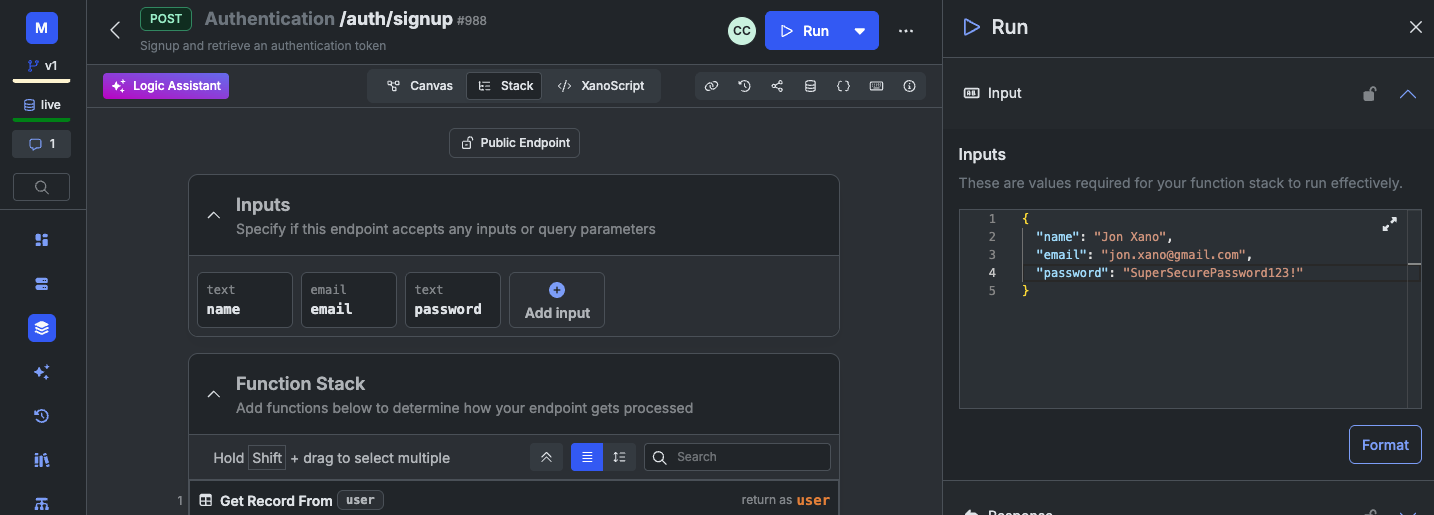
          Click <span class="ui-bubble">Run</span> in the top-right corner.

          Enter a name, email, and a password to create a new user. You'll use this later on, so make sure to remember the credentials you enter here. Click <span class="ui-bubble">Run</span> in the lower-right corner to execute the request.

          <img src="https://mintcdn.com/xano-997cb9ee/TxMj3xizKt6xZHgd/images/getting-started-visual-20260108-172818.png?fit=max&auto=format&n=TxMj3xizKt6xZHgd&q=85&s=9a9f5569d16d02bbbd5d2bc6953932ce" alt="getting-started-visual-20260108-172818" width="1434" height="515" data-path="images/getting-started-visual-20260108-172818.png" />

          If all goes well, you should see a successful response with an <Tooltip tip="Xano generates JWE tokens for authentication. These tokens are secure and can be used to authenticate API requests.">
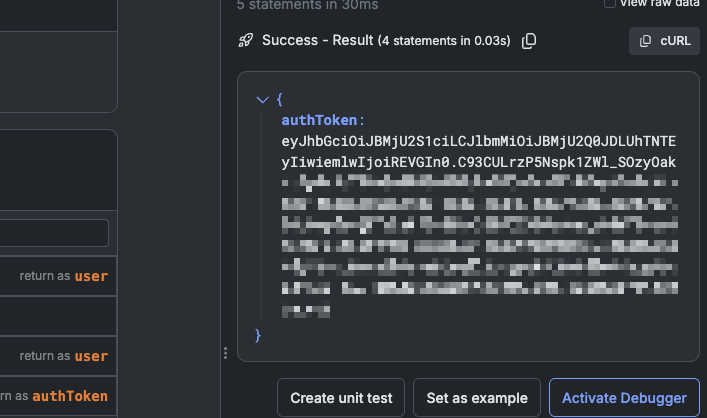
          authentication token
          </Tooltip> returned.

          <img src="https://mintcdn.com/xano-997cb9ee/Vpka8BlEU-rO5dmS/images/index-20260224-120515.png?fit=max&auto=format&n=Vpka8BlEU-rO5dmS&q=85&s=3373767290d4162312780ecaa73198ba" alt="index-20260224-120515" width="707" height="418" data-path="images/index-20260224-120515.png" />
        </Step>

        <Step title="Explore the visual builder">
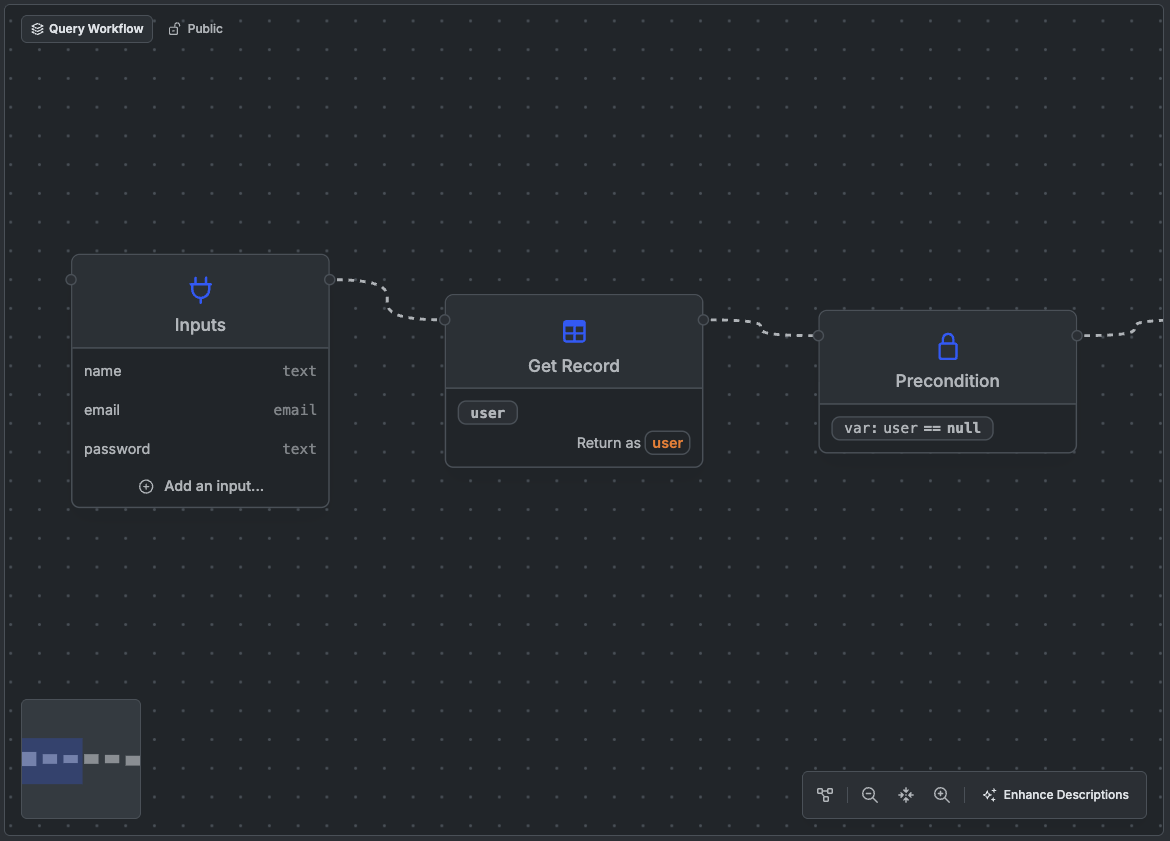
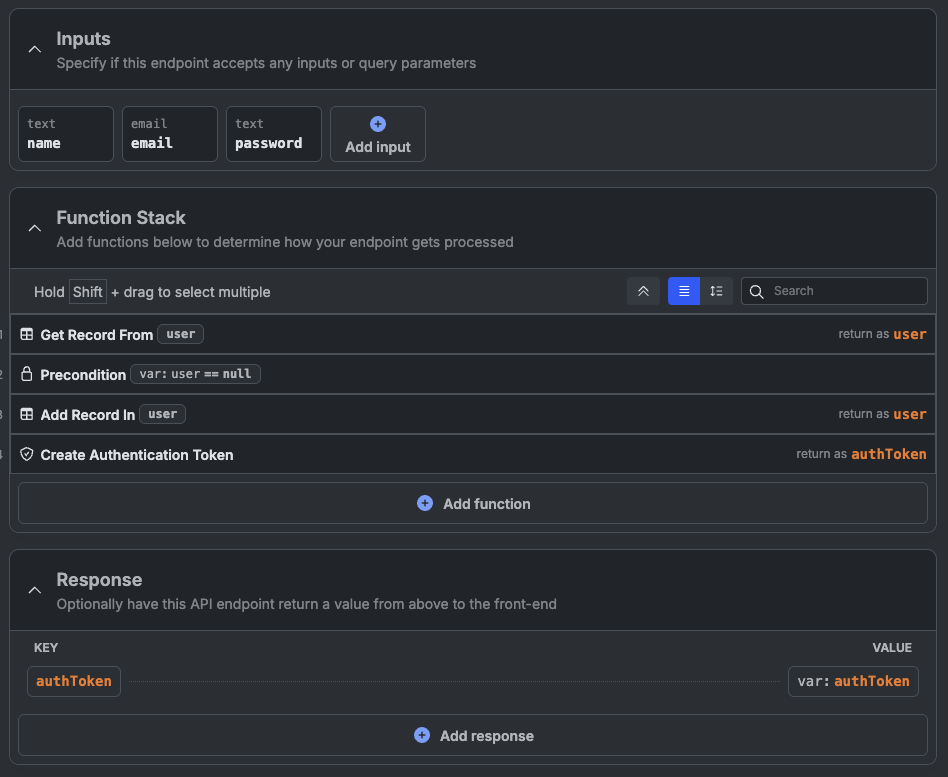
          The visual builder has two different views: **Canvas** and **Stack**. Canvas presents a node-style view of the steps in your endpoint, while Stack presents a linear, step-by-step list of the same information, more similar to traditional code.

          <Frame caption="Canvas View">
            <img src="https://mintcdn.com/xano-997cb9ee/TxMj3xizKt6xZHgd/images/getting-started-visual-20260108-175031.png?fit=max&auto=format&n=TxMj3xizKt6xZHgd&q=85&s=29fc03a0a0e77c4b9920189c1faee9b7" alt="getting-started-visual-20260108-175031" width="1170" height="841" data-path="images/getting-started-visual-20260108-175031.png" />
          </Frame>

          <Frame caption="Stack View">
            <img src="https://mintcdn.com/xano-997cb9ee/TxMj3xizKt6xZHgd/images/getting-started-visual-20260108-175050.png?fit=max&auto=format&n=TxMj3xizKt6xZHgd&q=85&s=1ae673f6fbf5de9caa417527337c69bb" alt="getting-started-visual-20260108-175050" width="948" height="777" data-path="images/getting-started-visual-20260108-175050.png" />
          </Frame>

          Click on a step to see more details about what it does and how it's configured.
        </Step>

        <Step title="Modify the signup endpoint to add a welcome email">
          Let's add a step to send a welcome email after signup. We'll use the **Send Email** function for this.

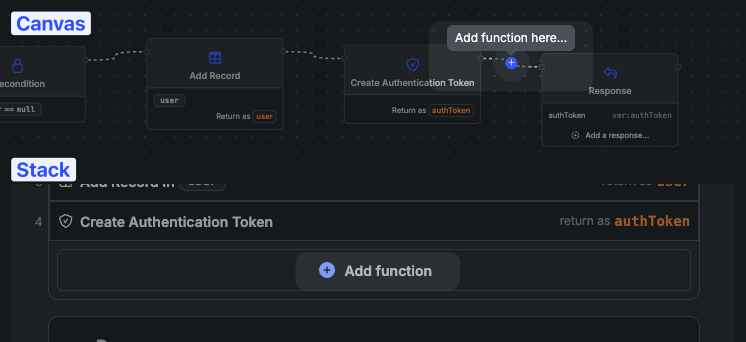
          Click the <span class="ui-bubble">+ Add Step</span> button at the bottom of the stack view, or in between the Create Authentication Token step and the Response in the canvas view.

          <img src="https://mintcdn.com/xano-997cb9ee/TxMj3xizKt6xZHgd/images/getting-started-visual-20260108-175517.png?fit=max&auto=format&n=TxMj3xizKt6xZHgd&q=85&s=e0400c3be1c8a6be893a127a9174496a" alt="getting-started-visual-20260108-175517" width="746" height="342" data-path="images/getting-started-visual-20260108-175517.png" />

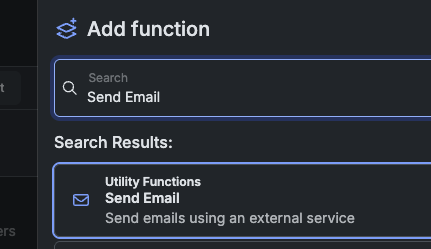
          Select the **Send Email** function.

          <img src="https://mintcdn.com/xano-997cb9ee/TxMj3xizKt6xZHgd/images/getting-started-visual-20260108-175545.png?fit=max&auto=format&n=TxMj3xizKt6xZHgd&q=85&s=f419a07ddc6f3abf5afd282c1e767e56" alt="getting-started-visual-20260108-175545" width="431" height="249" data-path="images/getting-started-visual-20260108-175545.png" />

          Add a subject and a body for the email. Xano includes free access to Resend for development and testing (up to 100 emails), limited to the email address you signed up for Xano with.
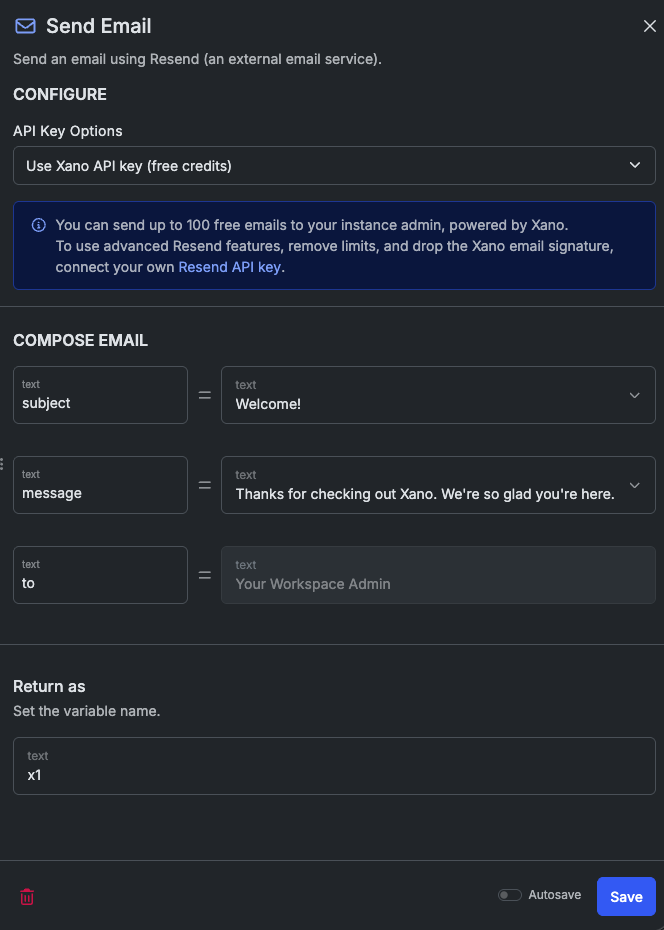
          <img src="https://mintcdn.com/xano-997cb9ee/TxMj3xizKt6xZHgd/images/getting-started-visual-20260108-175705.png?fit=max&auto=format&n=TxMj3xizKt6xZHgd&q=85&s=983067965d96b790f17aa4a03b19a953" alt="getting-started-visual-20260108-175705" width="664" height="930" data-path="images/getting-started-visual-20260108-175705.png" />

          Click <span class="ui-bubble">Save</span> to save the step.
        </Step>

        <Step title="Test the modified signup endpoint">
          Run the signup endpoint again with a different email address. You should receive a welcome email shortly after the run completes.
        </Step>

        <Step title="Explore the Run panel">
          After a run, open the <span class="ui-bubble">Timing</span> dropdown to view step timing, output, inputs, and variables.

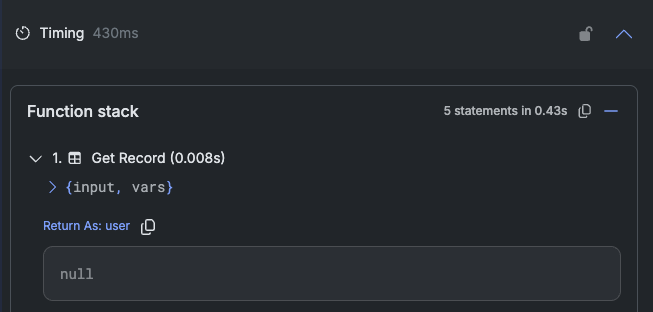
          Click the <span class="ui-bubble">></span> next to the first Get Record step. We can see the first Get Record function returned `null`, meaning that the user didn't already exist.

          <img src="https://mintcdn.com/xano-997cb9ee/TxMj3xizKt6xZHgd/images/getting-started-visual-20260108-180843.png?fit=max&auto=format&n=TxMj3xizKt6xZHgd&q=85&s=3ed640484f3aaf40a67ed7ea4e230621" alt="getting-started-visual-20260108-180843" width="653" height="312" data-path="images/getting-started-visual-20260108-180843.png" />

          <Tip>
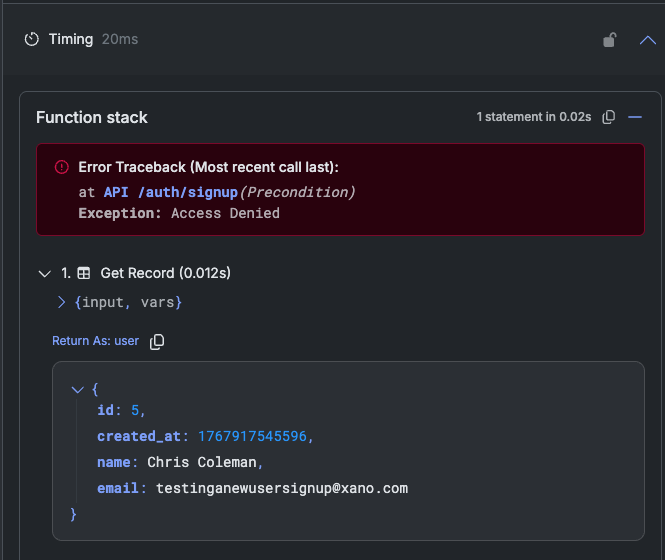
            Try to register the same user again to see how the output changes.

            <img src="https://mintcdn.com/xano-997cb9ee/TxMj3xizKt6xZHgd/images/getting-started-visual-20260109-090050.png?fit=max&auto=format&n=TxMj3xizKt6xZHgd&q=85&s=44509ab70e5af9b5b2ca34fb5f222e0b" alt="getting-started-visual-20260109-090050" width="665" height="560" data-path="images/getting-started-visual-20260109-090050.png" />
          </Tip>

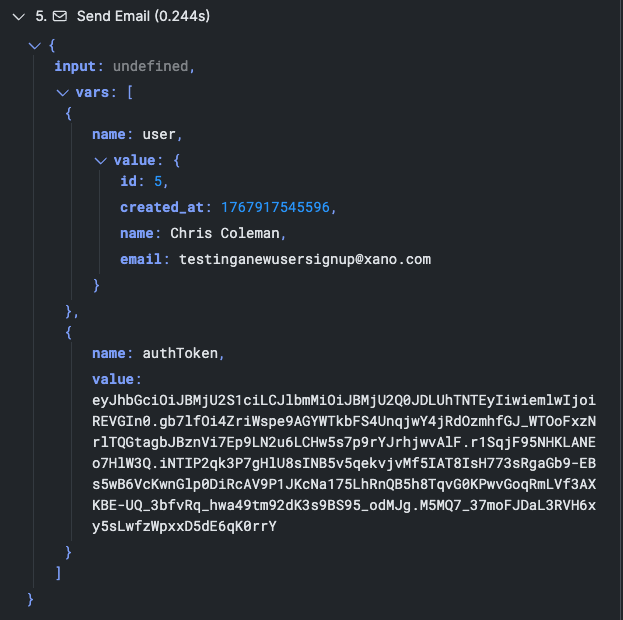
          Expand the `input` and `vars` sections for each step to see how the data changes throughout execution.

          <img src="https://mintcdn.com/xano-997cb9ee/TxMj3xizKt6xZHgd/images/getting-started-visual-20260108-181247.png?fit=max&auto=format&n=TxMj3xizKt6xZHgd&q=85&s=0e2fdee6acc2b08756973011409b5886" alt="getting-started-visual-20260108-181247" width="623" height="620" data-path="images/getting-started-visual-20260108-181247.png" />

          <Tip>
            Xano will automatically hide information labeled as sensitive, such as password fields, in the run panel.
          </Tip>
        </Step>

        <Step title="Publish your changes and test externally">
          Click the dropdown in the upper-right corner and choose <span class="ui-bubble">Publish Now</span>. This immediately deploys your changes to the live API.

          Click <span class="ui-bubble"><Icon icon="link" /></span> to copy the endpoint URL.

          Take it over to your favorite API testing tool, like [Postman](https://www.postman.com/), [Insomnia](https://www.insomnia.rest), or [Bruno](https://www.usebruno.com). Send a `POST` request to the signup endpoint with the required parameters (name, email, password) in the body.

          You should see a successful response, just like in Xano, and have received another welcome email.
        </Step>
      </Steps>

      ### Troubleshooting

      <Accordion title="I deleted my default authentication APIs; can I get them back?">
        <Steps>
          <Step title="">
            Click <span class="ui-bubble">API</span> in the sidebar.
          </Step>

          <Step title="">
            Click the <span class="ui-bubble">+ Create API</span> button in the top-right corner.
          </Step>

          <Step title="">
            Select <span class="ui-bubble">Authentication</span>
          </Step>

          <Step title="">
            Add the three default API endpoints offered: `/signup`, `/login`, and `/me`
          </Step>
        </Steps>
      </Accordion>

      <Accordion title="Common Signup Errors">
        <Danger>
          **Error Traceback (Most recent call last):**

          at `API /auth/signup(Get Record)`
          Exception: Param: field\_value - Missing param: field\_value
        </Danger>

        > The required parameters were not provided when running the endpoint -- specifically the email. Make sure to enter a name, email, and a password.

        <Danger>
          **Error Traceback (Most recent call last):**

          at `API /auth/signup(Precondition)`
          Exception: Access Denied
        </Danger>

        > The account already exists. Try using a different email address to create a new user.

        <Danger>
          **Error Traceback (Most recent call last):**

          at `API /auth/signup(Add Record)`
          Exception: Param: password - Input does not meet minimum length requirement of 8 characters
        </Danger>

        > Password inputs have some default requirements: at least 8 characters, one uppercase letter, and one number. Make sure your password meets these requirements.
      </Accordion>
    </Tab>
  </Tabs>
</div>

***

## Keep going

<CardGroup cols={2}>
  <Card title="Xano Agent" icon="wand-magic-sparkles" href="/building/xano-agent">
    Build your entire backend from a prompt with the built-in AI assistant.
  </Card>

  <Card title="Logic & Workflows" icon="brain" href="/building/logic/logic">
    Learn more about all of the logic that can power your backend.
  </Card>

  <Card title="Database" icon="database" href="/the-database/database">
    Design, manage, and query your database.
  </Card>

  <Card title="AI Agents" icon="robot" href="/ai-tools/agents">
    Build AI agents that can reason, use tools, and take actions.
  </Card>

  <Card title="Authentication" icon="lock" href="/building-backend-features/user-authentication-and-user-data">
    Add user auth, RBAC, and OAuth/SSO to your API.
  </Card>
</CardGroup>