> ## Documentation Index
> Fetch the complete documentation index at: https://docs.xano.com/llms.txt
> Use this file to discover all available pages before exploring further.
# Sandbox Testing
## What is the Sandbox Environment?
For all paid plans as part of the [Xano CLI](xano-cli/get-started), the Sandbox Environment introduces ephemeral tenant environments as the structural safety layer for the code-first development workflow. By default, when you run the `workspace push` command, you will be blocked and prompted to first push to a sandbox environment.
`xano sandbox push` — push changes to your sandbox
`xano sandbox review` — edit any logic, inspect the snapshot diff, and promote changes to the workspace
The CLI spins up an isolated ephemeral environment and provides a link to you for review and validation before anything touches production.
## Using the Sandbox
Make sure you've got the [Xano CLI](xano-cli/get-started) set up and authenticated before continuing. You'll also want to have some changes ready to preview and deploy, as that's when the sandbox is designed to be used.
Push changes to your sandbox environment by running `xano sandbox push `, `` being the folder that contains your XanoScript.
After your changes have pushed to the sandbox successfully, run `xano sandbox preview` to open a preview of your changes in an ephemeral environment.
The environment is exactly the same experience you get working in Xano normally, but **read only**. You can browse the workspace, review data, run workflows, and anything else you'd like to do to test before pushing to your workspace.
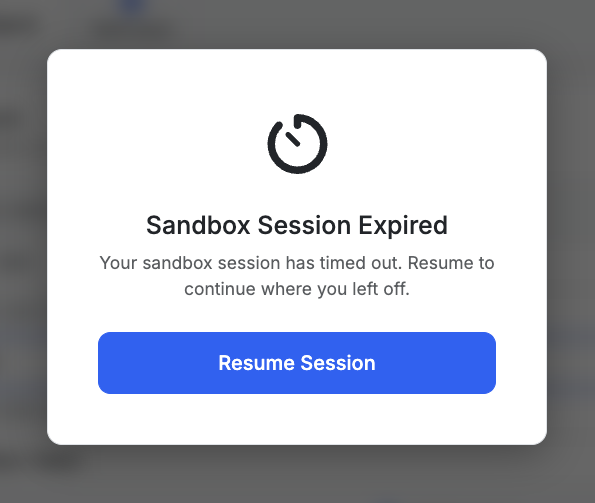
The environments are only available for a limited time; you'll see a notification in the top-right corner giving you the opportunity to extend the time the sandbox is live if necessary.
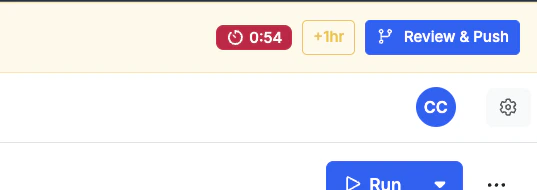 If you run out of time and need to return, you;'ll also be able to do so by visiting the preview link again.
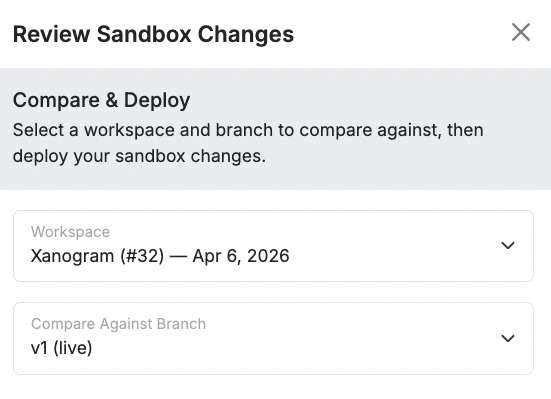
 When you've validated the changes present, click Review & Push button in the top-right corner. Choose the workspace to push to, and the branch to compare.
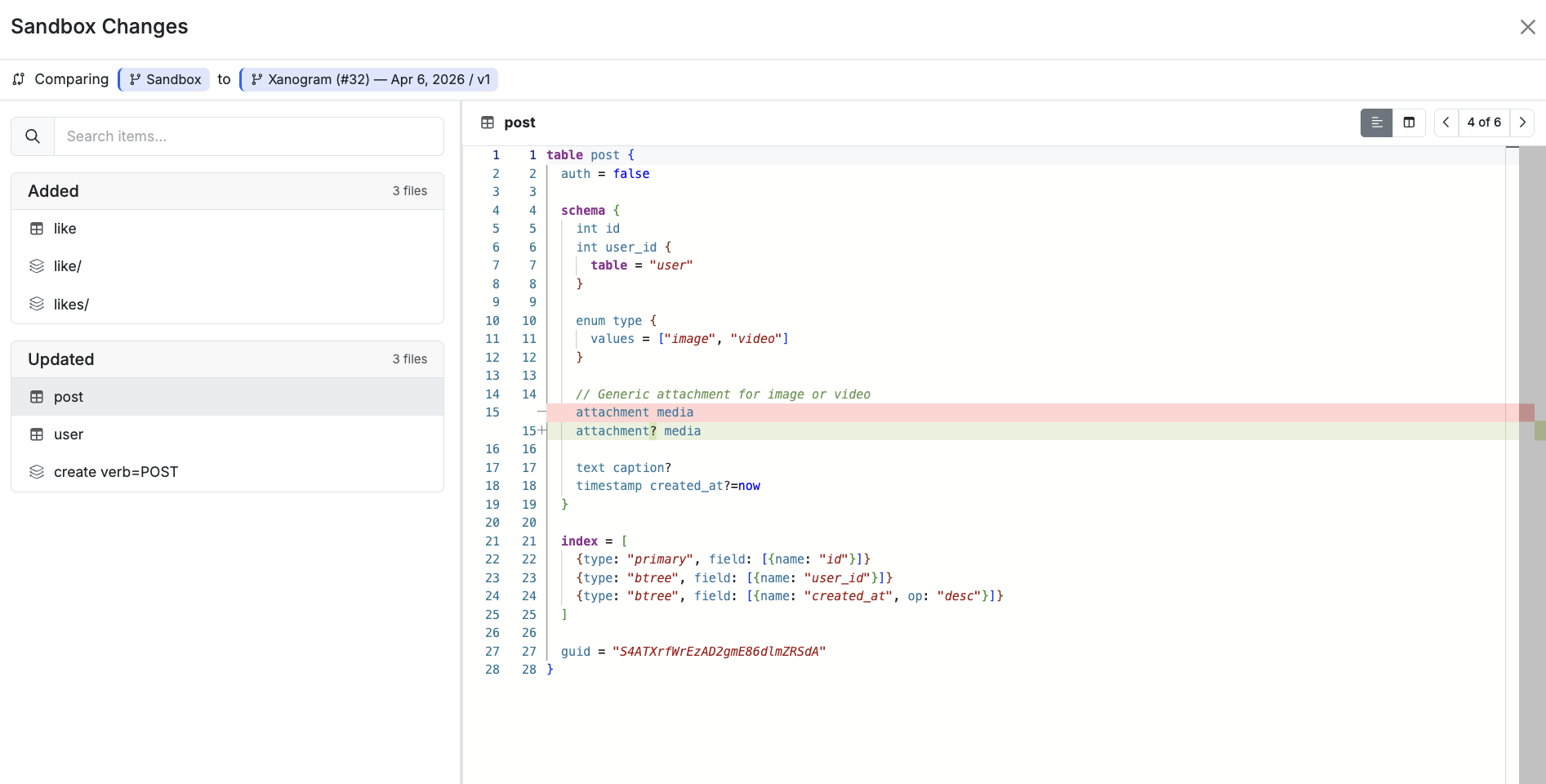
 You'll be presented with a Git-style diff of all the changes being merged to your chosen branch / workspace.
 When you're ready, click Next.
When merging changes, you'll always be merging them into a new branch. You'll be asked for a name to give to the new branch, and given the option to immediately set it live, if desired. When you're ready, click Deploy.
When you're ready, click Next.
When merging changes, you'll always be merging them into a new branch. You'll be asked for a name to give to the new branch, and given the option to immediately set it live, if desired. When you're ready, click Deploy.
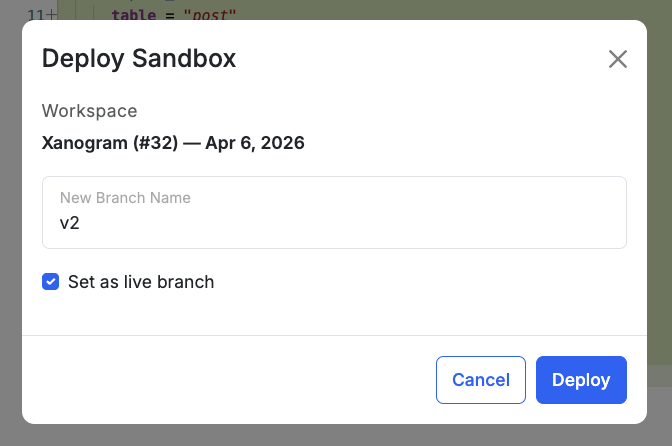 Once deployment finishes, you'll be taken back to your workspace with the new branch selected.