> ## Documentation Index
> Fetch the complete documentation index at: https://docs.xano.com/llms.txt
> Use this file to discover all available pages before exploring further.
# Publishing
> Learn how to publish changes in your Xano function stacks so that new logic and API updates are deployed to your live environment.
Publishing is the process of **deploying**, or setting live, the changes you’ve made in your Xano backend—such as updates to APIs, custom functions, tasks, or AI tools—so they become active in your **live** environment.
***
## Why Publishing Matters
Xano allows you to safely develop and test changes without immediately affecting production.\
Publishing ensures that:
* **New logic** Any changes you've made are available to your live applications.
* **Branching workflows** remain controlled, with merges and releases handled intentionally.
***
## How Publishing Works
1. (RECOMMENDED) **Develop in a Branch**\
Make changes in a **branch** or in the working environment without altering the live version of your API. While branches are not required, they are recommended to help you manage your changes and avoid conflicts. Read more about [Branching & Merging](/team-collaboration/branching-and-merging).
2. **Test Your Changes**\
Use the built-in [debugger](/testing-debugging/testing-and-debugging-function-stacks) to verify your logic is working as expected.
3. **Build or Update Tests**\
Build or update tests for your changes using [Unit Tests](/testing-debugging/unit-tests) and [Test Suites](/testing-debugging/test-suites).
4. **Publish**\
When ready, click **Publish** in the top-right corner of the visual builder for the logic stack you want to apply the changes to.
***
## Publishing Steps
First, choose your publishing method. You can either:
* \*\* Review & Publish \*\*: Allows you to review the changes made before publishing
* \*\* Publish Now \*\*: Immediately publishes the changes without review
### Review & Publish
The **Review & Publish** pane; provides a detailed overview of the changes that will be published, written in [XanoScript](/xanoscript/introduction). This allows you to verify that all intended changes are included and no unintended modifications are present. If you aren't familiar yet with XanoScript, that's okay; we've designed it in such a way to be human readable even if you don't know the syntax.
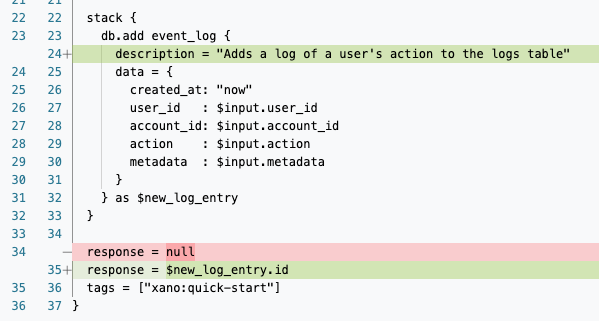 Additions to the logic are shown in **green**, while deletions are shown in **red**. You can scroll through the entire list of changes to ensure everything looks correct. In the above example, we have:
* Added a new variable to our response
* Previously, our response was empty, so it was written as `response = null`. This has been deleted.
* We added a new item to our response, which returns `id` inside of the variable `new_log_entry`.
* Added a description to our Add Record step
* We updated the description of the Add Record step to provide more context about its purpose.
Additions to the logic are shown in **green**, while deletions are shown in **red**. You can scroll through the entire list of changes to ensure everything looks correct. In the above example, we have:
* Added a new variable to our response
* Previously, our response was empty, so it was written as `response = null`. This has been deleted.
* We added a new item to our response, which returns `id` inside of the variable `new_log_entry`.
* Added a description to our Add Record step
* We updated the description of the Add Record step to provide more context about its purpose.
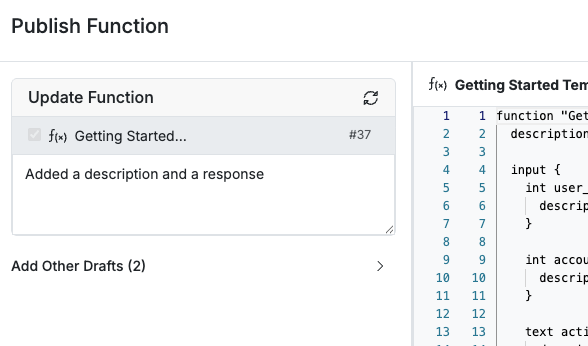 On the left-hand side, you can add a Publish Message (recommended) to document the changes being made. This message will be recorded in the version history for future reference.
You can publish other logic that is currently in a draft state by selecting it in the Add Other Drafts section under the publish message. Quickly review changes in those drafts by selecting them. You can return to the original logic you were working on by selecting it from the top of the pane.
When you're ready, click Publish in the lower-right corner to deploy your changes.
***
## Best Practices
* **Review Change Sets**\
Before publishing, review what’s changed—especially when collaborating on a team—to avoid unexpected releases.
* **Coordinate with Branching**\
If you’re using [Branching & Merging](/team-collaboration/branching-and-merging), ensure that your branch is fully merged and tested before publishing.
* **Communicate with Your Team**\
Notify other team members of upcoming publishes to avoid merge conflicts or duplicate deployments.
* **Version Your API**\
If the changes are breaking, consider using API versioning or a new endpoint group to prevent downtime for your users.
***
## Related Topics
* [Branching & Merging](/team-collaboration/branching-and-merging) – Work on features safely before publishing.
* [Swagger (OpenAPI) Documentation](/the-function-stack/building-with-visual-development/apis/swagger-openapi-documentation) – Share and test your published APIs.
* [Connecting to a Frontend](/connecting-to-a-frontend) – Link your live backend to your frontend once changes are published.
***
> 💡 **Tip**: Publishing is irreversible for that version—if you need to roll back, create a new branch from a previous commit and re-publish.
On the left-hand side, you can add a Publish Message (recommended) to document the changes being made. This message will be recorded in the version history for future reference.
You can publish other logic that is currently in a draft state by selecting it in the Add Other Drafts section under the publish message. Quickly review changes in those drafts by selecting them. You can return to the original logic you were working on by selecting it from the top of the pane.
When you're ready, click Publish in the lower-right corner to deploy your changes.
***
## Best Practices
* **Review Change Sets**\
Before publishing, review what’s changed—especially when collaborating on a team—to avoid unexpected releases.
* **Coordinate with Branching**\
If you’re using [Branching & Merging](/team-collaboration/branching-and-merging), ensure that your branch is fully merged and tested before publishing.
* **Communicate with Your Team**\
Notify other team members of upcoming publishes to avoid merge conflicts or duplicate deployments.
* **Version Your API**\
If the changes are breaking, consider using API versioning or a new endpoint group to prevent downtime for your users.
***
## Related Topics
* [Branching & Merging](/team-collaboration/branching-and-merging) – Work on features safely before publishing.
* [Swagger (OpenAPI) Documentation](/the-function-stack/building-with-visual-development/apis/swagger-openapi-documentation) – Share and test your published APIs.
* [Connecting to a Frontend](/connecting-to-a-frontend) – Link your live backend to your frontend once changes are published.
***
> 💡 **Tip**: Publishing is irreversible for that version—if you need to roll back, create a new branch from a previous commit and re-publish.