> ## Documentation Index
> Fetch the complete documentation index at: https://docs.xano.com/llms.txt
> Use this file to discover all available pages before exploring further.
# OpenAPI Documentation
> Using Swagger/OpenAPI to document your Xano APIs for easy integration.
Xano automatically generates **Swagger/OpenAPI** documentation for your APIs, making it easy to share your endpoints with frontend developers, AI copilots, or third-party services. It's also a quick way to visualize and test your API endpoints.
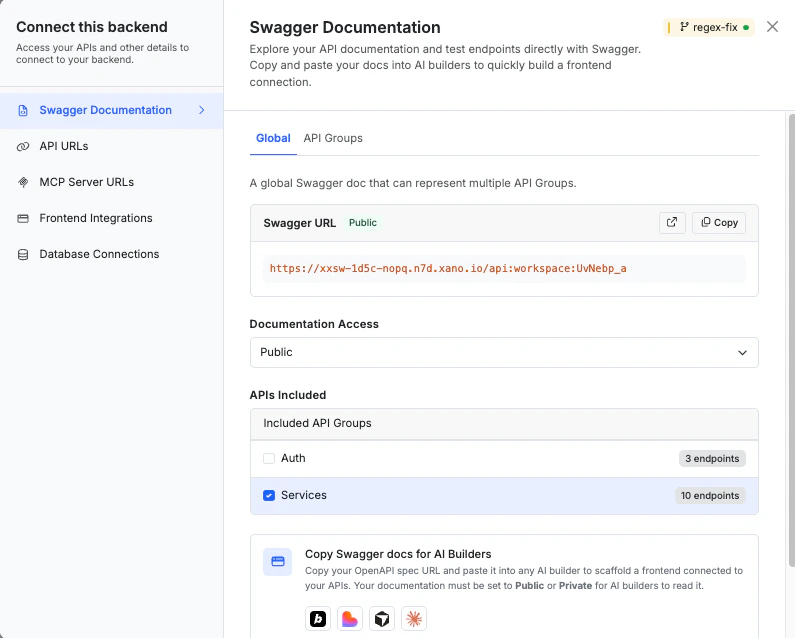
The API documentation is accessible via a unique URL for each API group, or for an entire workspace. This URL can be shared with anyone who needs to understand or interact with your API. The URLs can also be protected with a token, or disabled entirely.
## Group Level Documentation
From inside of an API group, click { } Swagger Documentation in the top right to access the Swagger/OpenAPI documentation for that specific group.
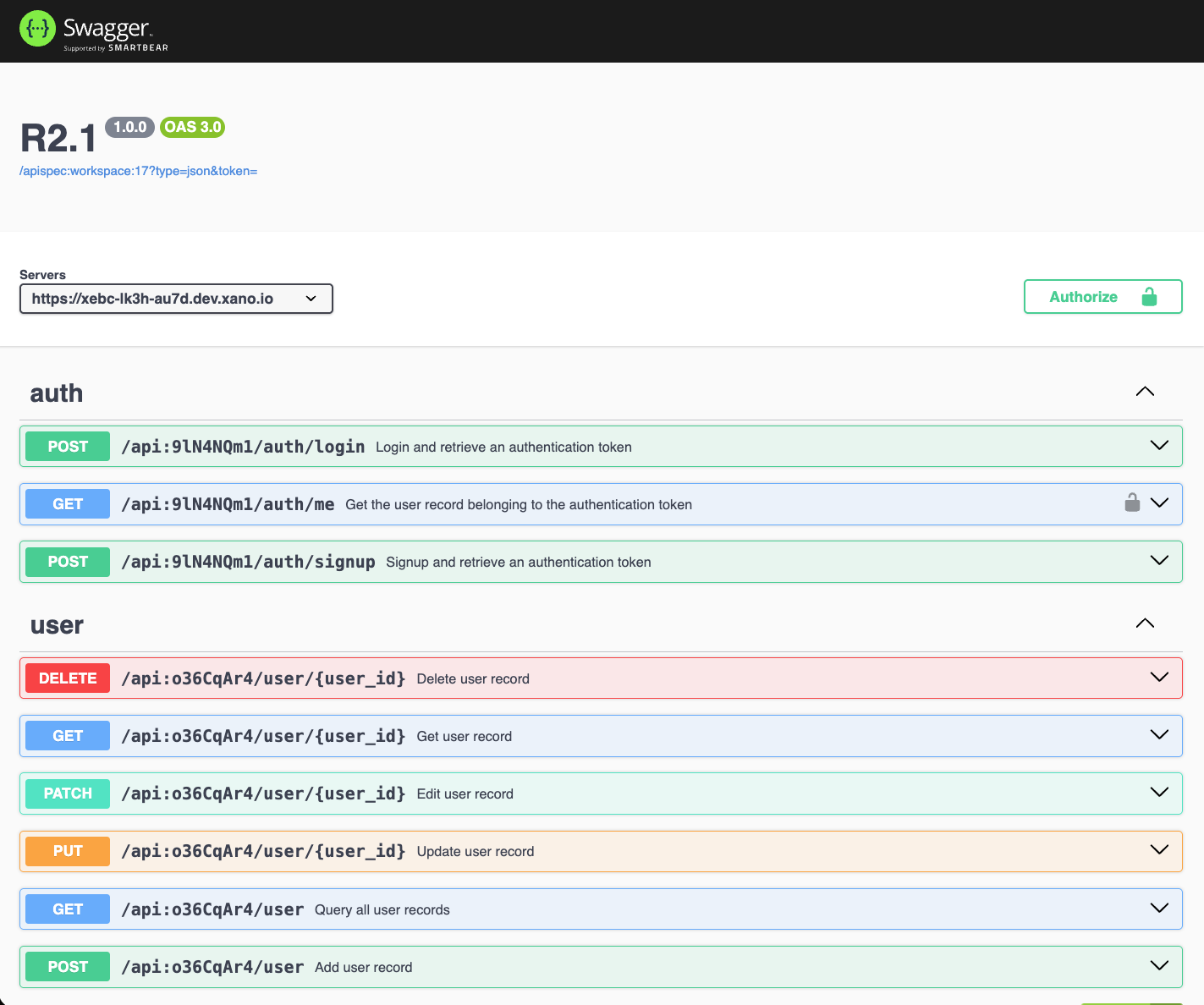
 This will open a new tab with the Swagger UI, displaying all the endpoints in that API group, along with details about request parameters, responses, and authentication.
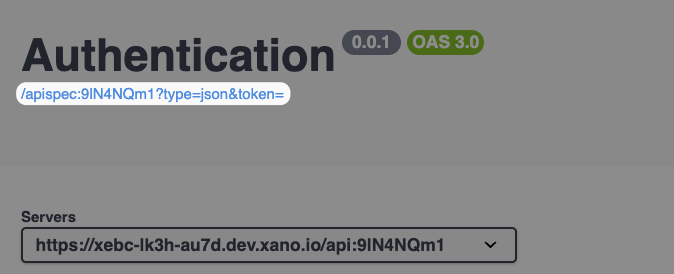
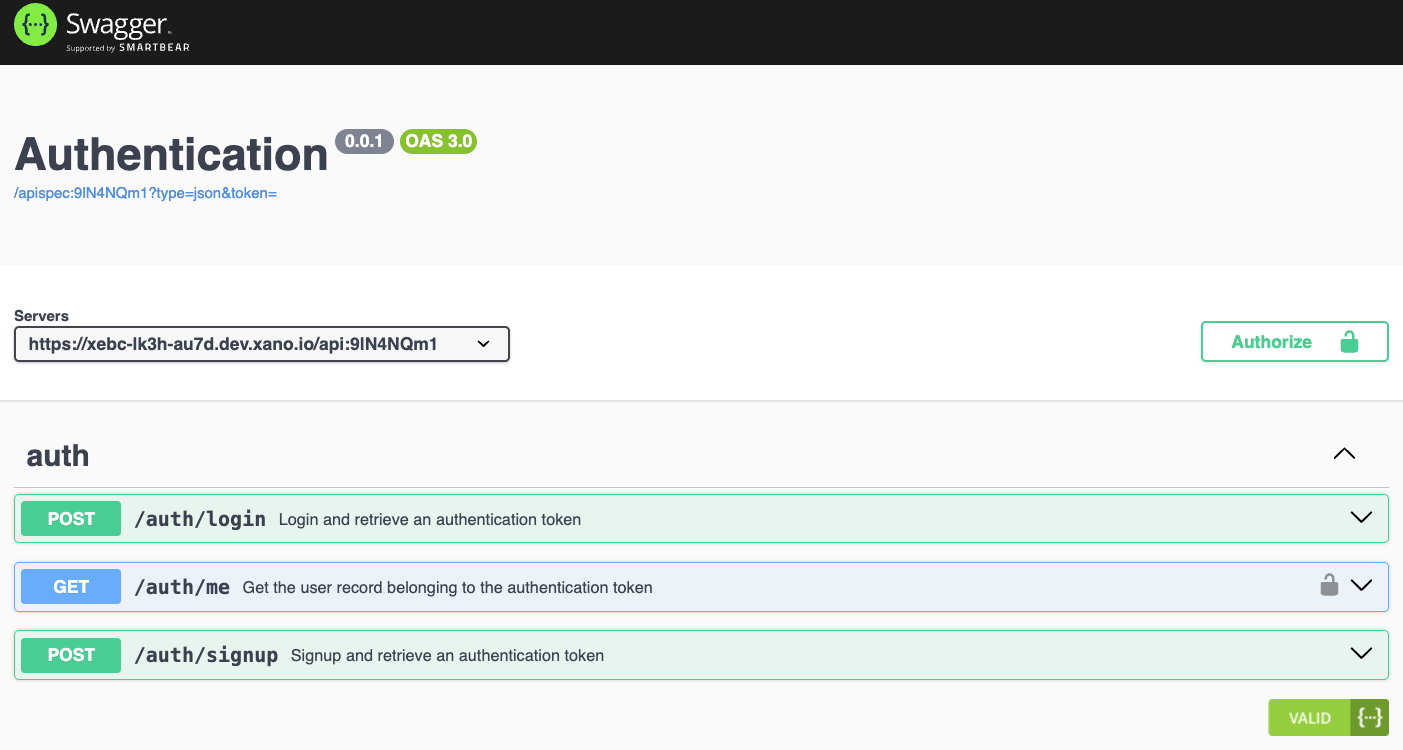 You can access a downloadable version of your OpenAPI specification in JSON format by selecting the link under the title of the page.
 ### Documentation settings
From the API group settings, you can configure whether or not the Swagger documentation is enabled, and whether it requires a token to access.
### Documentation settings
From the API group settings, you can configure whether or not the Swagger documentation is enabled, and whether it requires a token to access.
 ## Workspace Level Documentation
### First Time Setup
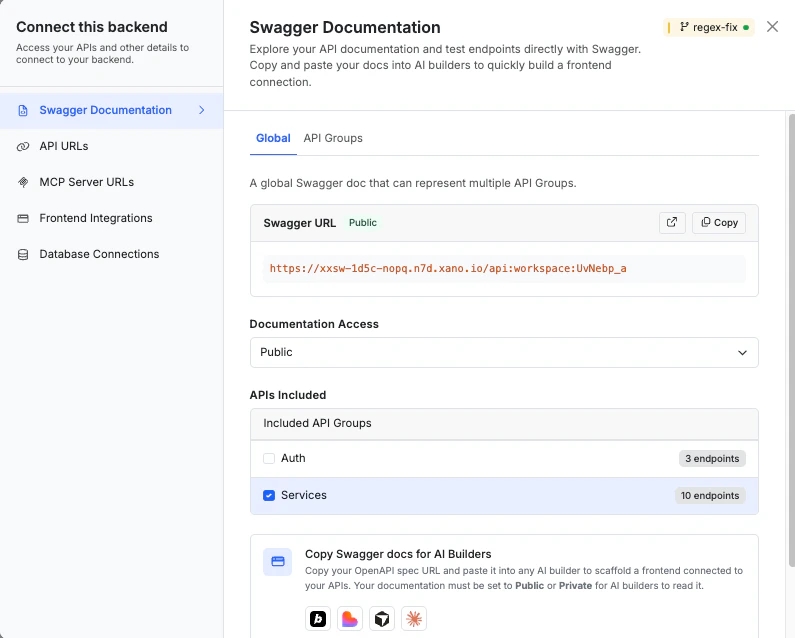
From the API Groups page, click Swagger Documentation Disabled in the top right to access the settings. You'll need to select which API groups you want to be made available in your workspace-level documentation.
## Workspace Level Documentation
### First Time Setup
From the API Groups page, click Swagger Documentation Disabled in the top right to access the settings. You'll need to select which API groups you want to be made available in your workspace-level documentation.
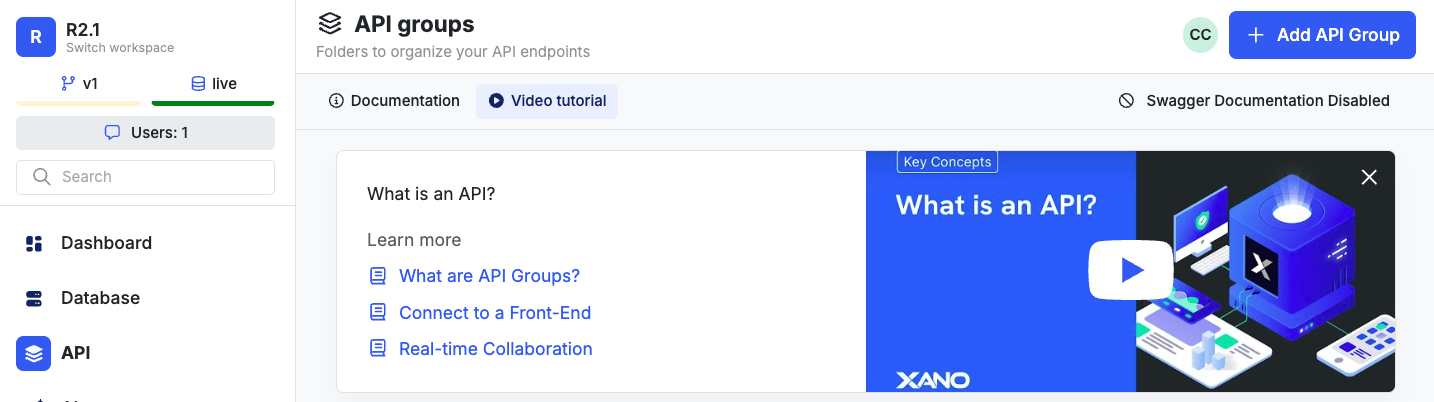 At the bottom of the panel, select the desired option to enable the documentation (public or requires token), and use the check boxes to select which API groups to include.
 ### Accessing the Documentation
Once first-time setup is complete, you can access the workspace-level Swagger/OpenAPI documentation by clicking { } Swagger Documentation in the top right of the API Groups page.
### Accessing the Documentation
Once first-time setup is complete, you can access the workspace-level Swagger/OpenAPI documentation by clicking { } Swagger Documentation in the top right of the API Groups page.
 ## API Level Documentation
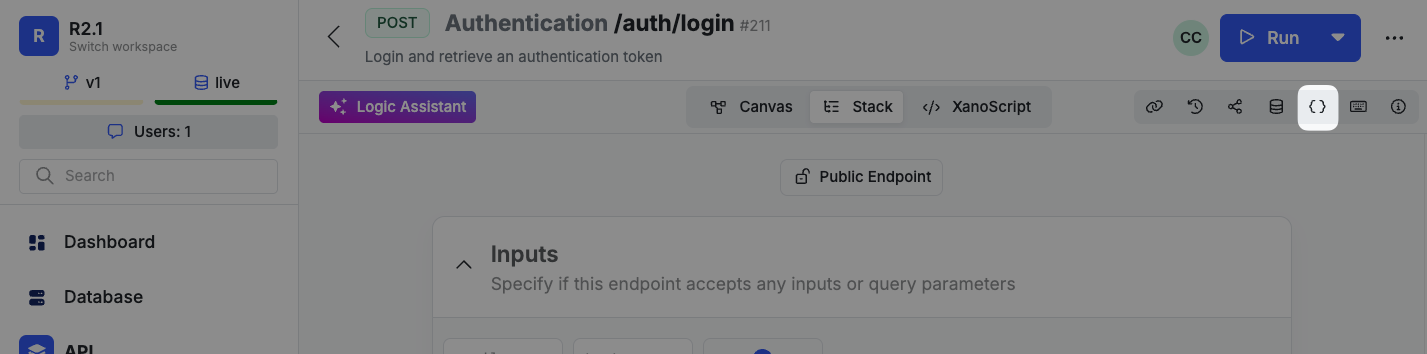
You can also access Swagger/OpenAPI documentation for individual API endpoints. From inside an API, click the { } icon to view documentation specific to that endpoint.
## API Level Documentation
You can also access Swagger/OpenAPI documentation for individual API endpoints. From inside an API, click the { } icon to view documentation specific to that endpoint.
 ## Using the Documentation
Each API will show you the method, the API name, and the description on the left side.
## Using the Documentation
Each API will show you the method, the API name, and the description on the left side.
 On the right, you'll see a 🔓 icon if that API requires authentication.
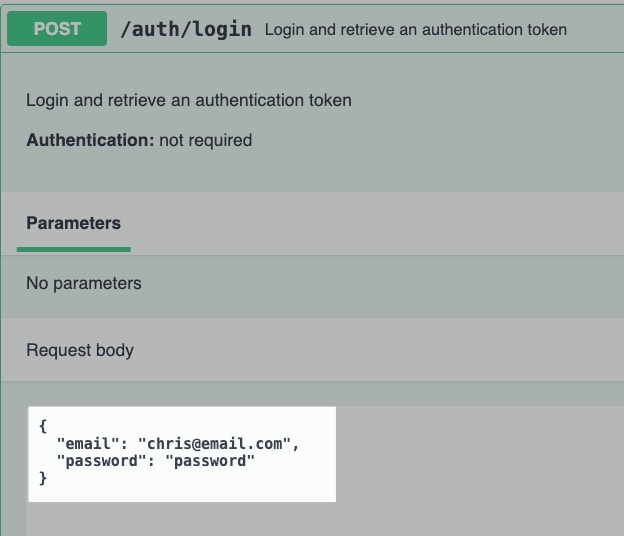
 Click the `V` to interact with your API of choice.
If any of the API(s) you want to interact with require authentication, click
Click the `V` to interact with your API of choice.
If any of the API(s) you want to interact with require authentication, click  at the top of the page to supply an authentication token.
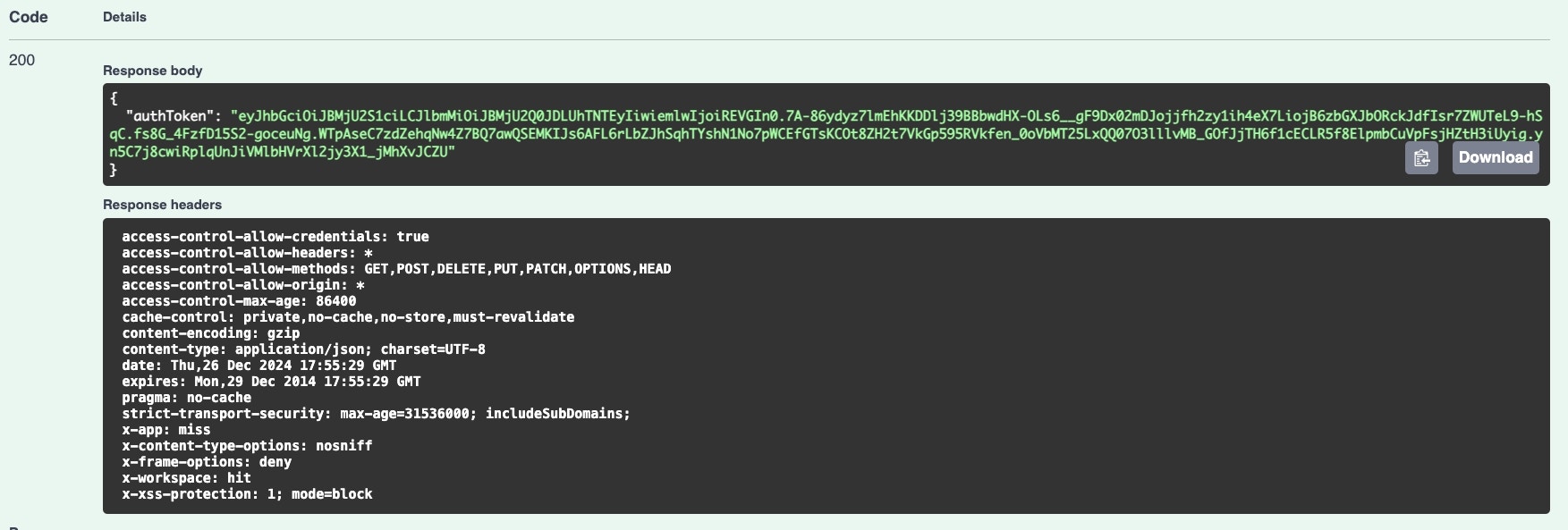
 You can review the response given below.
 ## Additional Features
### Defining Sample Inputs and Responses
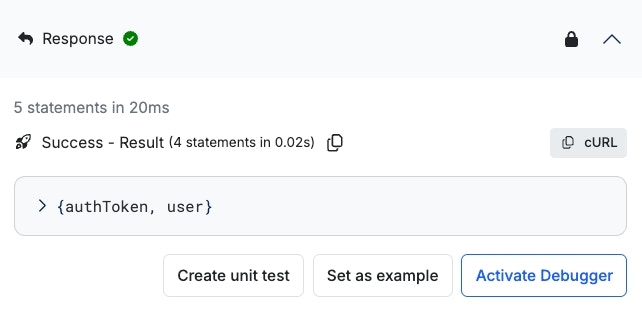
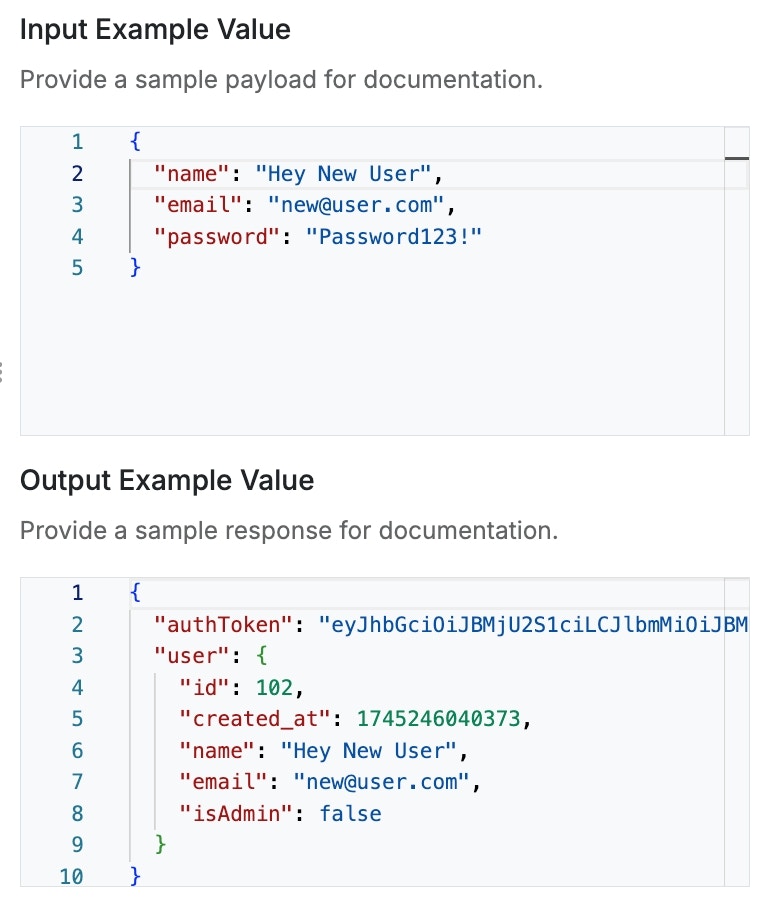
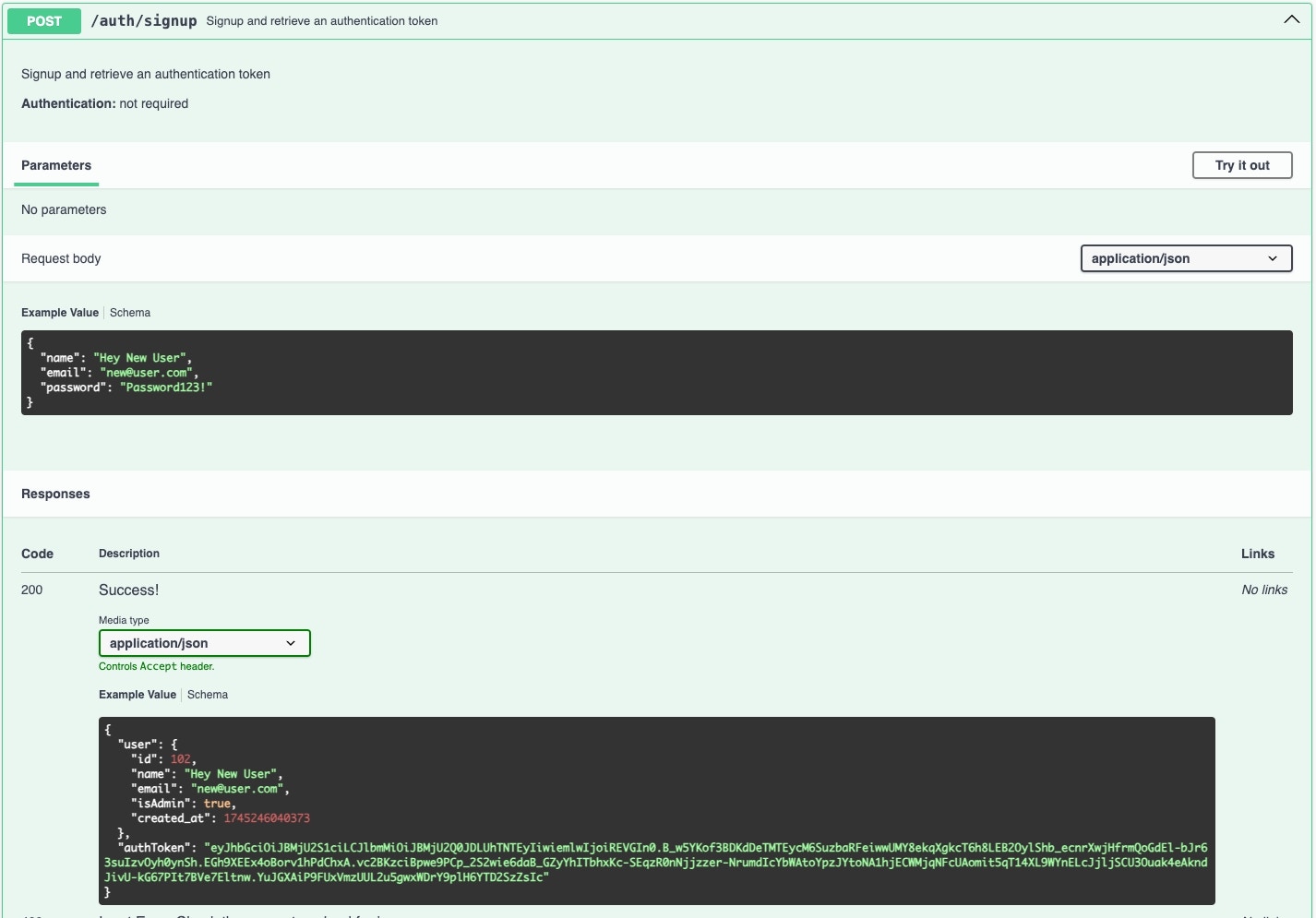
When [testing your function stacks](/testing-debugging/testing-and-debugging-function-stacks) in Xano, you can define sample input and output examples for your Swagger documentation.
It is important that you do this to ensure that your documentation is as effective as possible, as well as for helping AI models understand what's expected when interacting with your APIs.
## Additional Features
### Defining Sample Inputs and Responses
When [testing your function stacks](/testing-debugging/testing-and-debugging-function-stacks) in Xano, you can define sample input and output examples for your Swagger documentation.
It is important that you do this to ensure that your documentation is as effective as possible, as well as for helping AI models understand what's expected when interacting with your APIs.
 Make sure these do not include any sensitive information.
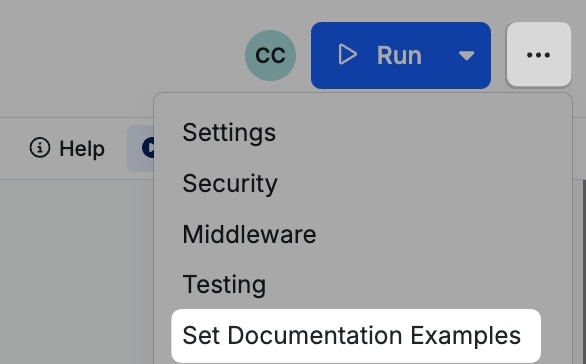
 If you need to make adjustments later, you can do so from the settings menu.
 ### Copy / Copy as cURL
Throughout the documentation, you'll see
### Copy / Copy as cURL
Throughout the documentation, you'll see  icons. These will let you quickly copy the contents of that element, and in the presence of a cURL command, copy that command to quickly paste into a terminal or other API / testing platform of choice, such as [Postman](https://www.postman.com/).
### JSON OpenAPI Spec
icons. These will let you quickly copy the contents of that element, and in the presence of a cURL command, copy that command to quickly paste into a terminal or other API / testing platform of choice, such as [Postman](https://www.postman.com/).
### JSON OpenAPI Spec
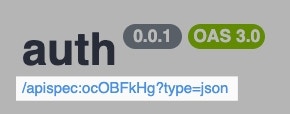 You can click the link at the top of the page to access a JSON-formatted version of your API spec. This is useful for other external platforms that rely on this type of standardized information about your APIs or providing to AI chatbots / LLMs.