> ## Documentation Index
> Fetch the complete documentation index at: https://docs.xano.com/llms.txt
> Use this file to discover all available pages before exploring further.

# Query All Records

## What is Query All Records?

Query All Records is used to retrieve records from a database table. You can set various filters and other options to determine exactly which records to retrieve.

## Function Options

Query All Records offers three panels for various settings: **filter**, **output**, and **external**.

### Filter

The Filter tab is used to determine what records will be returned from the database.

#### By Custom Query

This is the section you'll use to determine what records to return. If you leave it blank, all records will be returned.

Click the <span class="ui-bubble"><Icon icon="pencil" /></span> icon to edit the custom query, and choose <span class="ui-bubble">Add A Conditional</span> from the panel that opens.

<Frame>
  <iframe src="https://demo.arcade.software/nOHbeTAkqES5hLELWelD?embed" title="https://demo.arcade.software/nOHbeTAkqES5hLELWelD?embed" allowFullScreen allow="clipboard-write" class="contentkit-webframe" />
</Frame>

#### Using the Expression Builder

Each conditional has four different components.

**Conditional Type**

The conditional type determines how this condition is weighted in the final return. You can choose between **AND** and **OR. AND** conditionals require the present conditional and any others before it to be satisfied, such as "where the date is before today **AND** the user is an admin". **OR** conditionals do not require any other conditionals to be satisfied, such as "if the user is an admin **OR** if the user is a manager".

**Left Value**

This is the first value you're using in the conditional. In a database query, this is usually going to be a column that you want to check against.

**Operators**

<Info>
  Please note that operators may differ based on where you are building the expression. Database queries will have different operators available than regular conditional statements. Learn More
</Info>

* **Equals (==)** - an exact match
* **Not Equals (!=)** - does not equal
* **Equals with type matching (===)** - an exact value match and an exact type match
  * Ex. Variable **var\_1** has a value of 123, with a type of text. You set up a conditional statement to check if **var\_1 === 123**, but your value in the conditional statement is of type integer. This would return false, because the types do not match.
* **Not equals with type matching (!==)** - does not equal value or type, similar to ===
* **Greater than (>)** - the value on the left is greater than the value on the right
* **Greater than or equals (≥)** - the value on the left is greater than or equals to the value on the right.
* **Less than (\<)** - the value on the left is less than the value on the right.
* **Less than or equals (≤)** - the value on the left is less than or equals to the value on the right.
* **LIKE** - Used for comparing text. Like is case-insensitive and compares if a text string is like another text string. It can be thought of as equals for text but upper case and lower case does not matter.
* **NOT LIKE** - Used for comparing text. Not Like is case-insensitive and compares if a text string is not like another. It is like not equals for text but upper case and lower case does not matter.
* **INCLUDES** - Used for comparing text. Includes is a flexible operator and is case-insensitive. It is able to determine if there is a partial match in a text string.
* **DOES NOT INCLUDE** - Used for comparing text. Does not include determines if a text string is not included in another text string.
* **IN** - If a single value is found in an array (list). Start with the single value on the left side and the right side should contain the array.
* **NOT IN** - If a single value is not found in an array (list). The single value should be on the left side and the array on the right side.
* **REGEX MATCHES** - [Regular Expression](https://regex101.com/) used for finding patterns in text.
* **REGEX DOES NOT MATCH** - [Regular Expression](https://regex101.com/) used for finding a pattern that does not match in text.
* **OVERLAPS** - Used for comparing two arrays. Overlaps determines if any values in one array are present in the second array.
* **DOES NOT OVERLAP** - Used for comparing two arrays. Does not overlaps determines if no values in the first array are present in the second array.
* **CONTAINS** - Contains is an advanced filter used for JSON and arrays. It looks for an exact schema match.
* **DOES NOT CONTAIN** - Does not contain is the opposite of contains. It determines if there is not an exact schema match.

#### Right Value

The right value is whatever you are checking against the left value. This could be a hardcoded value, a variable, or even a database field from the same record.

#### By Joins

Joins are an advanced concept that allows you to find matching records between tables. For example, let's say you have a table of `orders`, and each of those orders contain products of a specific color. We want to determine how many orders each customer made with products matching their favorite color.

You have two tables with the following data:

`Customers`: Names and their favorite color `Orders`: Color and price of items sold

When you join these tables using the color as the connection point, you can see which customers bought items matching their favorite color.

There are different ways to combine these lists:

* Inner join: Only shows matches (like customers who bought their favorite color)
* Left join: Shows all customers, even if they haven't bought anything
* Right join: Shows all orders, even if no customer likes that color

So if Sarah likes blue and there's a blue sweater order, an inner join would connect them. But if Tom likes green and he hasn't placed any orders with green items, he'd only appear in a left join.

Joins are useful because they allow you to consolidate all of this into a single database operation, instead of querying multiple tables and manually matching the data in several additional steps.

#### Evals

Evals are used to add additional fields from joined tables as part of your response.

In the below example, we have two tables: **sales** and **product**. We've queried the **sales** table and joined it with **product** so we can retrieve product data for each sale. Our eval adds the product name to the response for each sales record returned.

<Frame>
  <img src="https://mintcdn.com/xano-997cb9ee/-vy8_DWVOwkWo8Bt/images/869a909d-image.jpeg?fit=max&auto=format&n=-vy8_DWVOwkWo8Bt&q=85&s=2f191441647d03a719e939934c0b0de6" alt="" width="1342" height="894" data-path="images/869a909d-image.jpeg" />
</Frame>

### Output

The output tab contains all options related to the return, once the records have been queried. You can change options like determining what fields to show, the sort order, and more.

#### Customizing the return

Click <span class="ui-bubble">Customize Response</span> to edit the fields returned in the query.

<Info>
  Note that customizing to reduce the fields returned will not have an impact on query speed, but may help with other performance issues in your function stacks. It is always good practice to only return the fields necessary.
</Info>

### Return As

Change the variable name that this function will output to.

<Info>
  If you're using conditional steps, you can use the same variable name in multiple steps to make satisfying the conditional or outputting data in the response easier.

  For example, if we are sending a specific response based on if a variable is true or false, we can set both of those outputs to the same variable, making building our response easier.
</Info>

### Return Settings

Under Return Settings, you can adjust sorting and pagination settings.

#### Return Types

**exists** - Returns a true or false based on if records were returned

**count** - Returns the number of records found

**single** - Returns the first record found

**list** - Returns a list of records

**stream** - When used with a For Each Loop, maintains memory efficiency when iterating through large lists of records

**aggregate** - Perform special aggregation functions on the returned records

#### Sorting

Click <span class="ui-bubble">Add Sort</span> to apply a sort to the returned records. You can apply multiple sorts for further customization.

#### Paging

Check <span class="ui-bubble">Enable Paging</span> to enable pagination for this query. You can specify which page to return, and how many records should be returned for each page.

Check <span class="ui-bubble">Include Metadata</span> if you want to include paging metadata, as shown below, in your return. You can also opt to include the total item count, which is the total number of records in the table.

```javascript theme={null}
{
    "itemsReceived": 4,
    "curPage": 1,
    "nextPage": 2,
    "prevPage": null,
    "offset": 0,
    "perPage": 4...
```

#### Return As

Set the variable name that will contain the result

#### Lock

When used with a database transaction

### External (External Filtering, Sorting, and Paging)

The external tab in a Query all Records Function enables external manipulation of your filtering, sorting, and paging. Once you link up the variable, you can pick and choose which options can be configured externally.

The features present in the External tab are essential for any of the following scenarios:

* You need to enable pagination of the results on your front-end
* You want your users to have more control over search parameters
* You want to otherwise define how the Query All Records function behaves with parameters coming in from your front-end.

<Frame>
  <img src="https://mintcdn.com/xano-997cb9ee/RVHCrB1RJjFkWEmQ/images/0db323aa-image.jpeg?fit=max&auto=format&n=RVHCrB1RJjFkWEmQ&q=85&s=67e59e936a55d779bf2763797f421611" alt="" width="595" height="1127" data-path="images/0db323aa-image.jpeg" />
</Frame>

### External Query Options

You will notice that as you explore the various options for externally manipulating your query, there are two different modes, **simple** and **classic**.

You should be using **simple** mode for new queries, but we will continue to make classic mode available to ensure that existing queries still continue to function.

#### External Sorting

External sorting allows you to dynamically provide sorting options, such as if you want to allow your users to choose between ascending or descending order.

To use external sorting, you need a JSON array that defines the sort in the following format. The object can either be constructed by your front-end and provided to Xano via a JSON input, or your front-end can just send the sort parameters and you can construct the array in the function stack with a Create Variable function.

You can copy the JSON below and paste it into the value of a Create Variable step, and then choose "Import JSON" on the pop-up that displays to let Xano construct this for you automatically.

```json theme={null}
[
      {
            "orderBy": "",
            "sortBy": ""
      }
]
```

You can define multiple sorts by adding additional objects to the array.

**orderBy** will either be 'asc' or 'desc' for ascending or descending order

**sortBy** will contain the table name and the column name to sort by. As an example, if you have a table called "transactions" and you want to sort by the column "amount", your **sortBy** would be "*transactions.amount*"

#### External Filtering

External filtering allows you to define specific query conditions via an input. To use external filtering, you need to construct a JSON array defining the conditions of the search in the following format. This format is the same as if you were to read a condition you built in Query All Records, from left to right.

```json theme={null}
{
  "expression": [
    {
      "statement": {
        "left": {
          "tag": "col",
          "operand": ""
        },
        "op": "==",
        "right": {
          "operand": ""
        }
      }
    }
  ]
}
```

In this example, we are doing a simple search to check if a field contains a specific value. The left, op, and right values match exactly what we would see in the Query All Records expression builder.

```json theme={null}
{
  "expression": [
    {
      "statement": {
        "left": {
          "tag": "col",
          "operand": "transactions.users_id"
        },
        "op": "==",
        "right": {
          "operand": "1"
        }
      }
    }
  ]
}
```

<Frame>
  <img src="https://mintcdn.com/xano-997cb9ee/NAqNmVIgcJlXegps/images/0a800ebc-image.jpeg?fit=max&auto=format&n=NAqNmVIgcJlXegps&q=85&s=93a2a074952e8c4704df29ed8576237e" alt="" width="1777" height="628" data-path="images/0a800ebc-image.jpeg" />
</Frame>

If you want to define multiple search conditions, you can add additional objects to the "expression" array.

| Operator         | Purpose                                                                                                                                               |
| ---------------- | ----------------------------------------------------------------------------------------------------------------------------------------------------- |
| between          | Checks if a value is between one value and another                                                                                                    |
| contains         | Checks if a string contains another string                                                                                                            |
| =                | Checks if a value equals another value                                                                                                                |
| ==               | Checks if a value equals another value and has the same type                                                                                          |
| >=               | Checks if a value is greater than or equal to another value                                                                                           |
| \<=              | Checks if a value is less than or equal to another value                                                                                              |
| >                | Checks if a value is greater than another value                                                                                                       |
| \<               | Checks if a value is less than another value                                                                                                          |
| ilike / includes | Checks if a string matches a certain pattern or similarity to another, such as searching for all names that start with a K. Ignores case sensitivity. |
| like             | Same as ilike, but uses case sensitivity.                                                                                                             |
| not between      | Checks if a value is not between two others                                                                                                           |
| not contains     | The opposite of contains — checks if a string does not contain another string                                                                         |
| in               | Checks to see if a value is inside of an array of values                                                                                              |
| not in           | Checks to see if a value is not inside of an array of values                                                                                          |
| overlaps         | Checks to see if one array has the some of the same values of another array                                                                           |
| not overlaps     | Checks to see if one array does not have any of the same values of another array                                                                      |
| regex            | Uses [regular expressions](https://regex101.com/) to check for matching values                                                                        |
| not regex        | Uses [regular expressions](https://regex101.com/) to check for non-matching values                                                                    |

View additional external filtering examples at the link below.

<Card href="/the-function-stack/functions/database-requests/query-all-records/external-filtering-examples">
  External Fil Example
</Card>

#### External Paging

External paging is essential if you are displaying results in pages on your front-end, as your front-end will typically send the information about what page to display back to Xano so your API knows which page to return.

Using Simple Mode for external paging, you can easily set variables or values for the following options as pertains to paging:

**Page**\
The current page of results

**Per Page**\
The amount of results per page

**Offset**\
Offset is available if you need to manually define an offset for the set of records returned. The following example, assuming your record IDs start at 1, will return records 1 - 10

> Page: 1\
> Per Page: 10\
> Offset: 0

The following example, assuming your record IDs start at 1, will return records 2 - 11

> Page: 1\
> Per Page: 10\
> Offset: 1

<Frame caption="Video Example of Using External Paging (Simple mode)">
  <iframe src="https://www.loom.com/embed/3296855494f34b739a3f0305e8ec8dca" frameborder="0" webkitallowfullscreen mozallowfullscreen allowfullscreen width="640" height="360" />
</Frame>

To define your external parameters using simple mode, just specify your desired values or variables in the External tab:

<Frame>
  <img src="https://mintcdn.com/xano-997cb9ee/_FyaEhYRFYQZinJ0/images/d6177b4d-image.jpeg?fit=max&auto=format&n=_FyaEhYRFYQZinJ0&q=85&s=b9872e3ac5e28c85d51baaf6ee45bdd4" alt="" width="1274" height="1590" data-path="images/d6177b4d-image.jpeg" />
</Frame>

### **Null Coalesce**

This is a special filter available in a Query All Records statements that allows you to, when looking for values that represent `null` in your database, specify an additional value to look for and treat as `null`.

In real-world use cases, this is useful for things like when you want to find records where a status field is either 'active' or not set (treating unset as active by default).

For example, in the following table:

<img src="https://mintcdn.com/xano-997cb9ee/dyVYERTquSXdpw_-/images/CleanShot2025-06-18at16.28.28.png?fit=max&auto=format&n=dyVYERTquSXdpw_-&q=85&s=4bea38161d817a1d601f38925c50ca4e" alt="CleanShot 2025-06-18 at 16.28.28.png" width="603" height="338" data-path="images/CleanShot2025-06-18at16.28.28.png" />

​If we wanted to find all records that are `null`, but know that records with `hello` also mean the same thing as `null` in our application's context, we would use the `coalesce` filter to account for this when querying the table.

In the example below on this table, the query returns records with `id: 1 (value='hello')` and `id: 4 (value=null)`, but excludes `id: 2 (value='goodbye')`.

<img src="https://mintcdn.com/xano-997cb9ee/WBQXG-4Ngk82eYAW/images/nullcol.png?fit=max&auto=format&n=WBQXG-4Ngk82eYAW&q=85&s=ab85689e35035e50978d6f682a869664" alt="nullcol.png" width="1169" height="885" data-path="images/nullcol.png" />

## Using Addons

Addons are a way for you to enrich a query's result with related data from other tables, such as getting product information and orders together. This is usually facilitated by using [table reference fields](/the-database/database-basics/field-types#table-reference).

<Info>
  Please note that addons that are empty (do not retrieve any data) will not be provided in the response.
</Info>

<Frame>
  <iframe src="https://demo.arcade.software/nfASxadnsB4PjVoo4L2s?embed" title="https://demo.arcade.software/nfASxadnsB4PjVoo4L2s?embed" allowFullScreen allow="clipboard-write" class="contentkit-webframe" />
</Frame>

<Steps>
  <Step title="Click the '+ Addon' button in the Output tab of your Query All Records function.">
    <Frame>
      <img src="https://mintcdn.com/xano-997cb9ee/_oKnuVg5Nf4VhJM4/images/4eefafaa-image.jpeg?fit=max&auto=format&n=_oKnuVg5Nf4VhJM4&q=85&s=2a0e26477b10b31299fb9eed1f980571" alt="" width="76" height="30" data-path="images/4eefafaa-image.jpeg" />
    </Frame>

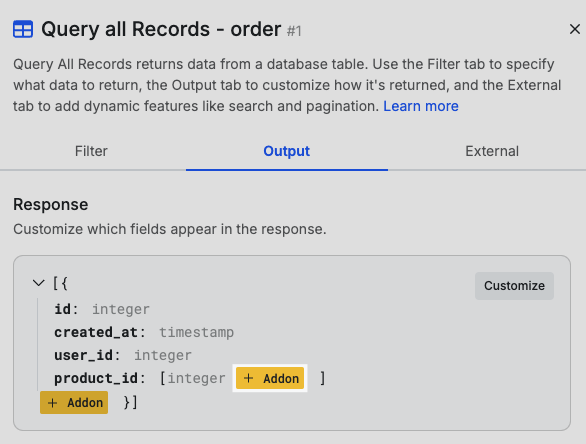
    You'll see this attached to the base level of the response, table reference fields, and list fields. It's important to choose the correct Addon button based on the data you're trying to enhance.

    In this example, we have an Order table that just contains product IDs, and we want to see actual product information instead.

    <Frame>
      <img src="https://mintcdn.com/xano-997cb9ee/dyVYERTquSXdpw_-/images/9b96304e-image.jpeg?fit=max&auto=format&n=dyVYERTquSXdpw_-&q=85&s=9afc1372a713152a026583be07288300" alt="" width="586" height="444" data-path="images/9b96304e-image.jpeg" />
    </Frame>
  </Step>

  <Step title="Click '+ Create a new Addon' to create a new addon.">
    <Frame>
      <img src="https://mintcdn.com/xano-997cb9ee/SGxJ0muPK3um9hNH/images/7b6670b2-image.jpeg?fit=max&auto=format&n=SGxJ0muPK3um9hNH&q=85&s=d78765047aaae8590fc4832f9d66dc89" alt="" width="171" height="22" data-path="images/7b6670b2-image.jpeg" />
    </Frame>

    You can also select from already created addons from here.
  </Step>

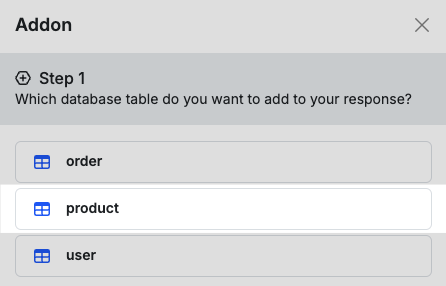
  <Step title="Select the table you want to add to the response.">
    For this example, we're adding product data to our orders, so we'll choose product.

    <Frame>
      <img src="https://mintcdn.com/xano-997cb9ee/_oKnuVg5Nf4VhJM4/images/52d31cfa-image.jpeg?fit=max&auto=format&n=_oKnuVg5Nf4VhJM4&q=85&s=56bbbec319f206136b581c189225a948" alt="" width="446" height="286" data-path="images/52d31cfa-image.jpeg" />
    </Frame>
  </Step>

  <Step title="Choose how you want the data returned.">
    Similar to return types on a Query All Records step, you can adjust how the data is returned here.

    #### Return Types

    **exists** - Returns a true or false based on if records were returned **count** - Returns the number of records found **single** - Returns the first record found **list** - Returns a list of records **stream** - When used with a For Each Loop, maintains memory efficiency when iterating through large lists of records **aggregate** - Perform special aggregation functions on the returned records

    For this example, because we are only returning one product per product ID, we'll choose **single**.
  </Step>

  <Step title="Select the field(s) from the table you are adding that match the data from the original query.">
    Our orders table contains product IDs in a field called `product_id`, so we'll choose that field. Xano will try and make the right choice for you automatically, so you may not have to make any changes here.

    <Frame>
      <img src="https://mintcdn.com/xano-997cb9ee/Qia2QBMIuWWrGb-s/images/21c0fa56-image.jpeg?fit=max&auto=format&n=Qia2QBMIuWWrGb-s&q=85&s=d382f0468348eebcbd19e6838ae55082" alt="" width="447" height="328" data-path="images/21c0fa56-image.jpeg" />
    </Frame>
  </Step>

  <Step title="Give your addon a name, and click 'Create Addon'">
    <Frame>
      <img src="https://mintcdn.com/xano-997cb9ee/kBkSb_XZ48XRxJA_/images/a4e4b4db-image.jpeg?fit=max&auto=format&n=kBkSb_XZ48XRxJA_&q=85&s=40724babbc3ce9c4a7bd92fe89ca06fe" alt="" width="261" height="45" data-path="images/a4e4b4db-image.jpeg" />
    </Frame>

    This name is just for you, so you can find the addon you're creating later.
  </Step>

  <Step title="Give the data a name, which is the key it will reside in inside of the parent object.">
    Our parent object in this case is each product ID. The parent object is just whatever you are adding on to — think back to a few steps ago when we clicked the Addon button inside of product\_id.

    We want each product to be nested under a key called product\_info, so that's what we'll put here.

    <Frame>
      <img src="https://mintcdn.com/xano-997cb9ee/kBkSb_XZ48XRxJA_/images/ac7a11e2-image.jpeg?fit=max&auto=format&n=kBkSb_XZ48XRxJA_&q=85&s=54b40c99f932e2c0c8bb855acbb652df" alt="" width="433" height="166" data-path="images/ac7a11e2-image.jpeg" />
    </Frame>

    You can also click

    <img src="https://mintcdn.com/xano-997cb9ee/WBQXG-4Ngk82eYAW/images/fbd74c85-image.jpeg?fit=max&auto=format&n=WBQXG-4Ngk82eYAW&q=85&s=cdff0a1c42e35a7db672abaeb8d117d1" className="inline m-0" width="145" height="34" data-path="images/fbd74c85-image.jpeg" />

    to change the response if you only want certain fields returned.
  </Step>
</Steps>