> ## Documentation Index
> Fetch the complete documentation index at: https://docs.xano.com/llms.txt
> Use this file to discover all available pages before exploring further.
# Push & Pull
> Sync XanoScript files between your local filesystem and Xano
export const BrowserFrame = props => {
const {url = "xano.run", maxWidth = 820, className = "", lightSrc, darkSrc, alt = "", children} = props || ({});
const style = typeof maxWidth === "number" ? {
maxWidth: `${maxWidth}px`,
margin: "16px 0"
} : {
maxWidth,
margin: "16px 0"
};
const hasSwapImages = Boolean(lightSrc && darkSrc);
return
{hasSwapImages ? <>


: children}
;
};
The Xano CLI lets you pull your entire workspace down as XanoScript files and push local changes back. This enables local development, version control with Git, AI-assisted development, and team collaboration.
**Switching back to the CLI after working in another build mode?** If you've made changes using the visual builder, the in-browser XanoScript editor, the VS Code extension, or the MCP server, your local CLI files won't reflect those changes automatically — there is no automatic sync or diff checking. Always run `xano workspace pull` to download the latest state of your workspace before making further changes locally.
**On a paid plan?** Pushing through your [sandbox](/xano-cli/sandbox) is the default — and is required unless you've enabled **Allow Direct Workspace Push** in **Xano → Workspace Settings**. `xano sandbox push` shares most of `xano workspace push`'s flags, with one exception: it does **not** support the `-i/--include` or `-e/--exclude` filters. See the [Typical Workflow](#typical-workflow) below.
## Pull
Pull downloads your workspace as individual `.xs` (XanoScript) files, organized by type. Behind the scenes, the CLI retrieves a single [multidoc](/xanoscript/multidoc) — a combined XanoScript document containing every definition in your workspace — and splits it into separate files.
```bash theme={null}
xano workspace pull -d ./my-workspace
```
This creates a directory structure like:
```
my-workspace/
├── workspace/
│ ├── my_workspace.xs
│ └── trigger/
│ └── on_workspace_event.xs
├── table/
│ ├── user.xs
│ ├── product.xs
│ └── trigger/
│ └── on_user_create.xs
├── function/
│ ├── calculate_shipping.xs
│ └── utils/
│ └── validate_email.xs
├── api/
│ ├── user/
│ │ ├── api_group.xs
│ │ ├── get_user_get.xs
│ │ └── create_user_post.xs
│ └── product/
│ ├── api_group.xs
│ └── list_products_get.xs
├── task/
│ └── cleanup_expired_sessions.xs
├── ai/
│ ├── agent/
│ │ ├── support_bot.xs
│ │ └── trigger/
│ │ └── on_agent_event.xs
│ ├── tool/
│ │ └── search_knowledge_base.xs
│ └── mcp_server/
│ ├── my_mcp_server.xs
│ └── trigger/
│ └── on_mcp_event.xs
├── realtime/
│ ├── channel/
│ │ └── notifications.xs
│ └── trigger/
│ └── on_message.xs
├── middleware/
│ └── auth_check.xs
└── addon/
└── fetch_related.xs
```
Each resource becomes its own `.xs` file. Key details:
* **API endpoints** are grouped under `api/{group_name}/` directories, with each group containing an `api_group.xs` and endpoint files named `{name}_{verb}.xs`
* **Hierarchical functions** (with `/` in the name) are split into subdirectories
* **AI resources** (agents, tools, MCP servers) are grouped under `ai/`, with triggers in `ai/{type}/trigger/`
* **Realtime** resources are organized under `realtime/channel/` and `realtime/trigger/`
* **Triggers** are placed in `trigger/` subdirectories within their parent type (`table/trigger/`, `ai/agent/trigger/`, etc.)
* All filenames are converted to `snake_case`
### Pull Options
| Flag | Description |
| ----------- | -------------------------------------------------------- |
| `-b` | Branch name (overrides profile; defaults to live branch) |
| `-w` | Workspace ID (overrides profile) |
| `--env` | Include environment variables |
| `--records` | Include database records |
| `--draft` | Include draft versions of resources |
#### Include environment variables
```bash theme={null}
xano workspace pull -d ./my-workspace --env
```
#### Include database records
Pull your table records alongside the schema. This is also a convenient way to create a **local backup** of your data before pushing schema changes.
```bash theme={null}
xano workspace pull -d ./my-workspace-data --records
```
#### Both
```bash theme={null}
xano workspace pull -d ./my-workspace --env --records
```
#### Pull a specific branch
```bash theme={null}
xano workspace pull -d ./my-workspace -b v2-feature
```
If `-b` is not provided, the pull targets the branch stored in your profile. If no branch is set in your profile, it defaults to the live branch.
***
## Push
Push uploads local `.xs` files back to your Xano workspace, syncing your local changes. By default, only changed files are pushed (partial mode). Use `--sync` to push all files.
```bash theme={null}
xano workspace push -d ./my-workspace
```
The CLI recursively collects all `.xs` files from the directory, compares them against your workspace, and sends only the changes to Xano. Before applying anything, the CLI shows a [preview](#push-preview) of what will be created, updated, or deleted, and prompts for confirmation. After completion, the CLI displays the total execution time.
| Flag | Description |
| ------------------ | ------------------------------------------------------------------------------------------------------------------------------------ |
| `-b` | Branch name (overrides profile; defaults to live branch) |
| `-w` | Workspace ID (overrides profile) |
| `-i, --include` | Glob pattern to include files (e.g. `-i "function/*"` or `-i "**/book*"`). Supports multiple `-i` flags. |
| `-e, --exclude` | Glob pattern to exclude files (e.g. `-e "table/*"` or `-e "**/test*"`). Supports multiple `-e` flags. |
| `--sync` | Full push — send all files, not just changed ones. Required for `--delete`. |
| `--delete` | Delete workspace objects not included in the push (requires `--sync`) |
| `--records` | Include table records in the push — requires local files pulled with `--records` |
| `--env` | Include environment variables in the push — requires local files pulled with `--env` |
| `--dry-run` | Show the push preview, then exit without applying changes |
| `--force` | Skip the preview and confirmation prompt — also overrides critical error blocking. Required in non-interactive (CI/CD) environments. |
| `--no-guids` | Skip writing server-assigned GUIDs back to local files |
| `--no-transaction` | Skip wrapping the import in a database transaction — useful for debugging failed imports |
| `--truncate` | Truncate all table records before importing |
Every push automatically shows a [preview](#push-preview) of what will change and prompts for confirmation — but that's your last line of defense, not your first.
**Before pushing:** make sure your local files are up to date (`pull` first), review your changes with `git diff`, and consider pulling with `--records` to snapshot your data before schema changes. Work on a **non-live branch** and test before promoting to live. Use `-i` to include specific files or `-e` to exclude files if you only need to update a subset.
See [Push Options](#push-options) for detailed usage of each flag.
***
## Push Preview
Every `xano workspace push` automatically runs a preview before making any changes. The CLI performs a dry-run against your Xano instance and shows you exactly what will happen — then prompts for confirmation before proceeding.
```bash theme={null}
xano workspace push -d ./my-workspace
```
If there are no changes to apply, the CLI exits with `No changes to push.` If changes are detected, the preview is shown before the confirmation prompt. When records are included (`--records`), the preview also shows record counts per table.
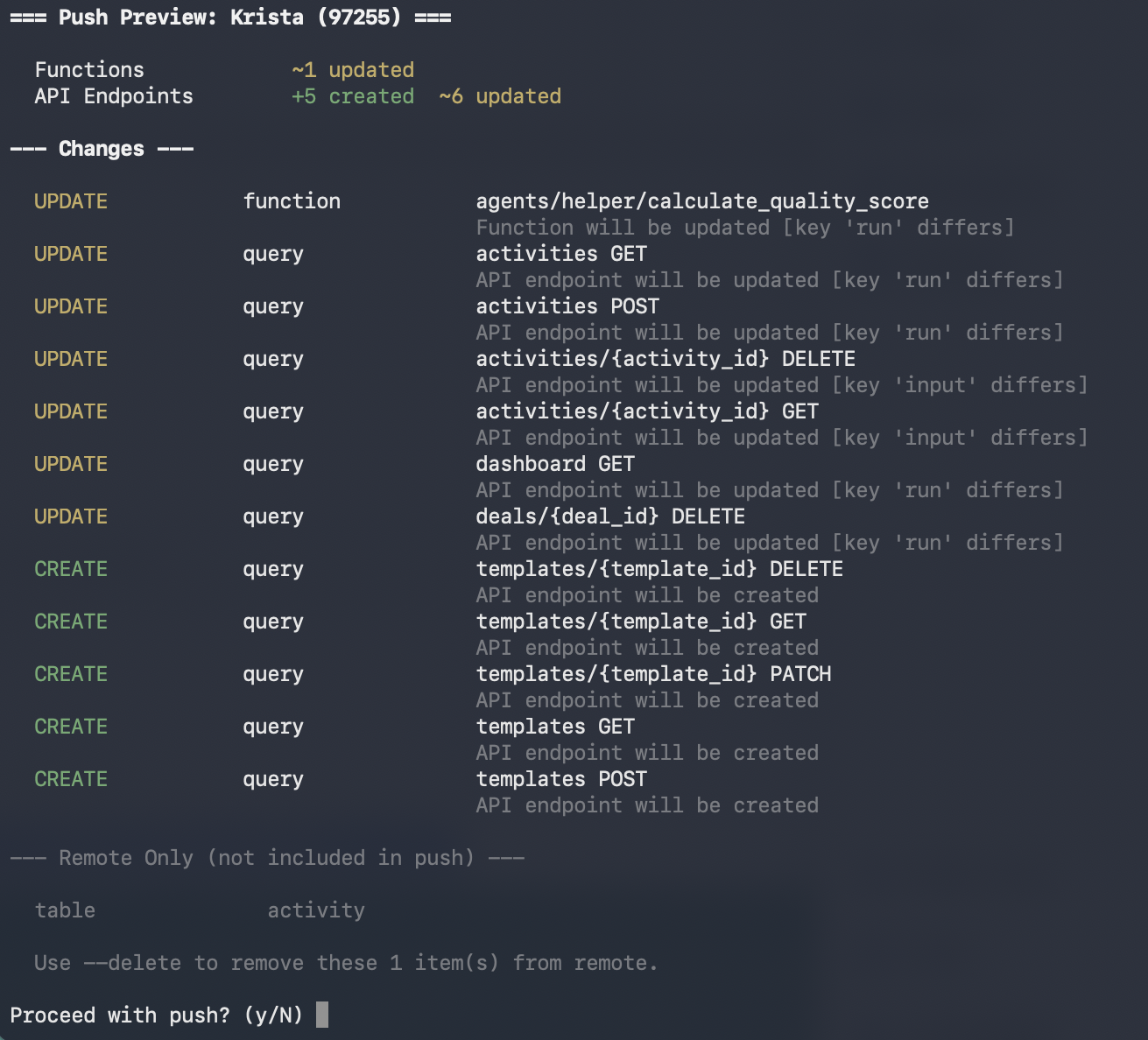
### Summary & Changes
The preview opens with a per-type count of what will be created, updated, or deleted — color-coded green, yellow, and red — followed by the non-destructive operations: new objects being created (`CREATE`), existing objects being updated (`UPDATE`), and fields being added or modified (`ADD_FIELD`, `UPDATE_FIELD`).
 ### Destructive Operations
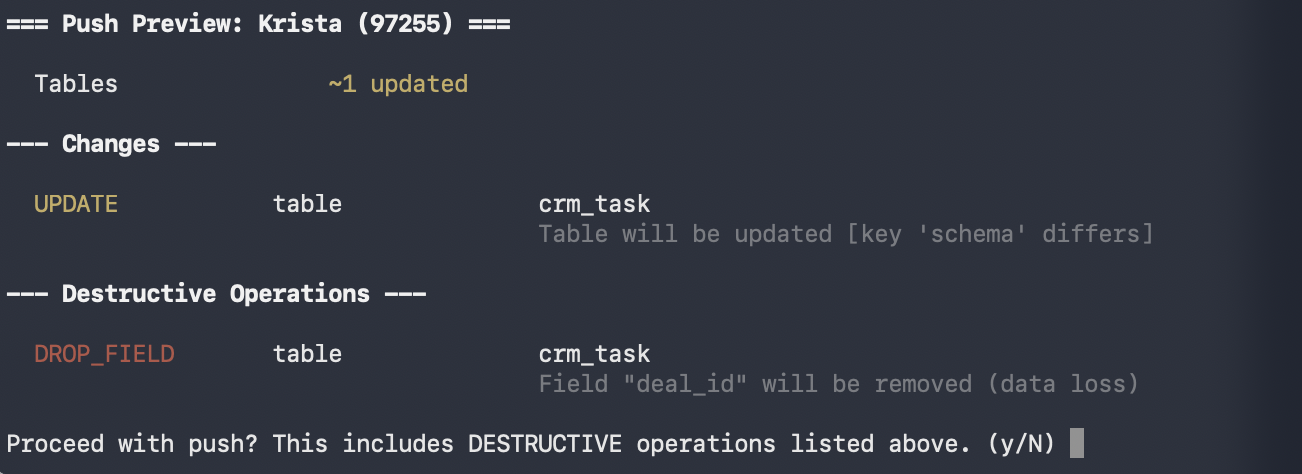
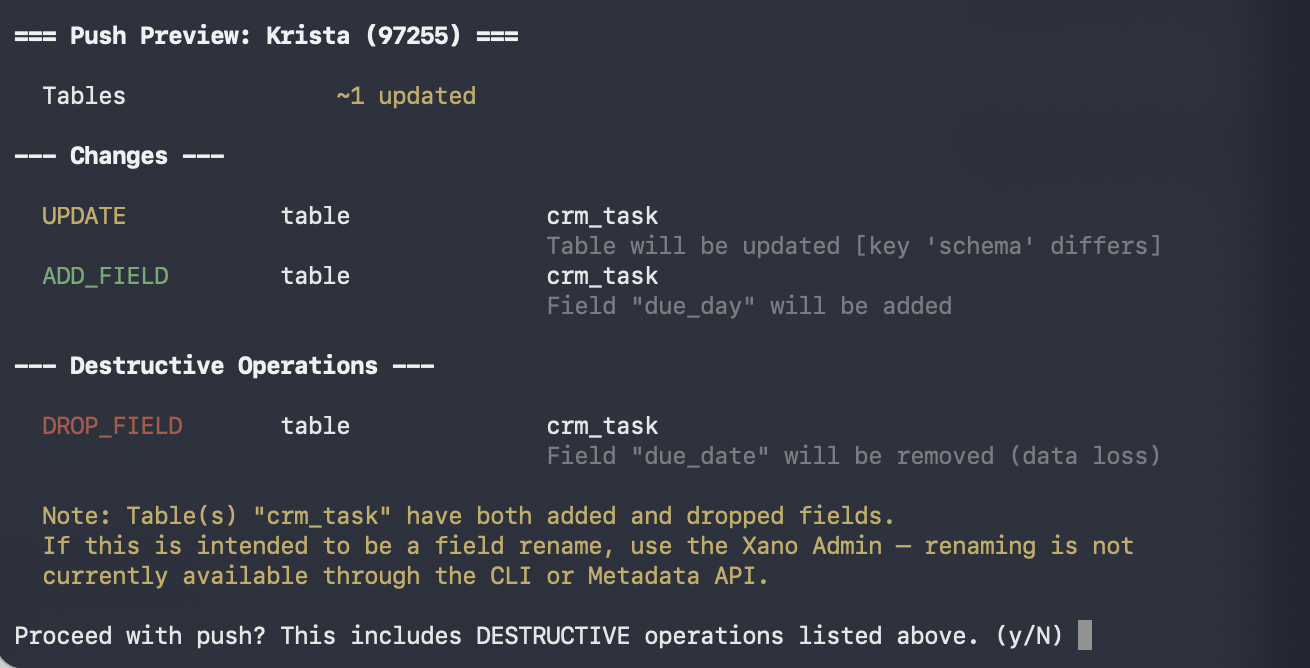
Operations that can cause data loss are listed separately and highlighted: `DELETE`, `CASCADE_DELETE`, `TRUNCATE`, `DROP_FIELD`, and `ALTER_FIELD`. When destructive operations are present, the confirmation prompt explicitly warns you before asking to proceed.
### Destructive Operations
Operations that can cause data loss are listed separately and highlighted: `DELETE`, `CASCADE_DELETE`, `TRUNCATE`, `DROP_FIELD`, and `ALTER_FIELD`. When destructive operations are present, the confirmation prompt explicitly warns you before asking to proceed.
 ### Remote Only
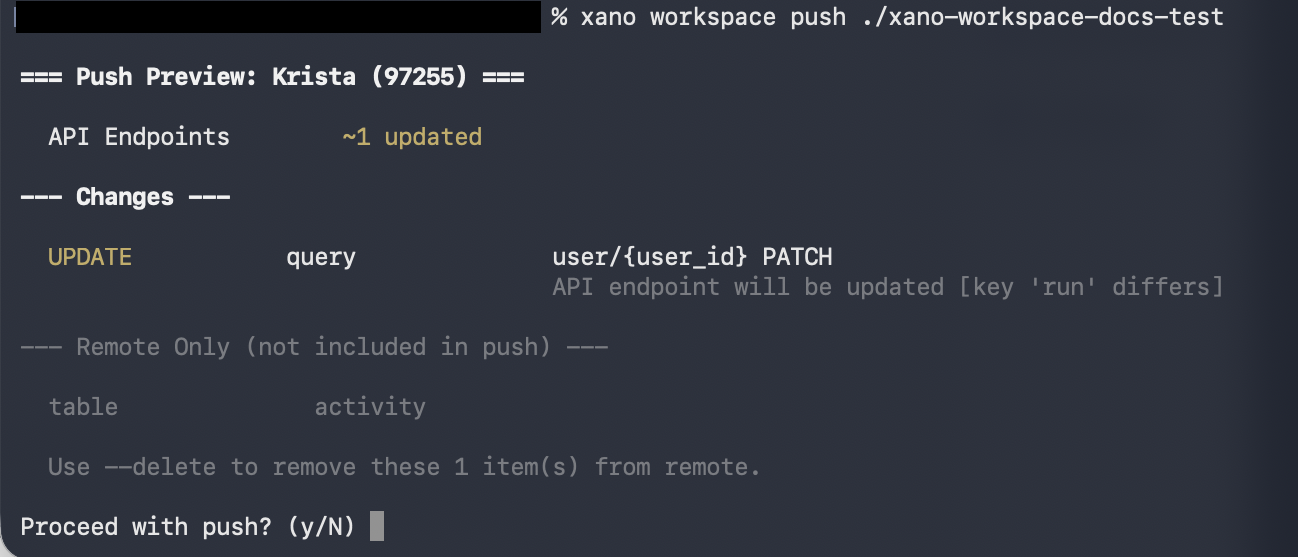
Objects that exist in your Xano workspace but are not in your local files. These are shown when `--delete` is not set — they will not be deleted, but the preview makes them visible so you're aware of the discrepancy.
### Remote Only
Objects that exist in your Xano workspace but are not in your local files. These are shown when `--delete` is not set — they will not be deleted, but the preview makes them visible so you're aware of the discrepancy.
 ### Verbose mode
Add `-v` to see a `reason` line under each operation explaining why the server classified it that way:
```bash theme={null}
xano workspace push -d ./my-workspace -v
```
### Preview only (dry run)
Use `--dry-run` to see the full preview — changes, destructive operations, remote-only items, and records — then exit without pushing. Nothing is applied.
```bash theme={null}
xano workspace push -d ./my-workspace --dry-run
```
This is useful when you want to inspect what a push *would* do before committing to it — especially helpful for AI agents that need to review the impact of changes before deciding to proceed.
### Critical error blocking
Pushes that contain critical errors — such as XanoScript syntax errors or unresolved placeholders — are automatically blocked. The preview highlights these errors so you can fix them before retrying. Use `--force` to override and push anyway.
### Skipping preview
Use `--force` to bypass the preview and confirmation prompt entirely — useful in CI/CD pipelines or scripted workflows. `--force` also overrides critical error blocking.
```bash theme={null}
xano workspace push -d ./my-workspace --force
```
In non-interactive environments (e.g. piped output, CI/CD), the CLI requires `--force` to skip the confirmation prompt.
***
## Push Options
#### Push with records
Records are **off by default** on push, matching pull behavior. To include records, you must have first pulled with `--records` (so the data exists locally), then explicitly pass `--records` on push:
```bash theme={null}
xano workspace pull -d ./my-workspace-data --records
# ... make changes ...
xano workspace push -d ./my-workspace-data --records
```
#### Push with environment variables
Environment variables are also **off by default** on push. Pull with `--env` first, then push with `--env`:
```bash theme={null}
xano workspace pull -d ./my-workspace --env
# ... make changes ...
xano workspace push -d ./my-workspace --env
```
#### Push with records and environment variables
```bash theme={null}
xano workspace push -d ./my-workspace-data --records --env
```
#### File filtering
Use `-i` (or `--include`) to push only files matching a glob pattern, and `-e` (or `--exclude`) to skip files matching a pattern. Patterns are matched against relative paths from the push directory. You can pass multiple flags to combine patterns.
```bash theme={null}
# Push only functions
xano workspace push -d ./my-workspace -i "function/*"
# Push anything with "book" in the name
xano workspace push -d ./my-workspace -i "**/book*"
# Combine include patterns
xano workspace push -d ./my-workspace -i "function/*" -i "api/*"
# Push functions but exclude test files
xano workspace push -d ./my-workspace -i "function/*" -e "**/test*"
# Push everything except tables
xano workspace push -d ./my-workspace -e "table/*"
```
#### Full sync
By default, only changed files are pushed. Use `--sync` to push all files — this performs a full sync against your workspace.
```bash theme={null}
xano workspace push -d ./my-workspace --sync
```
#### Delete removed objects
Use `--sync --delete` to remove any objects in Xano that are not present in your local files. This ensures your workspace matches your local directory exactly. `--delete` requires `--sync`.
```bash theme={null}
xano workspace push -d ./my-workspace --sync --delete
```
`--sync --delete` will permanently remove objects from your Xano workspace that don't exist in the local push. Double-check your git diff to be confident before using this flag.
#### Skip GUID sync
By default, after a push the CLI writes server-assigned GUIDs back into your local `.xs` files. Use `--no-guids` to skip this step — useful in CI/CD pipelines or when you don't want local files modified.
```bash theme={null}
xano workspace push -d ./my-workspace --no-guids
```
#### Skip transaction
By default, pushes are wrapped in a database transaction so that failures roll back cleanly. Use `--no-transaction` to disable this — useful for debugging failed imports where you want to inspect the partial state.
```bash theme={null}
xano workspace push -d ./my-workspace --no-transaction
```
#### Truncate table records before importing (staging/test workspaces only)
Use `--truncate` to wipe all existing rows from every table before importing records from your local files. This is useful when you want a clean slate — for example, resetting a staging or test workspace to a known dataset before running automated tests, or re-seeding a fresh environment with fixture data.
```bash theme={null}
xano workspace push -d ./my-workspace-data --records --truncate
```
`--truncate` deletes all existing table records before importing. It is intended for **staging and test workspaces only** — never use it against a production workspace. The push preview always lists truncation under Destructive Operations so you can verify it's expected before confirming.
***
## Pull from Git
You can pull XanoScript files directly from a Git repository (GitHub, GitLab, or any git URL) into a local directory — without needing to clone the repo yourself.
```bash theme={null}
xano workspace git pull -d ./output -r https://github.com/owner/repo
```
This fetches all `.xs` files from the repository and organizes them into the same directory structure as a workspace pull.
### Git Pull Options
| Flag | Description |
| -------- | ------------------------------------------------------------------------------ |
| `-r` | Git repository URL (required) — supports HTTPS, SSH, GitHub, and GitLab URLs |
| `-b` | Branch, tag, or ref to fetch (defaults to the repository's default branch) |
| `-t` | Personal access token for private repos (falls back to `GITHUB_TOKEN` env var) |
| `--path` | Subdirectory within the repo to import from |
### URL Formats
You can pass a variety of URL formats — the CLI extracts the owner, repo, branch, and path automatically:
```bash theme={null}
# Repository root
xano workspace git pull -d ./output -r https://github.com/owner/repo
# Specific branch
xano workspace git pull -d ./output -r https://github.com/owner/repo -b main
# Subdirectory via URL path
xano workspace git pull -d ./output -r https://github.com/owner/repo/tree/main/path/to/dir
# Single file URL (imports the containing directory)
xano workspace git pull -d ./output -r https://github.com/owner/repo/blob/main/file.xs
# SSH URL
xano workspace git pull -d ./output -r git@github.com:owner/repo.git
# GitLab
xano workspace git pull -d ./output -r https://gitlab.com/owner/repo/-/tree/master/path
# Private repo with token
xano workspace git pull -d ./output -r https://github.com/owner/private-repo -t ghp_xxx
```
For GitHub repos, the CLI uses the tarball API for fast downloads without requiring `git` to be installed. For GitLab and other hosts, it falls back to a shallow `git clone`.
### Workflow: Import from Git, Push to Xano
A common use case is pulling XanoScript from a shared Git repository and pushing it to a workspace. For example, you can pull the **Hello World** sample from the [XanoScript examples repo](https://github.com/xano-inc/xanoscript-examples) and push it to your workspace:
```bash theme={null}
xano workspace git pull -d ./helloworld \
-r https://github.com/xano-inc/xanoscript-examples \
--path helloworld
xano workspace push -d ./helloworld
```
***
## Typical Workflow
On paid plans, the default development cycle pushes through your [sandbox](/xano-cli/sandbox) — an isolated copy of your workspace where you can test changes before promoting them. Direct workspace pushes are blocked unless you turn on **Allow Direct Workspace Push** in **Xano → Workspace Settings**.
```bash theme={null}
xano workspace pull -d ./my-workspace
```
Edit `.xs` files in VS Code with the [XanoScript Language Server](https://marketplace.visualstudio.com/items?itemName=xano.xanoscript-language-server) extension for syntax highlighting and inline validation.
Use [AI-assisted development](/getting-started-ai) with Claude Code and the Xano Developer MCP to generate and modify XanoScript with AI — the MCP provides documentation and real-time validation directly to your AI assistant.
Before pushing, review exactly what changed using Git:
```bash theme={null}
git diff
```
Pay close attention to any table schema changes — renamed columns, removed fields, or changed field types — as these can affect existing data.
Push your changes to your sandbox. The CLI shows the same [preview](#push-preview) and confirmation as a workspace push.
```bash theme={null}
xano sandbox push -d ./my-workspace
```
Verify your changes work as expected in the isolated sandbox environment before they touch your workspace.
Open the sandbox in the browser to review the diff against your workspace and promote the changes:
```bash theme={null}
xano sandbox review
```
See [Sandbox](/xano-cli/sandbox) for the full set of sandbox commands — including reset, env vars, and running tests.
**Pushing directly to your workspace.** Free plans always push directly. On paid plans, enable **Allow Direct Workspace Push** in **Xano → Workspace Settings** to bypass the sandbox. Then substitute `xano workspace push -d ./my-workspace --dry-run` to preview, and `xano workspace push -d ./my-workspace` to apply.
***
## Git works like it always has
Your workspace is plain files on disk — `git init`, commit, branch, and open PRs exactly like any other project. Xano's push/pull fits into your Git workflow, not the other way around.
## Working with Git
Since pull outputs standard files to your filesystem, you can version control your XanoScript with Git:
```bash theme={null}
cd my-workspace
git init
git add .
git commit -m "Initial pull from Xano"
```
This gives you full commit history, diffs, branching, and collaboration through Git — on top of Xano's own branching system.
***
## Tips
* **Pull before you push** to avoid overwriting changes made by teammates in the Xano dashboard.
* **Use branches** for development work. Create a branch with `xano branch create dev`, then use `-b dev` on push and pull commands to target it without affecting the live branch.
* **Snapshot your data** by pulling with `--records` before pushing schema changes. This gives you a local copy of your database records you can restore from if needed. To push those records back, pass `--records` on push as well — records are off by default in both directions.
* **Use `-i` to include** specific files (e.g. `-i "function/*"`) or `-e` to exclude files (e.g. `-e "table/*"`). Use `--sync` when you need a full push, and `--sync --delete` to remove remote objects not in your local files.
* **Combine with AI tools** like Claude Code or Cursor to generate and edit XanoScript locally, then push the results. See the [Start from Scratch](/xano-cli/guide-from-scratch) and [Work from Existing](/xano-cli/guide-from-existing) guides for full walkthroughs.
***
## Troubleshooting
If a push or pull isn't working as expected, use the `-v` (verbose) flag to see the full request and response details:
```bash theme={null}
xano workspace push -d ./my-workspace -v
```
Verbose mode shows:
* The HTTP method and full URL being called
* Request headers (with the authorization token partially masked)
* The request body (truncated to 500 characters for readability)
* The response status code and elapsed time
This works on **all** CLI commands, not just push and pull. You can also enable it globally by setting the `XANO_VERBOSE` environment variable:
```bash theme={null}
export XANO_VERBOSE=true
xano workspace pull -d ./my-workspace
```
### Verbose mode
Add `-v` to see a `reason` line under each operation explaining why the server classified it that way:
```bash theme={null}
xano workspace push -d ./my-workspace -v
```
### Preview only (dry run)
Use `--dry-run` to see the full preview — changes, destructive operations, remote-only items, and records — then exit without pushing. Nothing is applied.
```bash theme={null}
xano workspace push -d ./my-workspace --dry-run
```
This is useful when you want to inspect what a push *would* do before committing to it — especially helpful for AI agents that need to review the impact of changes before deciding to proceed.
### Critical error blocking
Pushes that contain critical errors — such as XanoScript syntax errors or unresolved placeholders — are automatically blocked. The preview highlights these errors so you can fix them before retrying. Use `--force` to override and push anyway.
### Skipping preview
Use `--force` to bypass the preview and confirmation prompt entirely — useful in CI/CD pipelines or scripted workflows. `--force` also overrides critical error blocking.
```bash theme={null}
xano workspace push -d ./my-workspace --force
```
In non-interactive environments (e.g. piped output, CI/CD), the CLI requires `--force` to skip the confirmation prompt.
***
## Push Options
#### Push with records
Records are **off by default** on push, matching pull behavior. To include records, you must have first pulled with `--records` (so the data exists locally), then explicitly pass `--records` on push:
```bash theme={null}
xano workspace pull -d ./my-workspace-data --records
# ... make changes ...
xano workspace push -d ./my-workspace-data --records
```
#### Push with environment variables
Environment variables are also **off by default** on push. Pull with `--env` first, then push with `--env`:
```bash theme={null}
xano workspace pull -d ./my-workspace --env
# ... make changes ...
xano workspace push -d ./my-workspace --env
```
#### Push with records and environment variables
```bash theme={null}
xano workspace push -d ./my-workspace-data --records --env
```
#### File filtering
Use `-i` (or `--include`) to push only files matching a glob pattern, and `-e` (or `--exclude`) to skip files matching a pattern. Patterns are matched against relative paths from the push directory. You can pass multiple flags to combine patterns.
```bash theme={null}
# Push only functions
xano workspace push -d ./my-workspace -i "function/*"
# Push anything with "book" in the name
xano workspace push -d ./my-workspace -i "**/book*"
# Combine include patterns
xano workspace push -d ./my-workspace -i "function/*" -i "api/*"
# Push functions but exclude test files
xano workspace push -d ./my-workspace -i "function/*" -e "**/test*"
# Push everything except tables
xano workspace push -d ./my-workspace -e "table/*"
```
#### Full sync
By default, only changed files are pushed. Use `--sync` to push all files — this performs a full sync against your workspace.
```bash theme={null}
xano workspace push -d ./my-workspace --sync
```
#### Delete removed objects
Use `--sync --delete` to remove any objects in Xano that are not present in your local files. This ensures your workspace matches your local directory exactly. `--delete` requires `--sync`.
```bash theme={null}
xano workspace push -d ./my-workspace --sync --delete
```
`--sync --delete` will permanently remove objects from your Xano workspace that don't exist in the local push. Double-check your git diff to be confident before using this flag.
#### Skip GUID sync
By default, after a push the CLI writes server-assigned GUIDs back into your local `.xs` files. Use `--no-guids` to skip this step — useful in CI/CD pipelines or when you don't want local files modified.
```bash theme={null}
xano workspace push -d ./my-workspace --no-guids
```
#### Skip transaction
By default, pushes are wrapped in a database transaction so that failures roll back cleanly. Use `--no-transaction` to disable this — useful for debugging failed imports where you want to inspect the partial state.
```bash theme={null}
xano workspace push -d ./my-workspace --no-transaction
```
#### Truncate table records before importing (staging/test workspaces only)
Use `--truncate` to wipe all existing rows from every table before importing records from your local files. This is useful when you want a clean slate — for example, resetting a staging or test workspace to a known dataset before running automated tests, or re-seeding a fresh environment with fixture data.
```bash theme={null}
xano workspace push -d ./my-workspace-data --records --truncate
```
`--truncate` deletes all existing table records before importing. It is intended for **staging and test workspaces only** — never use it against a production workspace. The push preview always lists truncation under Destructive Operations so you can verify it's expected before confirming.
***
## Pull from Git
You can pull XanoScript files directly from a Git repository (GitHub, GitLab, or any git URL) into a local directory — without needing to clone the repo yourself.
```bash theme={null}
xano workspace git pull -d ./output -r https://github.com/owner/repo
```
This fetches all `.xs` files from the repository and organizes them into the same directory structure as a workspace pull.
### Git Pull Options
| Flag | Description |
| -------- | ------------------------------------------------------------------------------ |
| `-r` | Git repository URL (required) — supports HTTPS, SSH, GitHub, and GitLab URLs |
| `-b` | Branch, tag, or ref to fetch (defaults to the repository's default branch) |
| `-t` | Personal access token for private repos (falls back to `GITHUB_TOKEN` env var) |
| `--path` | Subdirectory within the repo to import from |
### URL Formats
You can pass a variety of URL formats — the CLI extracts the owner, repo, branch, and path automatically:
```bash theme={null}
# Repository root
xano workspace git pull -d ./output -r https://github.com/owner/repo
# Specific branch
xano workspace git pull -d ./output -r https://github.com/owner/repo -b main
# Subdirectory via URL path
xano workspace git pull -d ./output -r https://github.com/owner/repo/tree/main/path/to/dir
# Single file URL (imports the containing directory)
xano workspace git pull -d ./output -r https://github.com/owner/repo/blob/main/file.xs
# SSH URL
xano workspace git pull -d ./output -r git@github.com:owner/repo.git
# GitLab
xano workspace git pull -d ./output -r https://gitlab.com/owner/repo/-/tree/master/path
# Private repo with token
xano workspace git pull -d ./output -r https://github.com/owner/private-repo -t ghp_xxx
```
For GitHub repos, the CLI uses the tarball API for fast downloads without requiring `git` to be installed. For GitLab and other hosts, it falls back to a shallow `git clone`.
### Workflow: Import from Git, Push to Xano
A common use case is pulling XanoScript from a shared Git repository and pushing it to a workspace. For example, you can pull the **Hello World** sample from the [XanoScript examples repo](https://github.com/xano-inc/xanoscript-examples) and push it to your workspace:
```bash theme={null}
xano workspace git pull -d ./helloworld \
-r https://github.com/xano-inc/xanoscript-examples \
--path helloworld
xano workspace push -d ./helloworld
```
***
## Typical Workflow
On paid plans, the default development cycle pushes through your [sandbox](/xano-cli/sandbox) — an isolated copy of your workspace where you can test changes before promoting them. Direct workspace pushes are blocked unless you turn on **Allow Direct Workspace Push** in **Xano → Workspace Settings**.
```bash theme={null}
xano workspace pull -d ./my-workspace
```
Edit `.xs` files in VS Code with the [XanoScript Language Server](https://marketplace.visualstudio.com/items?itemName=xano.xanoscript-language-server) extension for syntax highlighting and inline validation.
Use [AI-assisted development](/getting-started-ai) with Claude Code and the Xano Developer MCP to generate and modify XanoScript with AI — the MCP provides documentation and real-time validation directly to your AI assistant.
Before pushing, review exactly what changed using Git:
```bash theme={null}
git diff
```
Pay close attention to any table schema changes — renamed columns, removed fields, or changed field types — as these can affect existing data.
Push your changes to your sandbox. The CLI shows the same [preview](#push-preview) and confirmation as a workspace push.
```bash theme={null}
xano sandbox push -d ./my-workspace
```
Verify your changes work as expected in the isolated sandbox environment before they touch your workspace.
Open the sandbox in the browser to review the diff against your workspace and promote the changes:
```bash theme={null}
xano sandbox review
```
See [Sandbox](/xano-cli/sandbox) for the full set of sandbox commands — including reset, env vars, and running tests.
**Pushing directly to your workspace.** Free plans always push directly. On paid plans, enable **Allow Direct Workspace Push** in **Xano → Workspace Settings** to bypass the sandbox. Then substitute `xano workspace push -d ./my-workspace --dry-run` to preview, and `xano workspace push -d ./my-workspace` to apply.
***
## Git works like it always has
Your workspace is plain files on disk — `git init`, commit, branch, and open PRs exactly like any other project. Xano's push/pull fits into your Git workflow, not the other way around.
## Working with Git
Since pull outputs standard files to your filesystem, you can version control your XanoScript with Git:
```bash theme={null}
cd my-workspace
git init
git add .
git commit -m "Initial pull from Xano"
```
This gives you full commit history, diffs, branching, and collaboration through Git — on top of Xano's own branching system.
***
## Tips
* **Pull before you push** to avoid overwriting changes made by teammates in the Xano dashboard.
* **Use branches** for development work. Create a branch with `xano branch create dev`, then use `-b dev` on push and pull commands to target it without affecting the live branch.
* **Snapshot your data** by pulling with `--records` before pushing schema changes. This gives you a local copy of your database records you can restore from if needed. To push those records back, pass `--records` on push as well — records are off by default in both directions.
* **Use `-i` to include** specific files (e.g. `-i "function/*"`) or `-e` to exclude files (e.g. `-e "table/*"`). Use `--sync` when you need a full push, and `--sync --delete` to remove remote objects not in your local files.
* **Combine with AI tools** like Claude Code or Cursor to generate and edit XanoScript locally, then push the results. See the [Start from Scratch](/xano-cli/guide-from-scratch) and [Work from Existing](/xano-cli/guide-from-existing) guides for full walkthroughs.
***
## Troubleshooting
If a push or pull isn't working as expected, use the `-v` (verbose) flag to see the full request and response details:
```bash theme={null}
xano workspace push -d ./my-workspace -v
```
Verbose mode shows:
* The HTTP method and full URL being called
* Request headers (with the authorization token partially masked)
* The request body (truncated to 500 characters for readability)
* The response status code and elapsed time
This works on **all** CLI commands, not just push and pull. You can also enable it globally by setting the `XANO_VERBOSE` environment variable:
```bash theme={null}
export XANO_VERBOSE=true
xano workspace pull -d ./my-workspace
```