> ## Documentation Index
> Fetch the complete documentation index at: https://docs.xano.com/llms.txt
> Use this file to discover all available pages before exploring further.

# Workspace Settings

> An explanation of all available workspace settings

<Info>
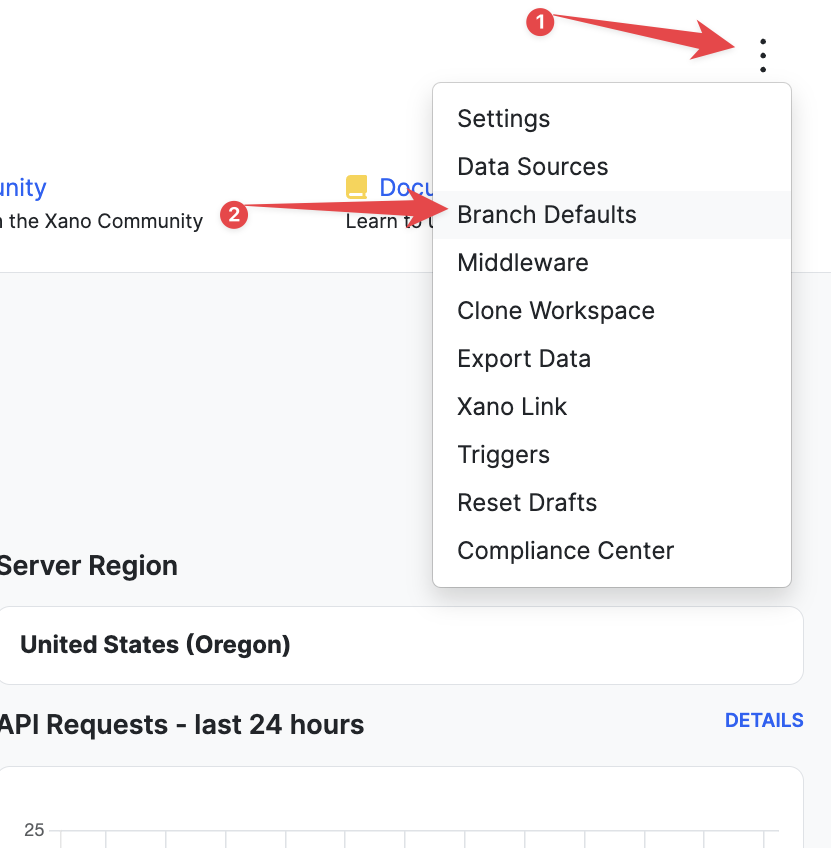
  Access your workspace settings at any time by clicking the <Icon icon="gear" /> icon in the upper-right corner.
</Info>

<CardGroup cols={2}>
  <Card title="Workspace" icon="gear" href="#workspace">
    Clone, export, and general workspace configuration
  </Card>

  <Card title="Branch Defaults" icon="code-branch" href="#branch-defaults">
    Request history defaults for each object type
  </Card>

  <Card title="Environment Variables" icon="key" href="#environment-variables">
    Persistent variables available across your workspace
  </Card>

  <Card title="Git Sync" icon="link" href="#git-sync">
    One-way sync to GitHub or GitLab
  </Card>

  <Card title="Middleware Defaults" icon="wrench" href="#middleware-defaults">
    Global PRE and POST middleware configuration
  </Card>

  <Card title="Workspace Triggers" icon="bolt" href="#workspace-triggers">
    Triggers for branch events
  </Card>

  <Card title="Processing Jobs" icon="list-check" href="#processing-jobs">
    Background job status and management
  </Card>

  <Card title="Realtime" icon="server" href="#realtime">
    Realtime channel settings
  </Card>

  <Card title="Database Preferences" icon="database" href="#database-preferences">
    Table format and SQL configuration
  </Card>

  <Card title="Xano Link" icon="link" href="#xano-link">
    Sync branches and schema across workspaces
  </Card>
</CardGroup>

## <Icon icon="gear" /> Workspace

#### Clone

Creates a clone of the entire workspace. Everything in the current workspace will be cloned, except for:

* Database records
* Drafts

Click <span class="ui-bubble">Clone Workspace</span> to begin the process.

Once complete, you'll be taken to the new workspace. Workspaces require unique names, so you may see something like `_1` appended to the workspace name.

#### Reset Drafts

Resets all items currently in draft state. All draft states will be lost and **can not be restored**.

This option is useful if you want to revert multiple changes across a number of workflows quickly, or need to troubleshoot UI-related issues inside of Xano. If you're unsure, reach out to our support team for clarity before continuing.

Type the name of the workspace into the prompt box and click <span class="ui-bubble">Confirm Reset</span> to clear all drafts.

#### Export Workspace

Creates a multidoc export of your workspace. A multidoc is a single file that contains all workspace data in XanoScript format.

Check the box next to the items you want to include, and click <span class="ui-bubble">Export</span>.

#### Export Data

Provides a representation of your entire workspace in JSON format. Also can include your hosted files, if you choose.

Check the **Media/Attachments** option if you want to include media, and click <span class="ui-bubble">Export</span>.

Your export will process in the background. You'll receive an email when it's ready, and can check the status in the Processing Jobs section at any time, where you can also access the download link. Exports will be removed after 12 hours.

#### Statement Explorer

Locate all instances of a specific statement across functions, endpoints, tasks, and triggers within your workspace.

From inside the statement explorer, select the statement(s) you'd like to search for. You can navigate right to the logic that houses that statement. Multiple statements can be selected for a more specific search.

<Frame>
  <img src="https://mintcdn.com/xano-997cb9ee/GGKkNaTQIWPG92tN/images/statement_explorer.gif?s=e247b8b5bb54cfc3eecf32f5a6abebb6" alt="Using Xano's statement explorer" width="800" height="407" data-path="images/statement_explorer.gif" />
</Frame>

#### Workspace Name

Give your workspace a unique and memorable name. Any officially sanctioned and programmatic operations against your workspace refer to the workspace's ID and not the name, so you can change this at any time without consequence.

#### Description

Give your workspace a clear description.

#### Use Internal Documentation Tool

Enables the internal documentation feature on supported workflows, which can be accessed from that object's individual settings. Great for things like sample inputs or other information.

<img src="https://mintcdn.com/xano-997cb9ee/GGKkNaTQIWPG92tN/images/workspace-settings-20260331-160756.png?fit=max&auto=format&n=GGKkNaTQIWPG92tN&q=85&s=7c8b8b63f2e026cb6e754fb043050228" alt="Internal documentation tool toggle in workspace settings" width="2551" height="1312" data-path="images/workspace-settings-20260331-160756.png" />

#### CLI

Settings for the Xano CLI and Metadata API

* **Allow Direct Workspace Push**
  * When enabled, `xano workspace push` applies changes to this workspace immediately, skipping the standard sandbox review flow. **Use with caution.**

#### Navigation Preferences

Customize your Xano experience by enabling or disabling various UI elements

* **Show Marketplace**
  * When enabled, the deprecated Marketplace will be made available.

#### AI Preferences

* **Accept the [AI terms and conditions](https://legal.xano.com/ai-terms) to enable AI features**
  * Unaccepted terms will limit access to certain features

#### Connections

* **Webflow**
  * Connects your Xano and Webflow accounts, which enables access to the Webflow Connect statement to help make building requests to Webflow's APIs easier.

#### Metrics Preferences

* **Enable performance tracking**
  * Track run times and counts of function stack runs to gather insights
* **Show average runtime on function stack**
  * Displays average execution time on each function in the stack (requires performance tracking)

## <Icon icon="code-branch" /> Branch Defaults

<Info>
  These are default settings related to what is logged in your [Request History](/maintenance-monitoring-and-logging/request-history)
</Info>

<Frame>
  <img src="https://mintcdn.com/xano-997cb9ee/GGKkNaTQIWPG92tN/images/workspace-settings-20260331-170627.png?fit=max&auto=format&n=GGKkNaTQIWPG92tN&q=85&s=74e81b5b2c1b5889eb4e2b34af430b6e" alt="Branch defaults settings panel showing request history options" width="1856" height="1109" data-path="images/workspace-settings-20260331-170627.png" />
</Frame>

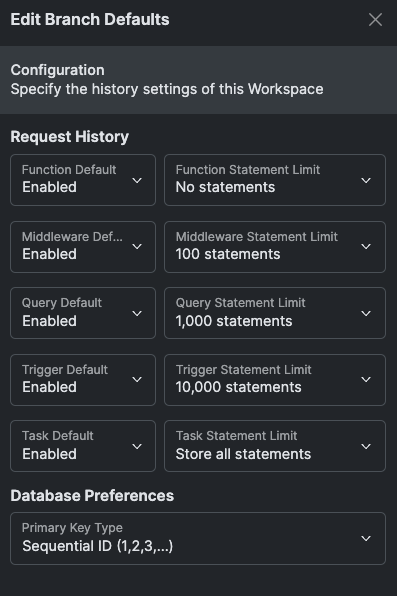
From this panel, we can define the request history defaults for each object type (query, function, task, middleware, trigger) that maintains history.

* **Enable / Disable** - Performs the selected action on the object type
* **Function Statement Limit** - The number of statements to record for each object type. You can choose between:
  * No statements
  * 100 statements
  * 1,000 statements
  * 10,000 statements
  * Store all statements

<Warning>
  Please note that request history utilizes your Database (SSD) storage. It is important to consider this when determining how many statements can be stored, or if they need to be stored at all.
</Warning>

#### Inheriting Settings

In each individual API, function, task, middleware, or trigger's settings, you can also control the request history for that object specifically.

By default, these will be set to **inherit**, which means it will obey the branch defaults. Otherwise, you can adjust this for specific objects as necessary.

## <Icon icon="key" /> Environment Variables

Environment Variables are persistent variables that are available across your entire workspace. Typically, these are used to store things like external API keys or other sensitive information that you need to use across multiple function stacks, without storing it in a database table.

* Click <span class="ui-bubble"><Icon icon="plus" /> Add Variable</span> to add a new environment variable.
* View or edit the contents of an environment variable by clicking the <Icon icon="eye-slash" /> icon.
* Click <span class="ui-bubble"><Icon icon="pen-to-square" /> Bulk Edit</span> to import a collection of environment variables at once. The expected format is shown below.

```
my_api_key: abcd1234
my_other_api_key: zyxw9876
```

<CardGroup cols={2}>
  <Card title="Environment Variables in XanoScript">
    Use an environment variable in a workflow with `$env.` followed by the name of the environment variable.

    ```
    api.request {
     url = "https://api.stripe.com/v1/charges"
     method = "GET"
     headers = []
       |push:("Authorization: Basic %s"|sprintf:$env.my_api_key)
    } as $api1
    ```
  </Card>

  <Card title="Environment Variables in the Visual Builder">
    Reference the variable in any value input. You can type the name of the variable or select it from the **ENV** section.

    <img src="https://mintcdn.com/xano-997cb9ee/GGKkNaTQIWPG92tN/images/workspace-settings-20260331-171222.png?fit=max&auto=format&n=GGKkNaTQIWPG92tN&q=85&s=df4be79ea4582c46b98dc06a1273549a" alt="Selecting an environment variable in the visual builder" width="767" height="334" data-path="images/workspace-settings-20260331-171222.png" />
  </Card>
</CardGroup>

## <Icon icon="link" /> Git Sync

Xano supports **one-way Git sync** to GitHub and GitLab. Push your XanoScript to a Git repository every time you publish changes — useful for version control, backup, collaboration, and CI/CD integration.

Xano is always the source of truth; Git serves as a mirror for history and collaboration. You cannot push changes from GitHub/GitLab back into Xano.

[Read the full Git Sync guide](/xano-features/workspace-settings/git-sync) for setup instructions, example workflows, and FAQ.

## <Icon icon="wrench" /> Middleware Defaults

Configure and manage global middleware across your workspace. You can configure PRE and POST middleware for APIs, AI tools, Functions, and Tasks.

Click <span class="ui-bubble"><Icon icon="plus" /> Add</span> under the appropriate section to add a PRE or POST middleware.

[Read more about Middleware in Xano](/building/logic/middleware)

## <Icon icon="bolt" /> Workspace Triggers

You can set workspace-level triggers for certain events:

* **Branch Live** - Any time a branch is set to live
* **Branch Merge** - Any time a branch is merged with another
* **Branch New** - When a new branch is created

Click <span class="ui-bubble"><Icon icon="plus" /> Add workspace trigger</span> to create a new trigger.

[Read more about Triggers in Xano](/building/logic/triggers)

## <Icon icon="list-check" /> Processing Jobs

This section offers quick access to jobs that run in the background, such as workspace or database exports. You can check the status of any active job and download results when they're ready. These are not the same as your [background tasks](/building/logic/background-tasks).

## <Icon icon="server" /> Realtime

Access your [Realtime in Xano](/realtime/realtime-in-xano) settings from here. You'll need to enable Realtime before any settings become available. Once enabled, you can manage channel configurations and access connection details for integrating Realtime into your application.

## <Icon icon="database" /> Database Preferences

Your tables can be created using one of two formats:

* **JSONB format**
  * This creates your tables with two columns:
    * `id` - the ID of the record
    * `jsonb` - contains a JSON representation of the entire record

* **Standard SQL format**
  * This creates a more standard table layout. Instead of a jsonb column, each column is written separately.

If you are using the [Direct Database Connector](/xano-features/instance-settings/direct-database-connector), Standard SQL format is usually recommended.

**Converting Tables from JSONB to standard SQL**

<Warning>
  This change is **permanent**. Most users will not need to adjust these settings, and they only impact your experience if you are connecting to your database directly via third-party tools.
</Warning>

<Steps>
  <Step title="Click the settings icon in the upper-right corner to open Settings.">
    &#x9;
  </Step>

  <Step title="Scroll down to the Database Preferences section, and check the option to 'Use standard SQL columns for new tables'">
    <Frame>
      <img src="https://mintcdn.com/xano-997cb9ee/Zmn_DUDgqMkazo6J/images/eb6ad281-image.jpeg?fit=max&auto=format&n=Zmn_DUDgqMkazo6J&q=85&s=46618b9fb76997b2da5873a1cd2bb54d" alt="Enabling standard SQL columns for new tables" width="689" height="203" data-path="images/eb6ad281-image.jpeg" />
    </Frame>

    This setting must be enabled before you can convert existing tables to the new format.
  </Step>

  <Step title="Convert your table(s) from your workspace settings, or the settings of any table.">
    From the migration panel, select any of the tables you'd like to convert, and confirm your choices. The migration will begin immediately.

    <Frame>
      <img src="https://mintcdn.com/xano-997cb9ee/SGxJ0muPK3um9hNH/images/727090c5-image.jpeg?fit=max&auto=format&n=SGxJ0muPK3um9hNH&q=85&s=b221e9dbfd6e8bb8ab6eba835bd292c8" alt="Table migration panel for converting JSONB to standard SQL" width="763" height="1415" data-path="images/727090c5-image.jpeg" />
    </Frame>
  </Step>
</Steps>

**Custom SQL Table Names**

From your Workspace settings, you can enable **Custom SQL Table Names**.

By default, Xano assigns each table a SQL name in the format mvpw\_ (e.g., mvpw1\_3). This identifier works for direct access, but can be difficult to read or use with direct queries and database tools.

You can replace this with a custom SQL name to make queries more intuitive and improve compatibility with external connectors.

If you change a table's SQL name, be sure to update any queries that reference the old name to avoid breaking functionality.

Once you've enabled **Custom SQL Table Names**, head to any database table's settings, and click Manage next to SQL Table Name.

<Frame>
  <img src="https://mintcdn.com/xano-997cb9ee/Zmn_DUDgqMkazo6J/images/e3e08966-image.jpeg?fit=max&auto=format&n=Zmn_DUDgqMkazo6J&q=85&s=8b411bca8716c88da4700cee2b8e57fd" alt="Managing a custom SQL table name in table settings" width="745" height="188" data-path="images/e3e08966-image.jpeg" />
</Frame>

<Frame>
  <img src="https://mintcdn.com/xano-997cb9ee/pz6e9Ndbn8i3u8Zz/images/65aa79c8-image.jpeg?fit=max&auto=format&n=pz6e9Ndbn8i3u8Zz&q=85&s=dddc2fb2296af151ba47dd06794c7022" alt="Custom SQL table name configuration dialog" width="516" height="784" data-path="images/65aa79c8-image.jpeg" />
</Frame>

* Leave the SQL Table Name field blank to use Xano’s default SQL table name, which follows the format `mvpw<workspaceID>_<tableID>` (e.g., `mvpw1_3`).
* SQL table names must be globally unique across all workspaces. **Hint**: Use the Custom Prefix to ensure uniqueness across workspaces.
* Datasources automatically add a suffix based on their environment. For example, **users** becomes **users\_test** in the test datasource. To reuse the same base name across workspaces, use a workspace-specific prefix (e.g., `projA_users`, `projB_users`).

## <Icon icon="link" /> Xano Link

[Xano Link](/xano-features/advanced-back-end-features/xano-link) is a premium addon for syncing branches and database schema from one workspace to others.