> ## Documentation Index
> Fetch the complete documentation index at: https://docs.xano.com/llms.txt
> Use this file to discover all available pages before exploring further.
# Intro to XanoScript
> Introduction to XanoScript
## What is XanoScript?
At Xano, we set out to create a language that combines the structure of JSON/XML/YAML with the flexibility of TypeScript—without the overhead and inconsistency that often slows teams down.
## I thought Xano was No-Code / Low-Code?
You **never** have to write XanoScript to use Xano, but it’s there when you need it.
Xano is a no-code/low-code platform at its core, and our visual builder is designed to make backend development accessible to everyone. However, as teams grow, and developers are building in new ways, we recognized the need for a more structured, code-first approach that still integrates seamlessly and maintains parity with our visual tools.
Read more about why we built XanoScript in [this blog post](https://www.xano.com/news/xanoscript-for-building-backends/).
## Why XanoScript Exists
The result is XanoScript: a markup language that lets you configure Xano programmatically while still supporting visual development. It gives you code-level control of your backend in a way that’s structured, collaborative, and AI-friendly.
## Why XanoScript Matters
Start in Xano’s visual editor, continue in XanoScript, or switch back and forth anytime. Use VS Code, Cursor, or your preferred AI model.
Define everything—database, APIs, business logic, background tasks, deployment—in a single consistent language.
Developers write code, while product managers and non-technical teammates work visually in Xano. Both stay aligned in real time.
Unlike one-off AI generators, XanoScript lets you generate, deploy, and iterate continuously—visually or with code—without starting over.
If you understand JSON, YAML, or JavaScript—or already use Xano—you’re ready to build with XanoScript.
## What You Can Do with XanoScript
Generate XanoScript with your favorite AI models and import it directly into Xano.
Spin up a backend using AI, deploy instantly, and iterate visually as you go.
Start visually in Xano, expand into code, and switch between both at any time.
Use XanoScript anywhere in Xano—from database design to function stacks.
## Getting Started with XanoScript
### Explore XanoScript in your workspaces
Everything you've already built in Xano has XanoScript already written.
* Click the ⋮ icon in the top-right corner of your screen, and choose Settings.
* Click XanoScript in the menu that opens.
### Build with XanoScript
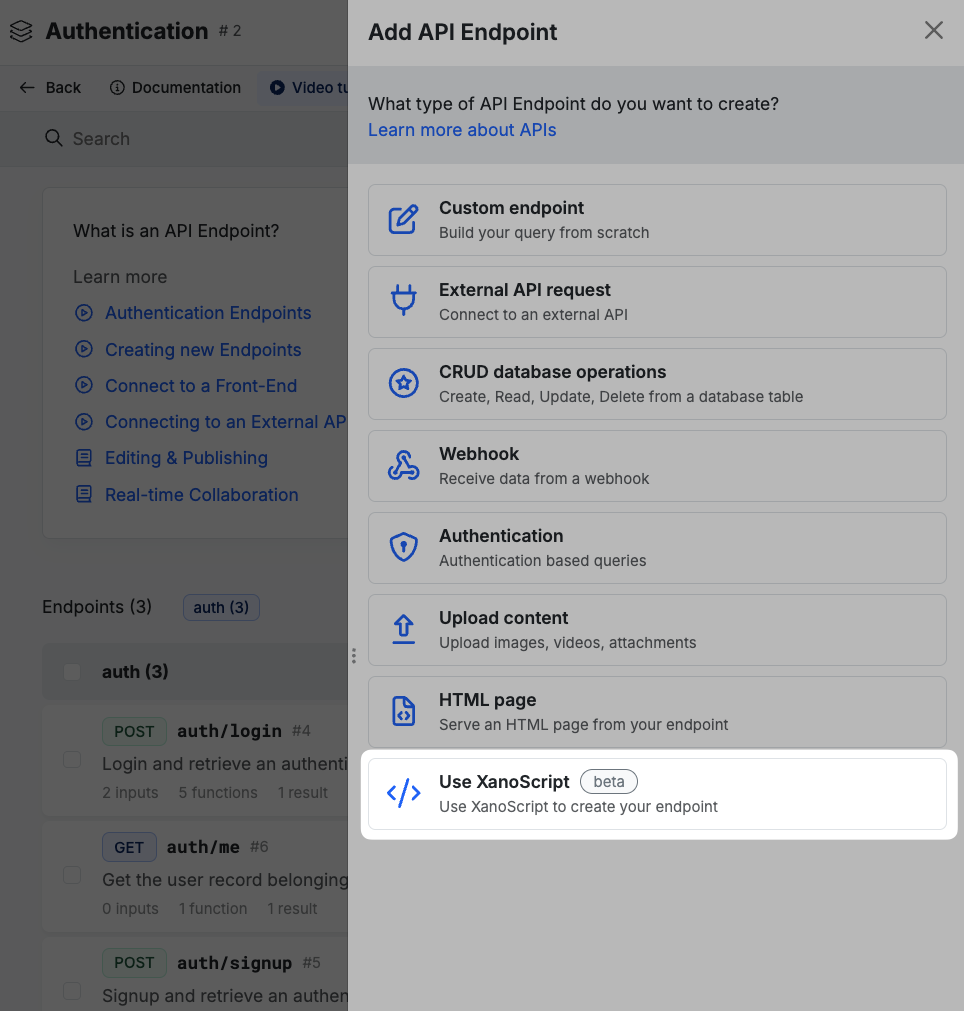
When using the visual builder in Xano, you're already writing XanoScript without any extra effort. If you prefer to work code-first, you can develop in XanoScript inside of Xano or an IDE of your choice. Any time you're creating something new in Xano, you can select the XanoScript option.
This option will be available when creating most new objects in Xano, such as APIs, Custom Functions, Background Tasks, and more.
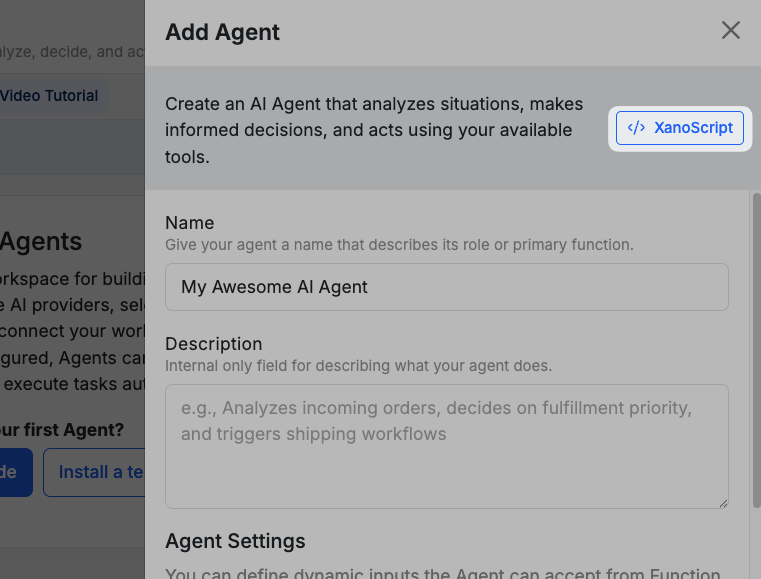
 In some object types, such as AI Agents that open with a settings panel immediately, you'll see a XanoScript option at the top of the panel.
 You can also use the VS Code extension to write XanoScript in an IDE of your choice. You should be able to use any IDE that supports VS Code extensions, such as Cursor or Windsurf, as well as VS Code itself.
**Get the VS Code extension [here](https://marketplace.visualstudio.com/items?itemName=xano.xanoscript-language-server)**
You can learn how each object is written in XanoScript by reviewing the individual pages for each object type. Select one below to get started.
**XanoScript in the Database**
You can also use the VS Code extension to write XanoScript in an IDE of your choice. You should be able to use any IDE that supports VS Code extensions, such as Cursor or Windsurf, as well as VS Code itself.
**Get the VS Code extension [here](https://marketplace.visualstudio.com/items?itemName=xano.xanoscript-language-server)**
You can learn how each object is written in XanoScript by reviewing the individual pages for each object type. Select one below to get started.
**XanoScript in the Database**
[Database Tables](/xanoscript/db)
[Database Triggers](/xanoscript/triggers)
[Database Views](/xanoscript/db#section-3%3A-views)
**XanoScript for Logic / Workflows**
[APIs](/xanoscript/api)
[Custom Functions](/xanoscript/custom-functions)
[Addons](/xanoscript/addons)
[Background Tasks](/xanoscript/tasks)
[Triggers](/xanoscript/triggers)
[Middleware](/xanoscript/middleware)
[Workflow and Unit Tests](/xanoscript/tests)
**XanoScript for AI**
[AI Agents](/xanoscript/agents)
[MCP Servers](/xanoscript/mcp-servers)
[Tools for Agents and MCP Servers](/xanoscript/ai-tools)
**Other**
[Workspace Settings](/xanoscript/workspace-settings)
[MCP Servers](/xanoscript/mcp-servers)
[Tools for Agents and MCP Servers](/xanoscript/ai-tools)
You can also learn more about how each of our functions and filters is written using XanoScript in our function and filter references.