

 Xano
XanoPrerequisites
Installation
Install the MCP Server
One-click Install: Manual Installation: Manage MCP servers from Cursor’s Customize page, or edit the config file directly —~/.cursor/mcp.json for a global server, or .cursor/mcp.json in your project root for a project-scoped one:
Verify Setup
In Cursor’s chat panel, ask:“What version of the Xano Developer MCP is installed?”Cursor should call
mcp_version and return the current version number.
Install the XanoScript Language Server extension
The language server extension enables code completion and syntax highlighting for XanoScript, and is essential for the best experience. Cursor uses the same extension marketplace as VS Code, so you can install it here.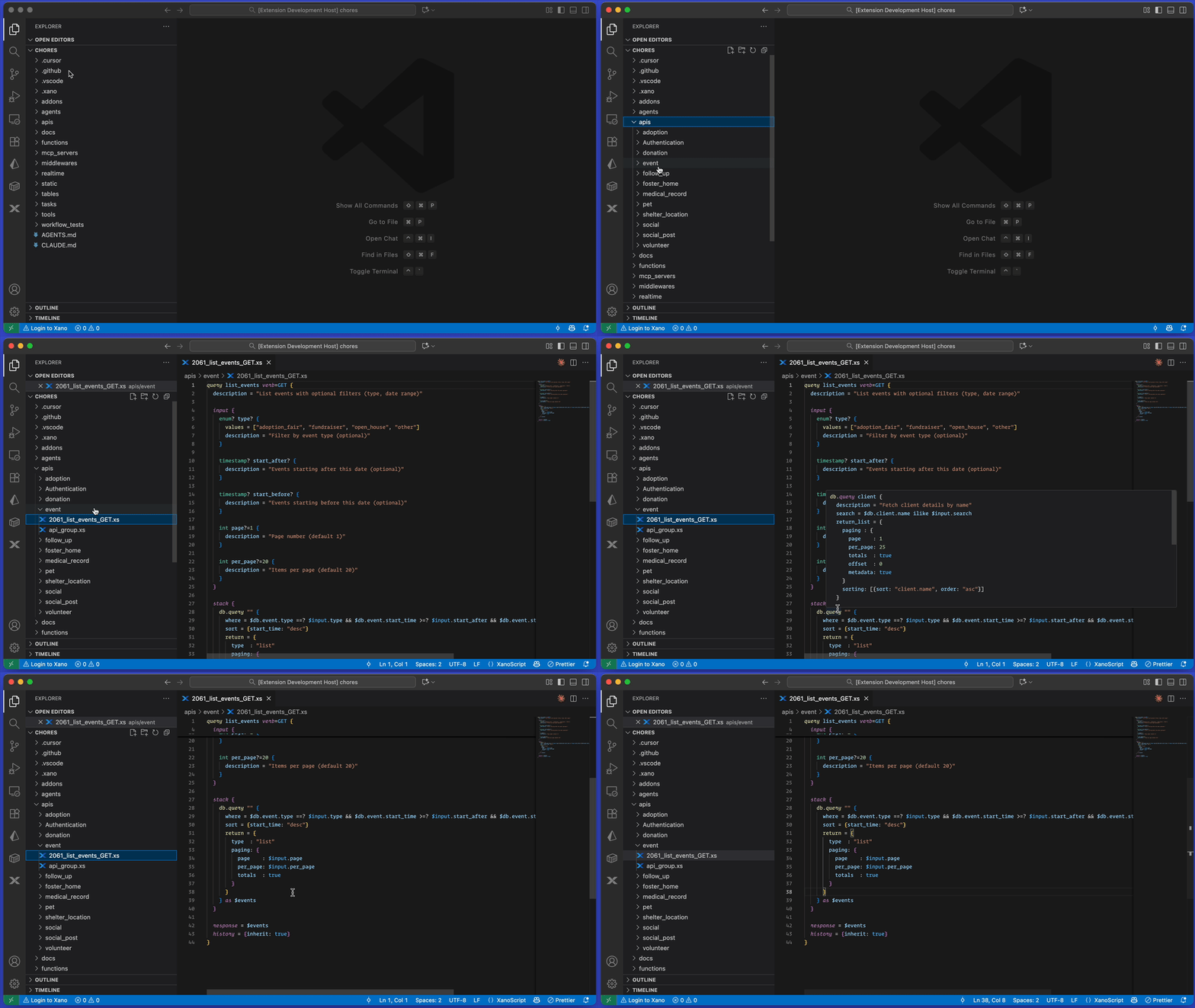
Usage
The Developer MCP lets Cursor write and validate XanoScript using your local Xano workspace as context. Before asking Cursor to make changes, pull a workspace locally with the Xano CLI. If you haven’t installed and authenticated with the CLI yet, do that now before continuing. Then select or create a workspace and run:xano sandbox review opens your sandbox in the browser — verify everything looks right, then promote the changes to production from there.
What’s Next
Tools Reference
Explore all 6 tools available in the Developer MCP
Resources & Library
Access MCP resources and use the package as an npm library