

 Xano
XanoPrerequisites
- A Xano account (free tier works)
- Node.js 18 or later
- VS Code
- Git
1
Install the Xano CLI
If you haven’t already, install the CLI globally:Verify with
xano --version.2
Authenticate
Log in with your Xano account:Your browser will open for authentication. After logging in, select your instance and name your profile.
For self-hosted or beta environments, add
-o https://your-environment-url.com. See Get Started for details.3
Create a workspace
Create a new workspace for your project:Note the workspace ID from the output, then add it to your profile:
4
Set up your local project
Pull the empty workspace scaffold to create your local directory structure:This creates the directory structure where you’ll add your XanoScript files.
5
Open in VS Code and install the extension
Open the workspace folder in VS Code, then install the XanoScript Language Server extension. This provides syntax highlighting, inline validation, and autocomplete for
.xs files — without it, they appear as plain text with no error feedback.6
Install the Developer MCP
The Developer MCP gives AI tools direct access to XanoScript documentation and real-time code validation, significantly improving AI-generated XanoScript quality.In the VS Code terminal, add the Developer MCP to your project:
7
Build with AI
This is where the power of local XanoScript development shines. Use Claude Code with the Developer MCP to generate your backend — the MCP provides XanoScript documentation and real-time validation directly to your AI assistant.Ask Claude Code to generate what you need. For example:
Create a users table with name, email, and role fields, a signup API endpoint, and a login API endpoint.Claude Code will write the XanoScript files directly into your local workspace.You can also write XanoScript by hand or paste the XanoScript documentation into your AI tool’s context and ask it to generate
.xs files. Place them in the appropriate subdirectories (table/, api/, function/, task/).8
Review your changes
Before pushing, review what changed against your local repository. Pay attention to any table schema changes — renamed or removed columns can affect existing data. The CLI is safe by default: objects deleted locally won’t be removed from your Xano workspace unless you explicitly use the
--delete flag. If any changes would result in data loss, the push preview will call them out as destructive operations before you confirm. See Push & Pull for a full breakdown.9
Preview the push
Before pushing, run a dry run to see exactly what will be created, updated, or changed — without applying anything:Review the output carefully, especially any destructive operations or schema changes.
10
Push to Xano
When you’re satisfied with the preview, head to your terminal and push yourself — we recommend not asking the AI agent to push for you, so you stay in control of what gets applied:The CLI shows the same preview again and prompts for confirmation before applying. Your tables, APIs, functions, and tasks are now live in Xano.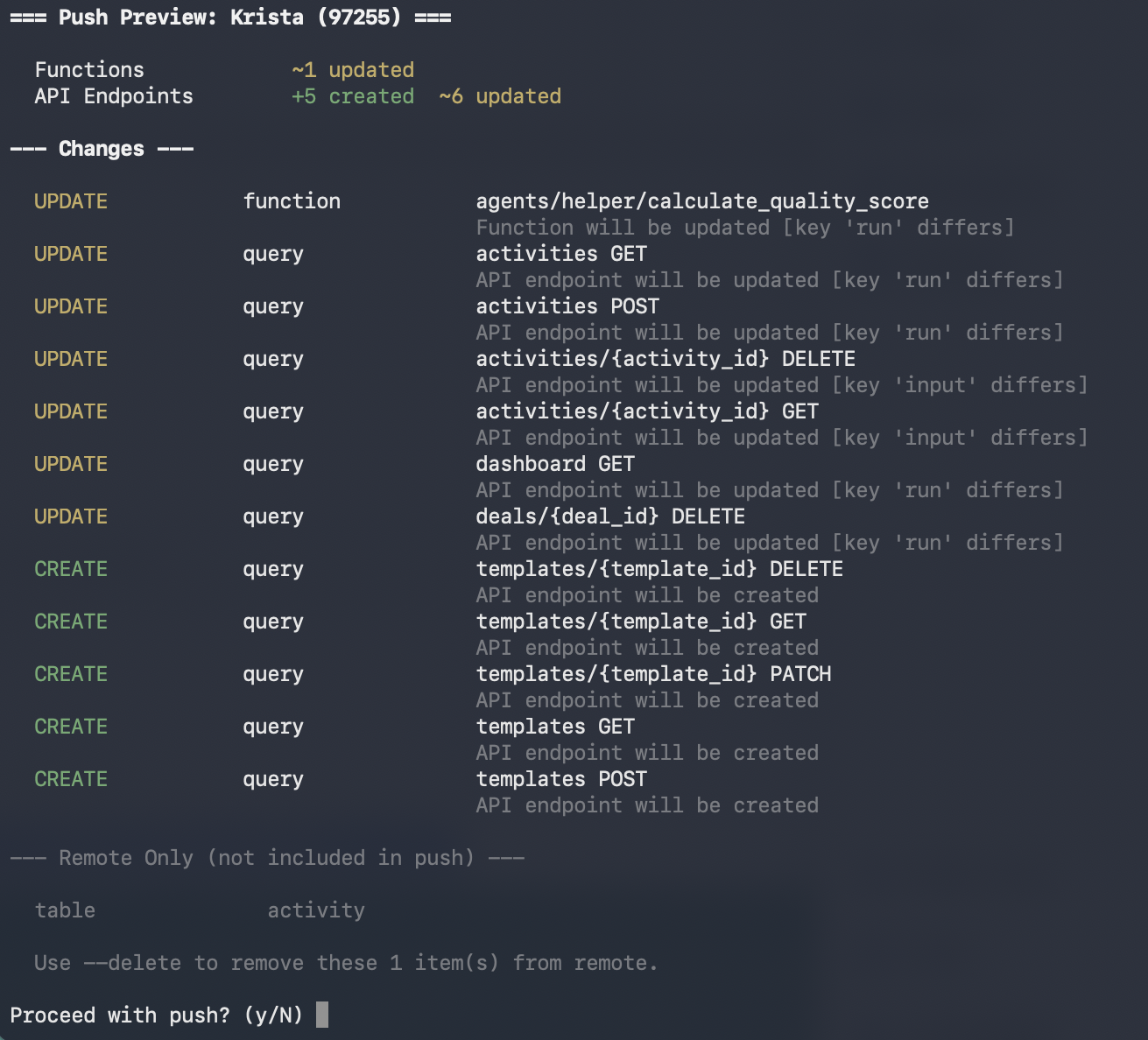
11
Verify in Xano
Open your workspace in the Xano dashboard to see your resources. You can test APIs directly from the dashboard, view your database tables, and make visual adjustments.Any changes you make visually in Xano can be pulled back down:
12
Deploy a frontend (optional)
If your project includes a frontend (React, Vue, Svelte, etc.), you can host it directly on Xano using static hosting. Build your frontend and push the output directory — the CLI zips it for you:This deploys your frontend alongside your Xano backend — no separate hosting provider needed.
Recommended Workflow
Once you’re up and running, a typical development cycle looks like this:- Pull the latest —
xano workspace pull -d ./my-new-app - Edit locally — Write or generate XanoScript with Claude Code and the Developer MCP
- Test — Run your workflow and unit tests with the CLI before pushing
- Review with Git — Run
git diffto inspect exactly what changed before pushing - Dry run —
xano workspace push -d ./my-new-app --dry-run— preview the server-side impact without applying anything - Push —
xano workspace push -d ./my-new-app— review the preview and confirm - Deploy frontend (if applicable) — Build and upload the output directory with
xano static_host build push - Verify in Xano — Check your APIs and resources in the Xano dashboard
- Iterate — Pull any Xano browser-edited changes, edit locally, and push again