

 Xano
XanoAddons in Xano
Addons are reusable queries that allow you to fetch related or nested data alongside your main API responses. They are commonly used to join or expand data from related tables, such as fetching all tasks that belong to a specific user. Each Addon has:- A name (unique identifier, e.g.,
tasks_of_lists) - Inputs (parameters to filter or join data)
- Logic (the query to fetch the related data)
Creating an Addon
- Visually
- XanoScript
From a database operation function, click the Add Addon button in the Output tab. Addons can be nested under arrays, so make sure to select the correct location.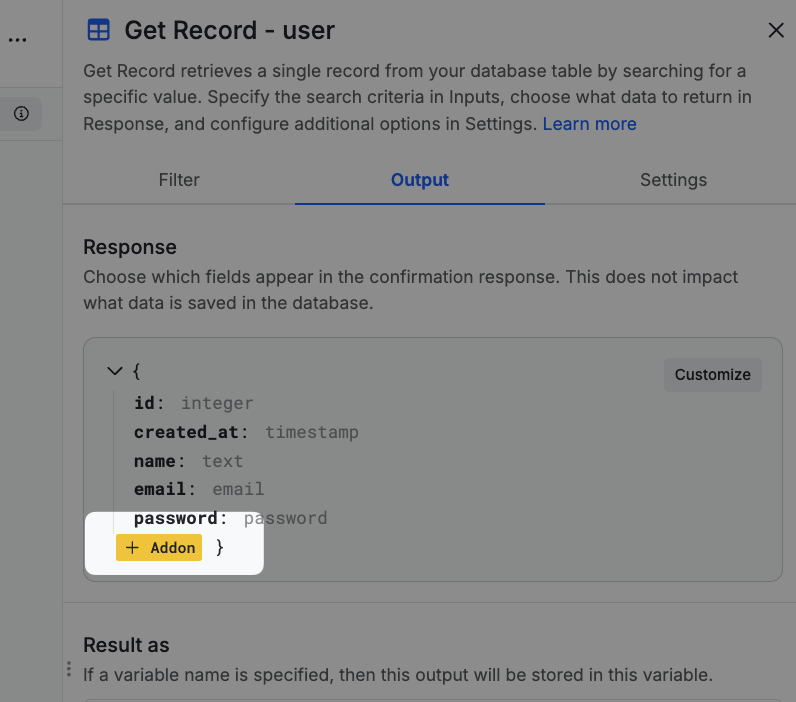
Choose Create a New Addon in the modal that appears.
Choose the table you’d like to get data from.
Choose whether the addon should return a single item (such as retrieving a user’s location) or a list of items (such as retrieving all tasks that belong to a user). You can also return a count, a true/false value if the data exists, or an advanced aggregation.
In this example, we’re getting a record from the
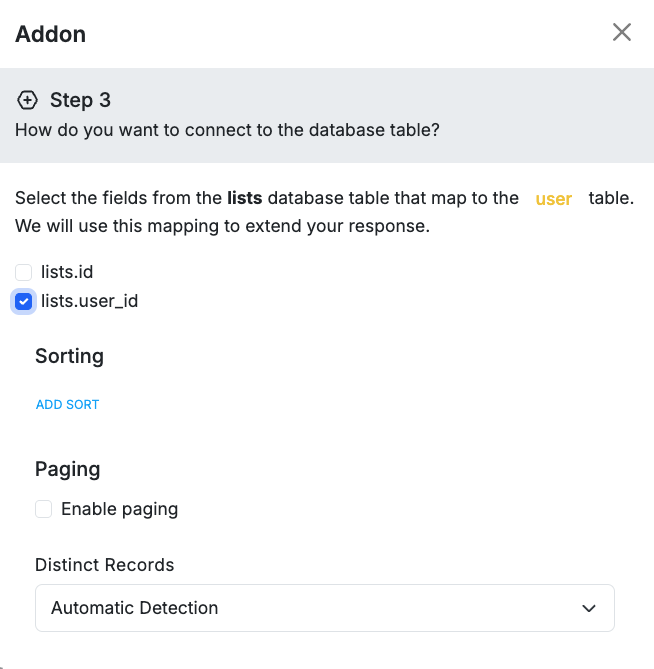
Click Next, give your addon a name, and click Save.
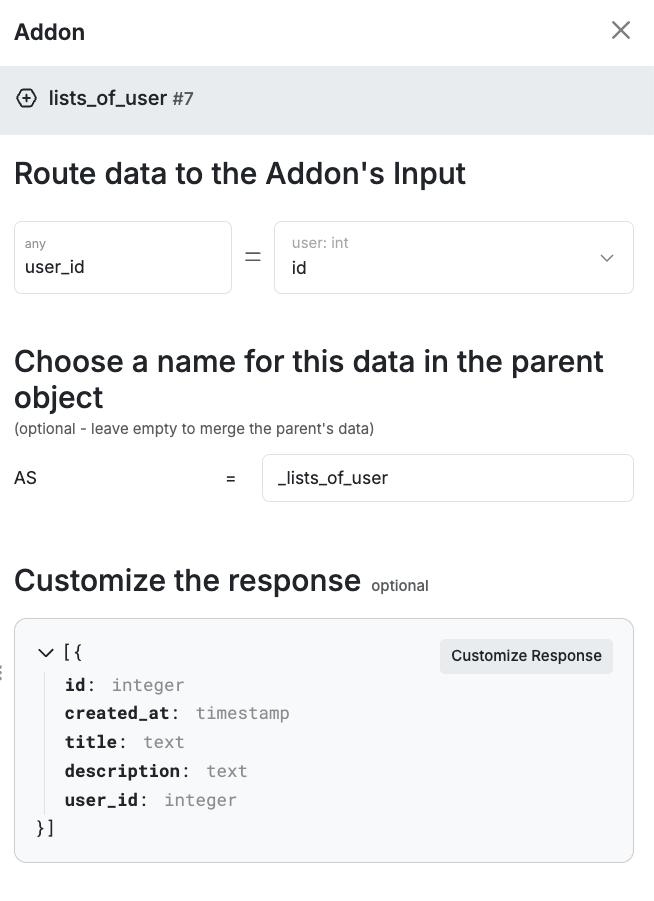
You’ll then be able to select where the addon gets the value to look up in the related table; in this case, the
Choose Create a New Addon in the modal that appears.
Choose the table you’d like to get data from.
Choose whether the addon should return a single item (such as retrieving a user’s location) or a list of items (such as retrieving all tasks that belong to a user). You can also return a count, a true/false value if the data exists, or an advanced aggregation.
In this example, we’re getting a record from the
user table, and retrieving all of the lists from the lists table that belong to that user. Select the field from table you’re getting data from in the addon that relates back to the original table you’re querying. So, on our lists table, we have a user_id, which is the ID of the user from the user table.Click Next, give your addon a name, and click Save.
You’ll then be able to select where the addon gets the value to look up in the related table; in this case, the
id of the user record. Xano will fill this in by default for you, but you can change it here if necessary. You can also choose a key for the data to live under in the response.