A guide to using Xano’s visual builder to inspect, validate, and iterate on your backend workflows.
This guide walks you through running a pre-built signup endpoint, inspecting the steps, and making a small modification to send a welcome email to new users. Xano gives you a user table and default authentication APIs out of the box, and we’ll use those here.
1
Open up your auth/signup endpoint
Navigate to API in the sidebar, choose the Authentication group, and select your auth/signup endpoint.
2
Test the endpoint
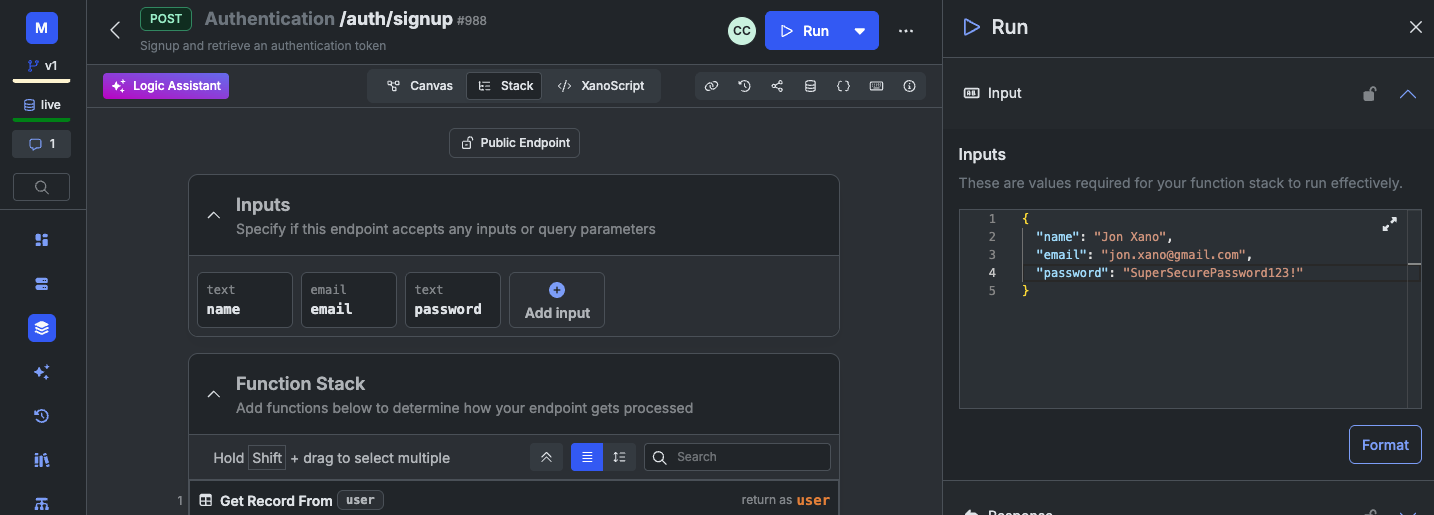
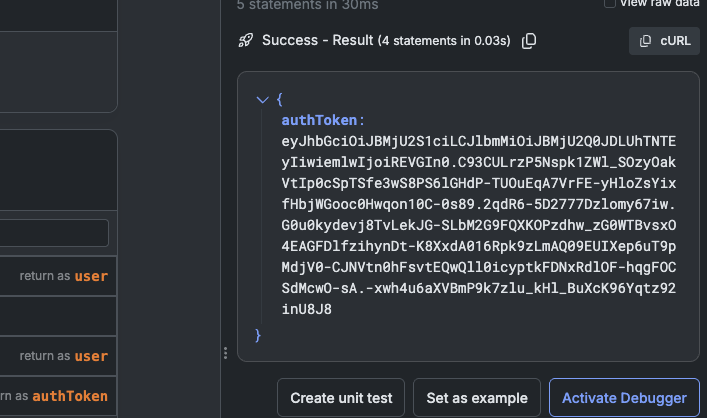
Click Run in the top-right corner.Enter a name, email, and a password to create a new user. You’ll use this later on, so make sure to remember the credentials you enter here. Click Run in the lower-right corner to execute the request.If all goes well, you should see a successful response with an returned.
3
Explore the visual builder
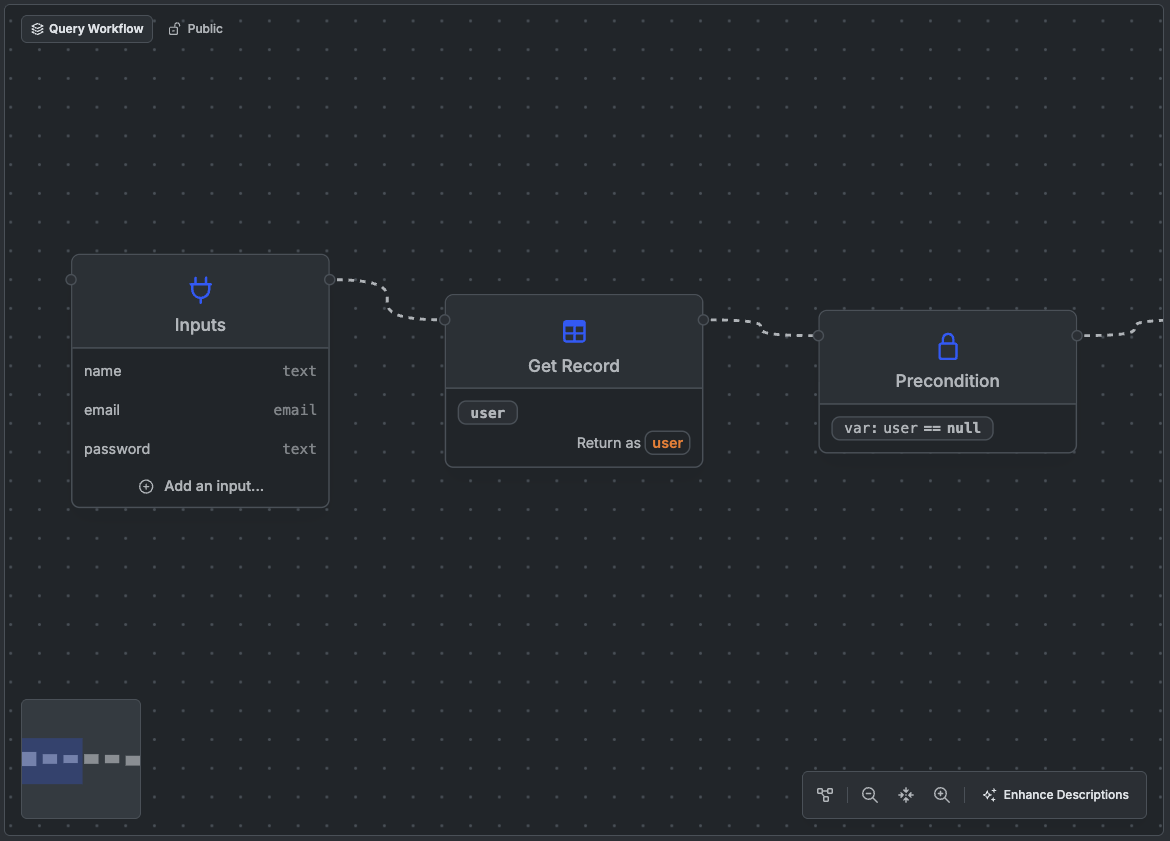
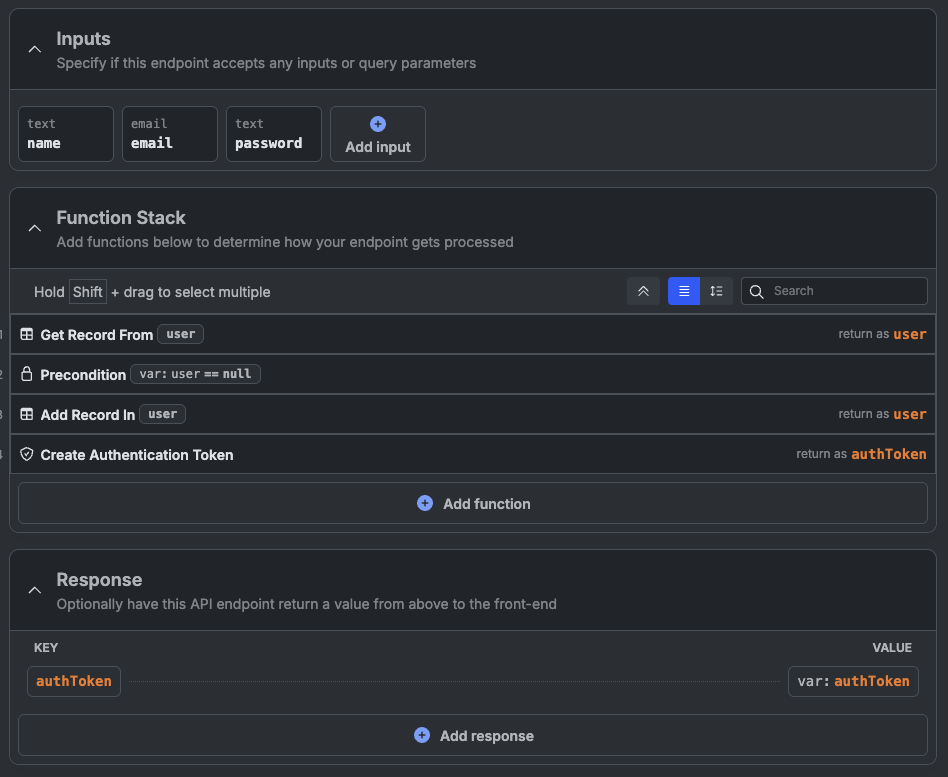
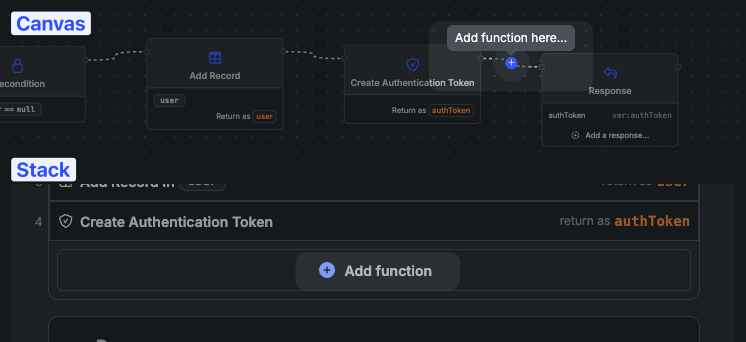
The visual builder has two different views: Canvas and Stack. Canvas presents a node-style view of the steps in your endpoint, while Stack presents a linear, step-by-step list of the same information, more similar to traditional code.
Canvas View
Stack View
Click on a step to see more details about what it does and how it’s configured.
4
Modify the signup endpoint to add a welcome email
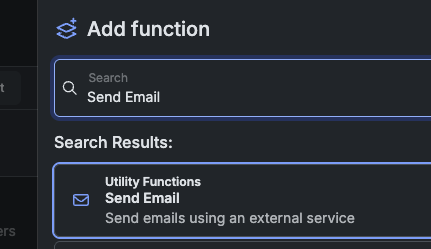
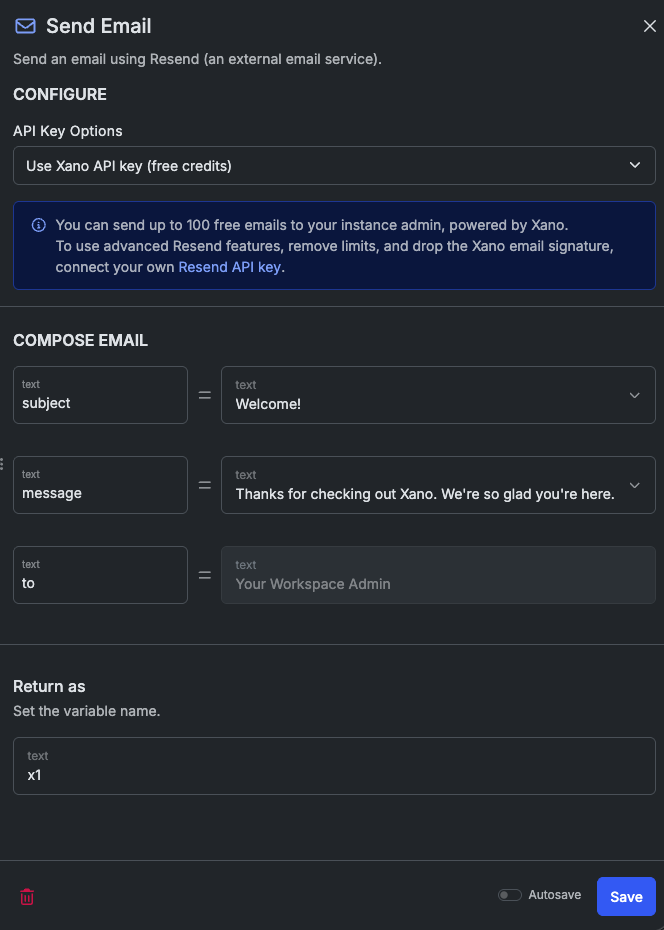
Let’s add a step to send a welcome email after signup. We’ll use the Send Email function for this.Click the + Add Step button at the bottom of the stack view, or in between the Create Authentication Token step and the Response in the canvas view.Select the Send Email function.Add a subject and a body for the email. Xano includes free access to Resend for development and testing (up to 100 emails), limited to the email address you signed up for Xano with.Click Save to save the step.
5
Test the modified signup endpoint
Run the signup endpoint again with a different email address. You should receive a welcome email shortly after the run completes.
6
Explore the Run panel
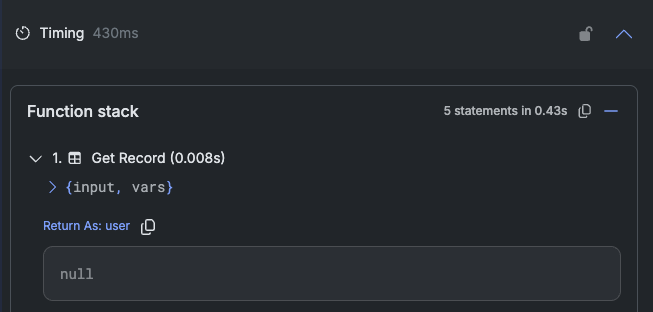
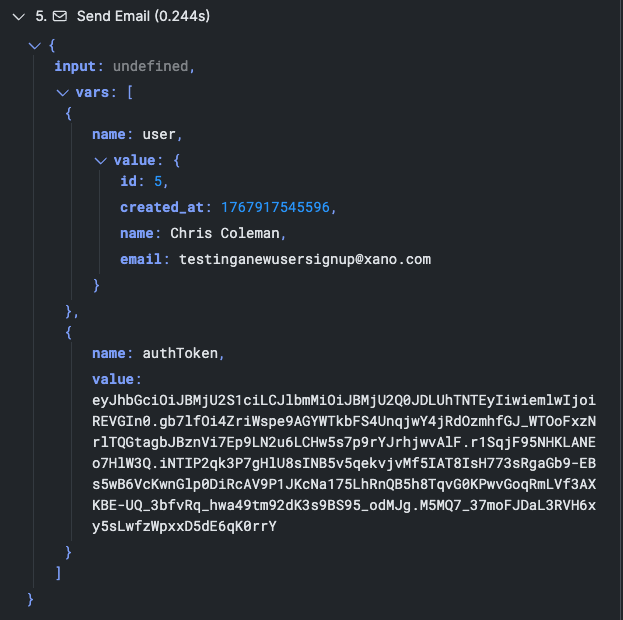
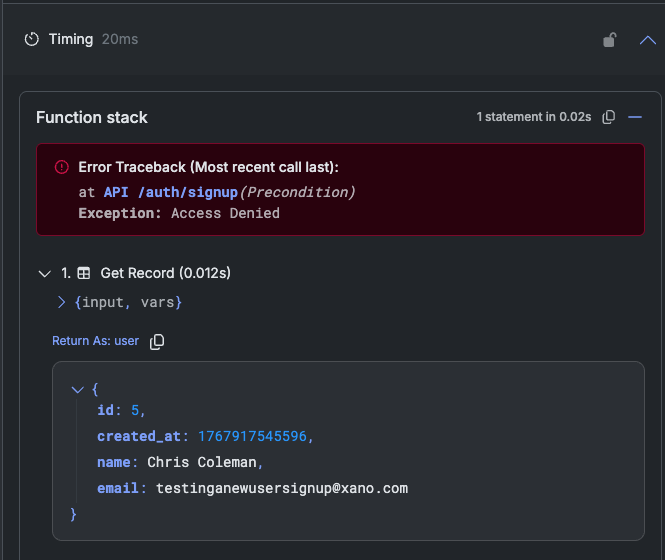
After a run, open the Timing dropdown to view step timing, output, inputs, and variables.Click the > next to the first Get Record step. We can see the first Get Record function returned null, meaning that the user didn’t already exist.
Try to register the same user again to see how the output changes.
Expand the input and vars sections for each step to see how the data changes throughout execution.
Xano will automatically hide information labeled as sensitive, such as password fields, in the run panel.
7
Publish your changes and test externally
Click the dropdown in the upper-right corner and choose Publish Now. This immediately deploys your changes to the live API.Click to copy the endpoint URL.Take it over to your favorite API testing tool, like Postman, Insomnia, or Bruno. Send a POST request to the signup endpoint with the required parameters (name, email, password) in the body.You should see a successful response, just like in Xano, and have received another welcome email.
The account already exists. Try using a different email address to create a new user.
Error Traceback (Most recent call last):at API /auth/signup(Add Record)
Exception: Param: password - Input does not meet minimum length requirement of 8 characters
Password inputs have some default requirements: at least 8 characters, one uppercase letter, and one number. Make sure your password meets these requirements.
Was this page helpful?
Assistant
Responses are generated using AI and may contain mistakes.


 Xano
Xano