

 Xano
XanoWalks your agent through installing the Xano developer tools and learning the Xano development workflow.
- The Developer MCP is what the agent knows — XanoScript documentation and live syntax validation, so generated code is correct before it runs anywhere.
- The Xano CLI is what the agent does — it pulls and pushes your backend as XanoScript files.
- Ephemeral tenants are where the agent can test and iterate — disposable, auto-expiring environments it can push to, run against, and throw away without touching your live workspace.
This guide uses Claude Code, but the Developer MCP works with Cursor, Codex, Windsurf, VS Code Copilot, and other MCP-compatible AI tools. See the Developer MCP guide for platform-specific setup.
Set up
1
Install Claude Code
Install Claude Code — the AI assistant you’ll use to write and modify XanoScript locally.2
Install the Xano CLI and pull your workspace
Open your terminal and install the Xano CLI globally using npm:Authenticate to Xano:Now pull your workspace into the directory where you want to work:Or use the-d flag to create a folder in your current directory and download your workspace into it. Next, we recommend initializing a Git repository in your workspace folder so you can track and review the details of what changed before each push.See the CLI Get Started guide for full details.
 Next, we recommend initializing a Git repository in your workspace folder so you can track and review the details of what changed before each push.
3
Open the workspace in VS Code
Open the pulled workspace folder in VS Code, then install the XanoScript Language Server extension. This provides syntax highlighting, inline validation, and autocomplete for.xs files — without it, they appear as plain text with no error feedback.4
Install the Developer MCP with Claude Code
The Developer MCP gives AI tools direct access to XanoScript documentation and real-time code validation, significantly improving AI-generated XanoScript quality.In the VS Code terminal, add the Developer MCP to your project:The loop
1
Ask your agent to make a change
Launch Claude Code in VS Code and describe what you want. For example:Add a step to the auth/signup endpoint that sends a welcome email after a successful registration.Claude Code reads your existing XanoScript, plans the change, and writes the updated code — with the Developer MCP providing documentation and validation along the way.
2
Validate the generated XanoScript
Before anything is pushed, have the agent validate its XanoScript with the Developer MCP’svalidate_xanoscript tool. The MCP runs locally and needs no credentials, so this is a fast, free check that catches syntax errors up front.3
Create an ephemeral environment
Spin up a fresh, database-isolated tenant scoped to your workspace. It auto-expires — set the ceiling with--expires-hours (1–24, default 1).Note the tenant name it returns; you’ll pass it to the commands below.4
Push the code and wait for deploy
Preview with--dry-run, then push for real. In an unattended run, --force skips the confirmation prompt and --wait blocks until every auto-deployed microservice is ready — the command exits non-zero if a deploy fails or times out, so a broken push fails the step instead of passing silently.Pass --records and --env to seed the environment with real data and environment variables — useful when your tests need them. See Ephemeral Tenants for the full flag list.5
Test against the live environment
Once the push settles, the ephemeral tenant serves real API requests — so don’t let the agent stop at “it deployed.” Instruct it to exercise the change the way a client would, entirely inside the ephemeral environment:- Seed the data it needs. Push real records with
--records, or have the agent call your own endpoints to build fixtures. Because the environment is disposable, it can seed aggressively — truncate, reseed, and retry without touching anyone’s data. - Run end-to-end tests against the live URLs. Point your test suite or API checks at the tenant’s endpoints, exactly as you would any deployed environment, including auth flows and any external integrations you’re willing to call.
- Read the results and iterate. Failures come back as real responses the agent can act on — fix the XanoScript, re-validate, push again, and re-run. The whole loop stays inside the throwaway environment until it passes.
6
Share a read-only preview
Hand reviewers a link they can browse but not change:--guest mints a read-only session and --url-only prints the URL instead of opening a browser — ideal for a CI job that posts the link as a pull-request comment. When the timer expires, the environment tears itself down; there’s no cleanup step.Where your changes land
Ephemeral tenants are the right target while an agent is iterating, because a mistake is contained and disposable. When you’re ready to move a change into your actual workspace, you have two paths, and the trade-off is how you review the diff. Either way, review what the AI changed against your local repository first. Pay attention to table schema changes — renamed or removed columns can affect existing data. The CLI is safe by default: objects deleted locally won’t be removed from your Xano workspace unless you explicitly use the--delete flag, and any change that would result in data loss is called out as a destructive operation in the push preview before you confirm. See Push & Pull for a full breakdown of what each operation means.
Run the push yourself from the terminal rather than asking the AI agent to do it, so you stay in control of what gets applied. See Using the CLI with AI Agents for tips on managing agent permissions and keeping pushes safe.
Review-first: the sandbox flow
Pushing to your sandbox and promoting from there is the safest way to get an in-app diff: you see exactly what will change in the Xano interface before it lands.--review opens the sandbox in your browser so you can inspect the changes and promote them to your workspace. Because your pulled .xs files are plain text, a local git diff is a valid alternative for reviewing changes before you push.
Direct: pushing straight to the workspace
You can also push directly to a workspace branch or the live branch, skipping the sandbox review flow entirely. Start with a dry run to preview what the push will do without applying anything: The CLI shows the same preview again and prompts for confirmation before applying anything.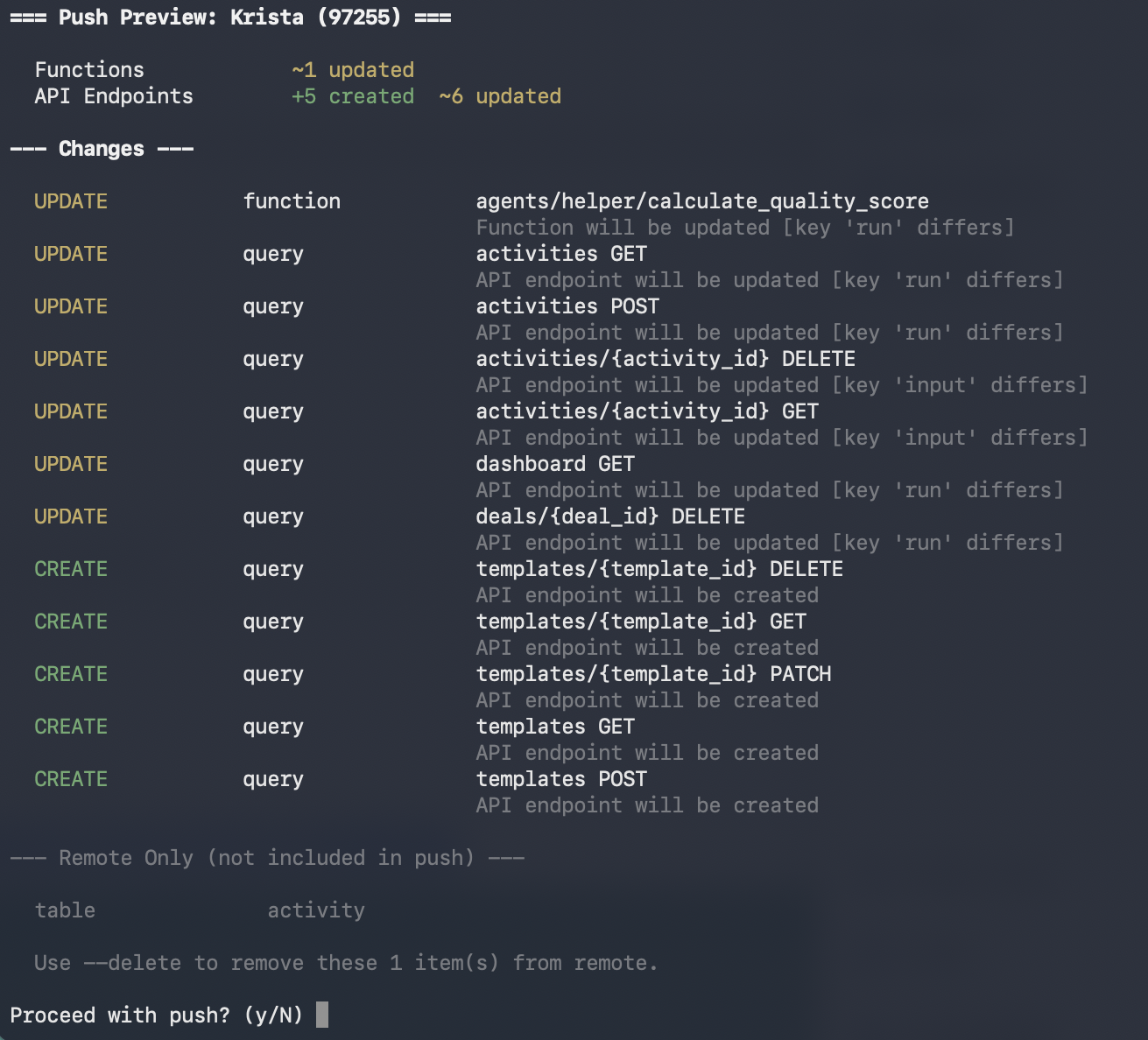
xano workspace edit --allow-push). When it’s on, xano workspace push applies changes to the workspace immediately, skipping the sandbox review step. Free plans always push directly, since the sandbox isn’t available on the free plan.
Validate visually in Xano
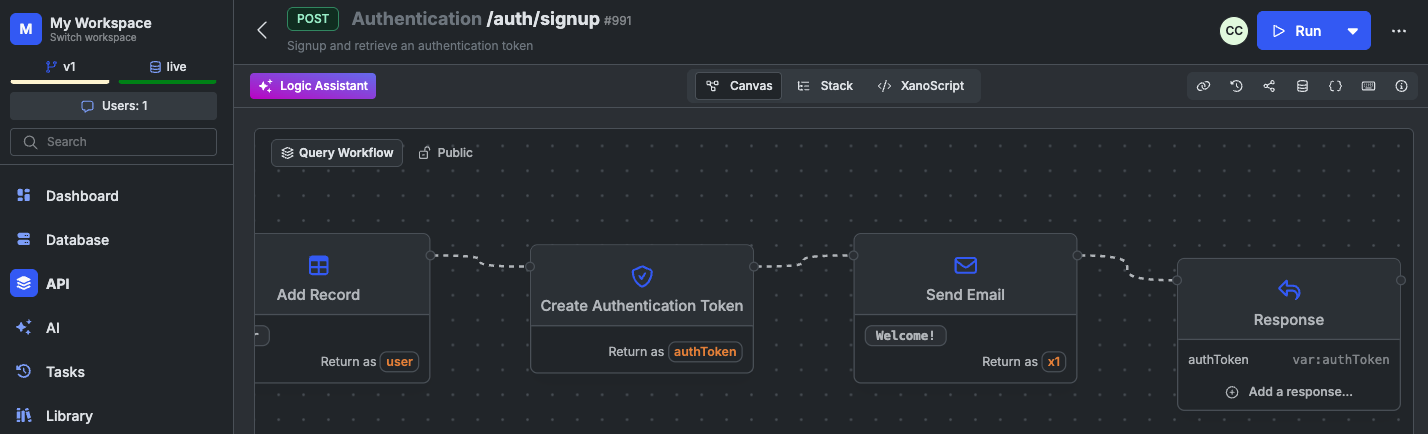
Optional, but a quick way to see the parity between your code and the visual representation. Head into Xano and navigate to yourauth/signup API by clicking API in the sidebar, choosing the Authentication group, and clicking auth/signup.
You should see the Send Email step at the end of the logic, right after the Create Authentication Token step.
When to reach for an ephemeral environment
Parallel agentic development
Run several agents or feature branches at once, each in its own database-isolated tenant, with no shared state to collide over.
Experiment, then view in Xano
Push a local experiment up and open it in the Xano interface — with a self-expiry ceiling so a forgotten environment cleans itself up.
Per-PR read-only previews
Stand up an environment per pull request and post a
--guest --url-only link so reviewers can browse the running result.Realistic CI test runs
Test against real records and environment variables (
--records --env) in a throwaway environment created fresh for each CI run.For more on structuring dev, stage, and prod environments and building tests into your process, see CI/CD and Testing & Debugging.
Using a different AI tool?
The Developer MCP isn’t limited to Claude Code — it works with any AI tool that supports the Model Context Protocol. See the Developer MCP guide for platform-specific setup instructions.





 Using a different AI tool?
- Cursor — Add the MCP server via Settings > Tools & Integrations.
- Windsurf — Add the MCP server via Settings > Cascade > Manage Plugins.
- Codex — Add a
.codex/mcp.jsonfile to your project. - VS Code Copilot — Add a
.vscode/mcp.jsonfile to your project.
Teach your workspace’s agents once with Knowledge. Knowledge is where a workspace’s
AGENTS.md, docs, and rules live — external coding agents read it on every run, alongside the in-product Xano Agent. Curating it is how you control what an agent understands about your backend and the conventions it follows, rather than re-explaining them in each prompt. Pull it down alongside your workspace files with xano workspace pull, and any agent you run locally has it in context.What’s next
Developer MCP
Explore the full set of tools and resources the Developer MCP exposes to your AI assistant.
Ephemeral Tenants
The full command reference for disposable, auto-expiring environments.
CLI Reference
Learn about push, pull, branching, workflow tests, and more with the Xano CLI.
AI Agents
Build AI agents in Xano that can reason, use tools, and take actions.