

 Xano
Xano
What are Agents?
- OpenAI
- Grok
- Anthropic / Claude
- Google Gemini
Building Agents in Xano
From the sidebar, click Agents & MCP, then Agents
Click + Add Agent
Fill out the necessary information
- Structured outputs
- Reasoning
- Tool calls
- Structured outputs with tool calls
- Tool calls with reasoning
All Agents
Name
Order Processing AgentDescription
Agent Settings
{{ $args.propertyName }} for workflow inputs and {{ $env.variableName }} for environment variables.Model Host
- Anthropic (Claude)
- OpenAI
- Google Gemini
Max Steps
5System Prompt
You are a helpful AI Agent that completes tasks accurately. When you need additional information to complete a task, use the available tools. Never make assumptions.
Prompt Type
Either
messages (a list of prior conversation messages) or prompt (a single standard prompt).Example: messages or promptPrompt
{{ $args.customer_message }}.
Their account ID is {{ $args.account_id }}.Structured Outputs
Output Schema
textuser_email
Tags
contactmessaging
Request History
- Inherit Settings: Uses the currently defined workspace settings
- Disabled: No logs recorded
- Enabled: Logs requests with options for storage limits
Anthropic Settings
API Key
Get your key here.Example:
sk-ant-apixx-xxxxxxxxx-xxxxxxxxxxxxxxxxx-xxxxxxxxxxxxxxxxxxxxxxxxxxxxxxxxxxxxxxxxxxxxxxxxxxxxxxxxxx-xxxxxxxxModel
List of available models here.Examples
claude-opus-4-1-20250805claude-3-7-sonnet-latest
Temperature
0.8) make output more random;
lower values (e.g. 0.2) make it more focused.Examples: 0.1, 0.9Send Reasoning
thinking content blocks showing internal reasoning before the final response.Example: Defaults to trueThinking
Google Generative AI (Gemini) Settings
API Key
Get your key here.Example:
AIzaSyDaGmWKa4JsXZ-HjGw7ISLn_3namBGewQeModel
List of available models here.Examples
gemini-2.5-progemini-2.5-flash-lite
Temperature
Higher = more random, lower = more deterministic.
More info here.Examples:
0.1, 0.9Use Search Grounding
Works with all available languages.
Not all models support search grounding.
More info here.Example:
on or offThinking
OpenAI Settings
API Key
Get your key here.Example:
sk-Am1rLw7xUwGxGuBasGsNt3BlbkFjdBgBUgBBK5BuG9y6oWWBModel
Temperature
0.8) make output more random;
lower values (e.g. 0.2) make it more focused.Examples: 0.1, 0.9Reasoning Effort
low, medium, highAdd some tools to your Agent
Using Existing Function Stacks as Tools
In the existing function stack, click the ⋮ settings icon in the upper-right corner of another function stack, and click Use As AI Tool
Choose the Agent or MCP Server you'd like to add the tool to, and give it a name. This name is what the command will be, so make sure it's understandable
A new tool will be created in your chosen destination with a function to call the function stack
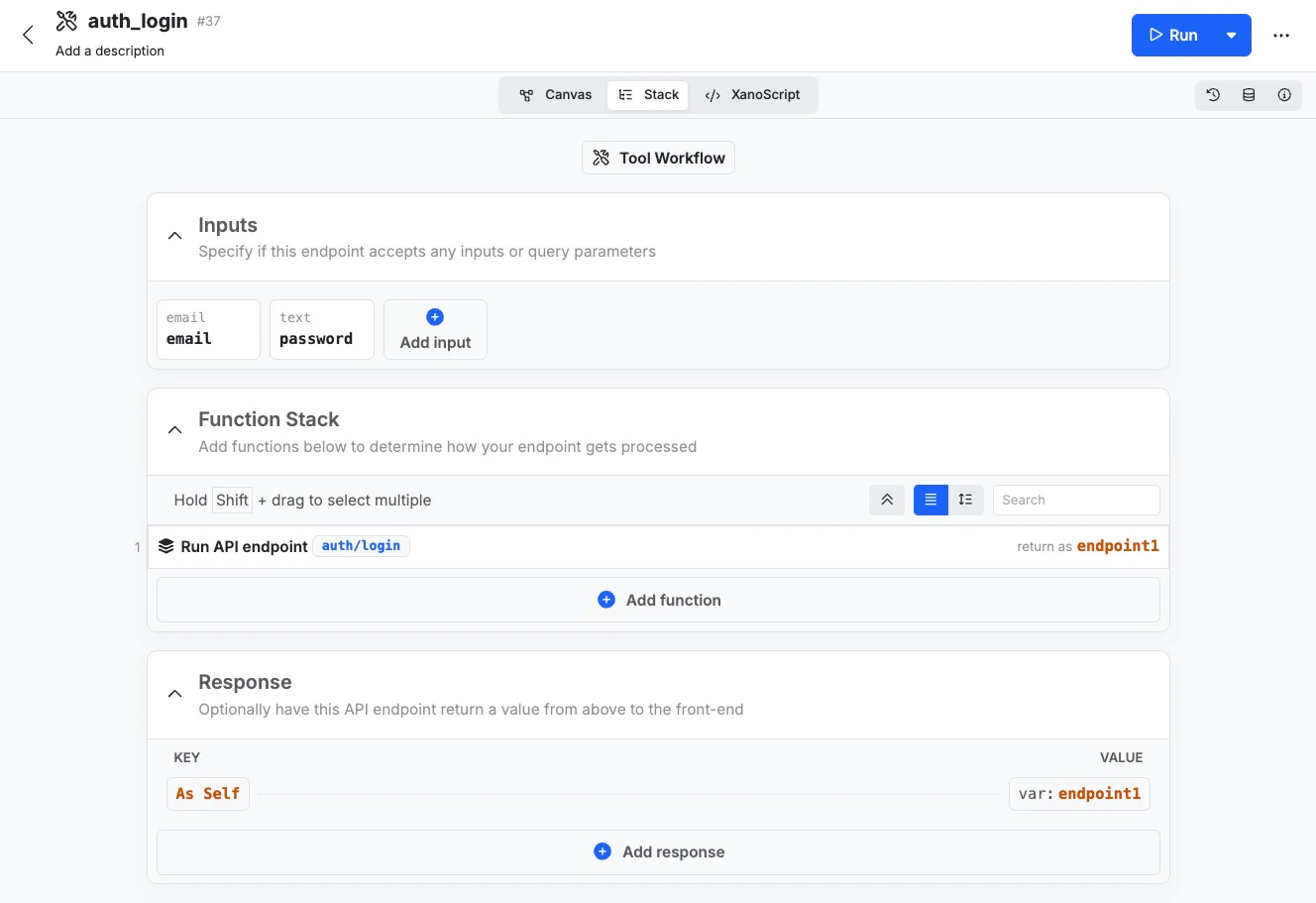
A tool created from an existing API endpoint
Head to your tool's settings and add instructions
Creating Tools from Scratch
From the sidebar, click Agents & MCP, then Tools, then + Add Tool
Fill out the required information
- Name
- Give your tool a recognizable name. This is also the command that will be used to execute your tool.
- Description
- This is an internal-only field just for you to describe the purpose of the tool.
- Allow Connections
- Enable or diffsable connection to this specific tool
- Add Tag
- Tag your tools for easier search across your Xano workspace
- Authentication
- Determine if this tool requires an authentication token
- Tool Instructions
- These instructions are what your clients will use to understand how to send requests to the tool, and what the expected result will be. Markdown format is recommended.
Build your tool's function stack
Add the tool to an Agent or MCP Server
Structured Outputs
Structured Outputs are used for providing a specific format that you need your agent to return its result as. This is especially useful when you are calling agents from other agents and want to ensure that the output from Agent 1 is clear and easy to understand for Agent 2. You can add structured outputs to your Agent in the settings by checking the Structured Outputs checkbox, and then clicking + Add Output Schema to build your output schema.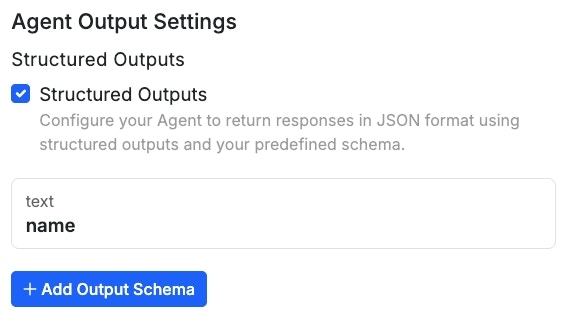
Example Agents
🤖 Customer Support Agent
Purpose This Agent is designed to handle customer inquiries that don’t typically need human interaction. Tools An Agent designed for this purpose might have the following tools available:- Get User Information
- Retrieves user information from the database
- Update User Information
- Retrieves existing user information from the database, and updates it per a user’s request, such as changing their phone number or address
- Send Verification Code
- This tool could be used as a secondary security measure to verify that the request is coming from the user that the data belongs to
- Change Subscription
- Based on the user’s request, this could be used to stop an upcoming renewal, or cancel a subscription immediately. Because Agents excel at ‘fuzzy logic’ depending on certain circumstances, this could also be used for things like churn prevention — dynamically offering the user a discount to stay, for example
- Search Documentation
- Calls an external API from your chosen documentation platform to search your product documentation in an attempt to solve the user’s query without human intervention
- Create Support Ticket
- In the case that the Agent does not have the necessary tools to solve the user’s concerns, create a support ticket for human intervention