

 Xano
XanoAGENTS.md on every run and reference docs and skills whenever a task calls for them. By curating Knowledge, you control what the agent understands, how it approaches work, and which rules it follows. Use the preview to see exactly how this context will appear to an agent.
Knowledge is valuable for solo builders and essential for teams. It helps ensure your backend is built and managed the way you expect when AI builders are involved, from high-level implementation strategy down to the detailed rules that define how specific logic should behave.
AGENTS.md
If you’re starting fresh with Knowledge, you should create yourAGENTS.md first.
1
Start with AGENTS.md
In the left-hand navigation, click Knowledge.On the next screen, click Set up AGENTS.md.
2
Fill in the instructions for your build agents.Specificity is fine, but you can (and should) also create separate docs and skills for specific object creation. Your agent will receive
Knowledge only impacts all agents building in Xano, not agents you’ve built using Xano.
AGENTS.md with each prompt, and everything utilizes tokens, so efficiency is key to using Knowledge successfully.-
Good for AGENTS.md —
Make sure all input names use camelCase.Why? Inputs are used across multiple different workflow types. -
Bad for AGENTS.md —
For APIs, ensure that all input names are lowercase only. Also, for tasks, make sure that each scheduled run includes an audit at the beginning and at the end.Why? Specific instructions that only apply to single workflow types would be better suited for more specific skills that are only read when working on those workflows.
What is this backend for?
A quick name for the backend. If you’re not sure, just use the workspace name. Your agent will use this as context for the choices it makes.Any naming or data conventions?
These are rules related to how things like tables and APIs are named, or how your database columns are formatted. Here are some examples:How does auth & security work?
This section dictates authentication and security practices for your backend. Here are some examples:What should the agent never be doing?
Here, you can place anything else that you need the agent to follow, no matter what you’re building. Examples are below.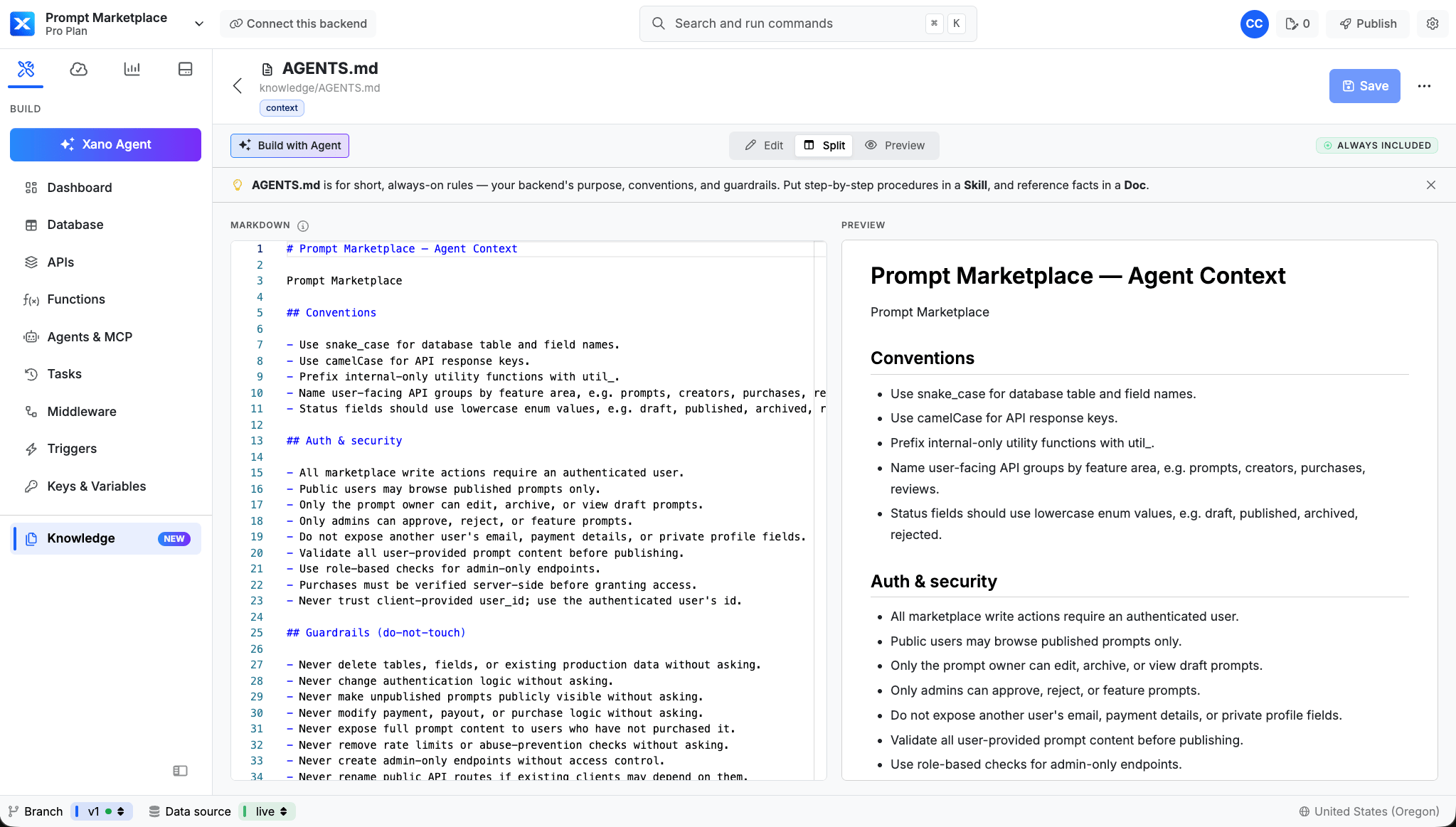
See an example of a complete AGENTS.md file
See an example of a complete AGENTS.md file
Prompt Marketplace — Agent Context
AI Prompt MarketplaceConventions
- Use snake_case for database table and field names.
- Use camelCase for API response keys.
- Prefix internal-only utility functions with util_.
- Name user-facing API groups by feature area, e.g. prompts, creators, purchases, reviews.
- Use id for primary keys and _id for foreign keys.
- Use created_at and updated_at timestamps on all persisted records.
- Status fields should use lowercase enum values, e.g. draft, published, archived, rejected.
- Money amounts are stored in cents as integers, e.g. price_cents.
- Do not store derived totals unless they are needed for performance.
Auth & security
- All marketplace write actions require an authenticated user.
- Public users may browse published prompts only.
- Only the prompt owner can edit, archive, or view draft prompts.
- Only admins can approve, reject, or feature prompts.
- Do not expose another user’s email, payment details, or private profile fields.
- Validate all user-provided prompt content before publishing.
- Use role-based checks for admin-only endpoints.
- Purchases must be verified server-side before granting access.
- Never trust client-provided user_id; use the authenticated user’s id.
Guardrails (do-not-touch)
- Never delete tables, fields, or existing production data without asking.
- Never change authentication logic without asking.
- Never make unpublished prompts publicly visible without asking.
- Never modify payment, payout, or purchase logic without asking.
- Never expose full prompt content to users who have not purchased it.
- Never remove rate limits or abuse-prevention checks without asking.
- Never create admin-only endpoints without access control.
- Never rename public API routes if existing clients may depend on them.
- Never store secrets, API keys, or credentials in database records.
- Never change pricing or revenue-share logic without confirmation.
AGENTS.md settings
Once you’ve createdAGENTS.md and returned to the Knowledge section, you can click on the on your AGENTS.md to change settings.
Tags are used to search across your workspace; so apply any tags you’d normally be searching for where you’d want AGENTS.md to be surfaced.
Enforcement is used to lock your AGENTS.md file, so it can not be modified or have its settings changed by anyone other than workspace administrators.
Knowledge permissions
Beyond enforcement locking, role-based access control governs who can author and manage Knowledge:- Custom roles with create and read permissions can create docs and skills.
- Restoring a knowledge version requires update permission.
- Creating a subskill requires create permission.
Docs
Docs are used as reference materials; things like a brief on what your application does or information about your company. An example of an appropriate doc could be a pricing plan reference, text from a company sales deck, or even notes on your target user base.See a full example
See a full example
ChatForge Pricing Plan Reference
This doc defines the available subscription plans, feature limits, and upgrade rules for ChatForge, a fictional AI chat product used for demo purposes.Use this as reference material when building billing, permissions, onboarding, upgrade prompts, usage limits, or account settings features.Plans
Starter
The Starter plan is for individuals trying ChatForge.Limits:- 1 workspace
- 50 AI conversations per month
- 5 saved prompts
- 1 connected knowledge source
- Community support only
- No team members
- No custom model settings
Plus
The Plus plan is for individual power users.Limits:- 3 workspaces
- 1,000 AI conversations per month
- 100 saved prompts
- 10 connected knowledge sources
- Email support
- Custom model settings
- No team members
Team
The Team plan is for small teams collaborating with AI.Limits:- 10 workspaces
- 10,000 AI conversations per month
- Unlimited saved prompts
- 100 connected knowledge sources
- Priority support
- Custom model settings
- Up to 25 team members
- Shared team prompt library
- Basic audit history
Enterprise
The Enterprise plan is for organizations with advanced security and scale requirements.Limits:- Unlimited workspaces
- Custom conversation limits
- Unlimited saved prompts
- Unlimited connected knowledge sources
- Dedicated support
- Unlimited team members
- Shared team prompt library
- Advanced audit history
- SSO
- Custom data retention
- Custom contract terms
Upgrade rules
Users should be prompted to upgrade when they attempt to exceed a plan limit.Users should not lose access to existing conversations, prompts, or knowledge sources when they downgrade, but they may be prevented from creating new ones until usage is below the new plan limit.Enterprise plan limits may be customized per customer.Feature access
Custom model settings are available on Plus, Team, and Enterprise.Team members are available on Team and Enterprise.Shared team prompt libraries are available on Team and Enterprise.Basic audit history is available on Team.Advanced audit history is available on Enterprise.SSO is available on Enterprise only.Custom data retention is available on Enterprise only.Dedicated support is available on Enterprise only.1
Click New doc or skill in the top-right corner.
2
Choose Doc from the dropdown. Give it a name, and set its inclusion mode.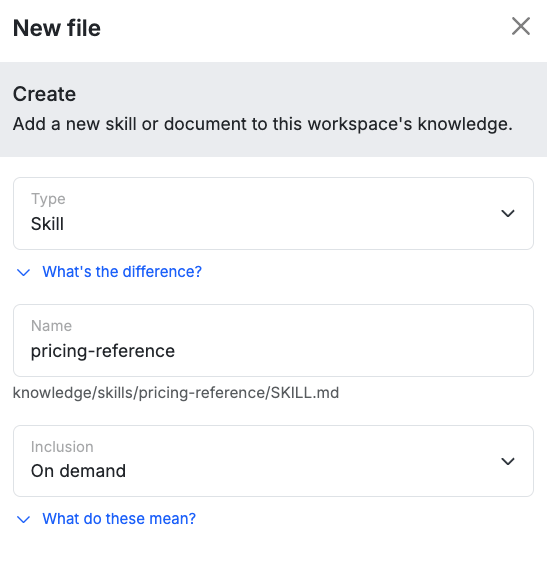
- Always Included — Includes the whole doc in every agent request. Use this sparingly.
- On Demand — The agent only gets the title and description up front, so it knows it exists and can intelligently utilize it.
- Manual — The agent has no idea this exists unless you refer to it explicitly.
Skills
Skills are used to give your agent more specific instructions during the build process, but don’t necessarily need to be surfaced to the agent every time. An example of this would beMake sure background tasks run no more than once per day, at 3:00am.
1
Click New doc or skill in the top-right corner.
2
Choose Skill, fill in the name and apply some tags.On the next screen, you’ll get to define the skill itself.
What does this skill do?
This will be provided to your agent with each request along with the skill title (if you choose on-demand inclusion). Keep it short and effective to inform the agent what this skill does.Example:Provides all required building conventions for background tasksWhen should the agent use it?
This is provided when the agent actually invokes the skill; used to determine any conventions that should be followed to complete the requested task.Example:This should be used any time a user wants to create or edit a background taskFirst Steps
You can start writing your skill here, or just click Create Skill and navigate to the full editing experience.References
References are supporting files that the agent can load on demand as part of a skill. Using references is important to ensure that the main SKILL.md file doesn’t become bloated and the agent can selectively retrieve only what it needs. The lineIf a background task calls for specific run logging, reference @run-logging.md for more details. in the example skill below shows how you’d refer to a reference when creating your skills.
See an example of a complete skill
See an example of a complete skill
Background Task Conventions
Use this skill when creating, editing, reviewing, or debugging background tasks, scheduled jobs, cron jobs, recurring workflows, queues, batch processing, or automated maintenance routines.Core rules
Background tasks should be conservative by default.Do not create a high-frequency task unless the user explicitly asks for it.Most recurring background tasks should run no more than once per day.If a task processes user data, sends notifications, charges money, syncs external systems, deletes records, or changes account state, ask before making it recurring.If a background task calls for specific run logging, reference @run-logging for more details.Default schedule conventions
Use these defaults unless the user specifies otherwise:- Maintenance jobs: once per day
- Cleanup jobs: once per day
- Digest generation: once per day
- Analytics rollups: once per day
- Billing reconciliation: once per day
- External syncs: once per day
- Notification retries: use a capped retry strategy, not an unlimited schedule
Safety requirements
Every recurring task should have:- A clear purpose
- A predictable schedule
- A maximum amount of work per run
- A way to avoid duplicate processing
- Error handling
- Logging
- A safe retry strategy
- A guard against running on records that are already complete
Idempotency
Design background tasks so running the same task twice does not create duplicate records, duplicate emails, duplicate charges, duplicate notifications, or duplicate external API calls.Use status fields, timestamps, job run records, or unique keys when needed.Batching
For tasks that may process many records, use batching.Prefer small batches over processing an entire table at once.Track progress when a job may need multiple runs to complete.External services
When calling external APIs from a background task:- Respect provider rate limits
- Store the last successful sync time when useful
- Retry temporary failures
- Do not retry permanent failures forever
- Log enough detail to troubleshoot failures without storing secrets
Notifications
Background tasks that send emails, push notifications, SMS messages, or webhooks must avoid duplicate sends.Before sending, check whether the message has already been sent for the relevant user, record, and event.Deletion and cleanup
Prefer soft deletion, archiving, or marking records inactive over permanent deletion.Ask before creating a task that permanently deletes user data.Cleanup tasks should include a clear retention rule, such as “delete temporary files older than 30 days.”Ask before doing these
Ask before:- Scheduling a task more than once per day
- Creating a task that sends messages to users
- Creating a task that charges money
- Creating a task that permanently deletes data
- Creating a task that syncs large amounts of external data
- Creating a task that changes user permissions or account state
- Creating a task with no clear stop condition or processing limit
See an example of a reference that might be paired with the above skill
See an example of a reference that might be paired with the above skill
Background Task Run Logging Reference
Use this reference when building or editing a background task that needs to record its execution history.The workspace already includes abackground_task_run table. Use it to track when a task starts, whether it finishes successfully, how much work it performed, and any high-level errors that occurred.Existing table
Use the existingbackground_task_run table.Expected fields:status values:When to create a run record
Create abackground_task_run record at the beginning of each scheduled task run.Set:task_name value that will not change if the task title is edited later.When to update the run record
Update the samebackground_task_run record when the task finishes.For a successful run, set:Metadata
Usemetadata only for task-specific operational details that help with debugging or safe continuation.Appropriate metadata examples:metadata.Counting rules
Use these counting conventions consistently:Error messages
Keeperror_message short and safe.Good examples:Required task shape
When adding run logging to a background task, use this structure:Version history
Knowledge files get full version history, with the same editor controls you use for function stacks. Changes flow through the agent’s push and commit, so yourAGENTS.md, docs, and skills are versioned alongside the rest of your backend. When you push, the push modal shows a knowledge diff, so you can review exactly what changed before you commit.
Exporting knowledge
You can export your skills and knowledge from the workspace to keep a copy outside of Xano.Preview
Once you’ve populated your AGENTS.md and some docs / skills, you can preview what it all will look like to an agent by clicking Preview agent context in the top-right. This is the context the agent receives at the start of every turn. Your AGENTS.md is shown in full; always-on skills are shown by their summary; on-demand items are listed by name so the agent can pull them in when relevant; and manual items load only when you name them in a prompt. At the bottom of the modal, you can also see an estimate of potential token usage.
Using Agent Knowledge
In the Xano Agent
The Xano Agent is automatically presented with your knowledge in every session. You don’t need to do anything; it already knows how to use it. You can also invoke skills inline. Type/ in the composer to attach skills as persistent, removable pills, reference files with @, and attach multiple skills in a single turn.
In other AI coding agents
Knowledge is downloaded when runningxano workspace pull, and your agent will likely pick up on this when working through your requests. However, to ensure consistency throughout each development session, you can instruct your agent to ensure that it refers to the knowledge present.
In tenant deployments
Knowledge and skills that are part of a merged release are available inside the tenant once that release is deployed. Agents building in that tenant then draw on the same Knowledge that shipped with the release.What’s next
Xano Agent
See the in-product agent that reads your Knowledge on every build.
Developer MCP
Connect external AI coding agents like Claude Code and Codex to your workspace.
Role-Based Access Control
Control who can edit or unlock enforced AGENTS.md files.