

 Xano
XanoWhy build MCP servers in Xano?
Instead of being limited to REST APIs designed for web and mobile apps, you can build AI-native functionality: function stacks meant to be called by an AI model in response to a request like “Check the user table for any admins that haven’t logged in since the first of the month, and send them a reminder about our activity policies.” That means you can create tools for your AI to:- Retrieve specific data from your Xano database based on natural language queries
- Perform complex data manipulations and calculations triggered by AI insights
- Write data back to your Xano database based on AI-driven decisions or user requests interpreted by the AI
- Interact with external APIs and services through your Xano function stacks, orchestrated by the AI
- Interact with the APIs and services you’ve already built in Xano
What’s supported with Xano’s MCP Builder?
Servers you build in Xano speak Streamable HTTP, the transport the official MCP SDK has standardized on — that’s the connection URL to hand your clients, and the one to build against. Both Tool and Resource tool types are available, and you can use any available function we have today in your MCP servers. As MCP is an evolving protocol, we aim to continue to expand the functionality as it develops. If you are utilizing MCP in Xano and have any feedback or questions, please reach out to our support team.Getting Started with MCP Builder
First, create an MCP Server.
To build MCP servers in Xano, we’ll first need to create a server that will house some tools.From the sidebar, click Agents & MCP
Click + Add MCP Server to create your first MCP server
Fill out the necessary information
- Name - Give your server a name that clearly indicates its purpose.
- Description - This is an internal field just for you to expand on the purpose of the MCP server.
- Allow Connections - Choose whether or not to allow connections to this MCP server
- Add Tag - Tag your MCP servers for easier search throughout your Xano workspace.
- MCP Instructions - These instructions are what your clients will look at to understand the purpose of the MCP server. Markdown format is recommended for easy readability for your LLMs and clients. These instructions apply to the server as a whole, and are not used for individual tool instructions.
After you’ve created a server, add some tools.
What is a tool?
Tools are essentially individual actions that your MCP server can perform, such as querying a database, adding new records, or calling an external API. You’ll build tools just like you build any other function stack. Most of the time you already have the logic — an API endpoint or a function stack you built for your app. Exposing one of those as a tool is a couple of clicks and leaves you with one stack to maintain, so start there. Build a tool from scratch when there’s nothing to reuse.Tool Types
You’ll select your tool type when connecting a tool to your MCP server, after it’s been created.Tool
Resource
Using Existing Function Stacks as Tools
In the existing function stack, click the ⋮ settings icon in the upper-right corner and click Use As AI Tool
Choose the MCP Server you'd like to add the tool to, and give it a name. This name is what the command will be, so make sure it's understandable
Navigate to your MCP Server and check for the newly created tool
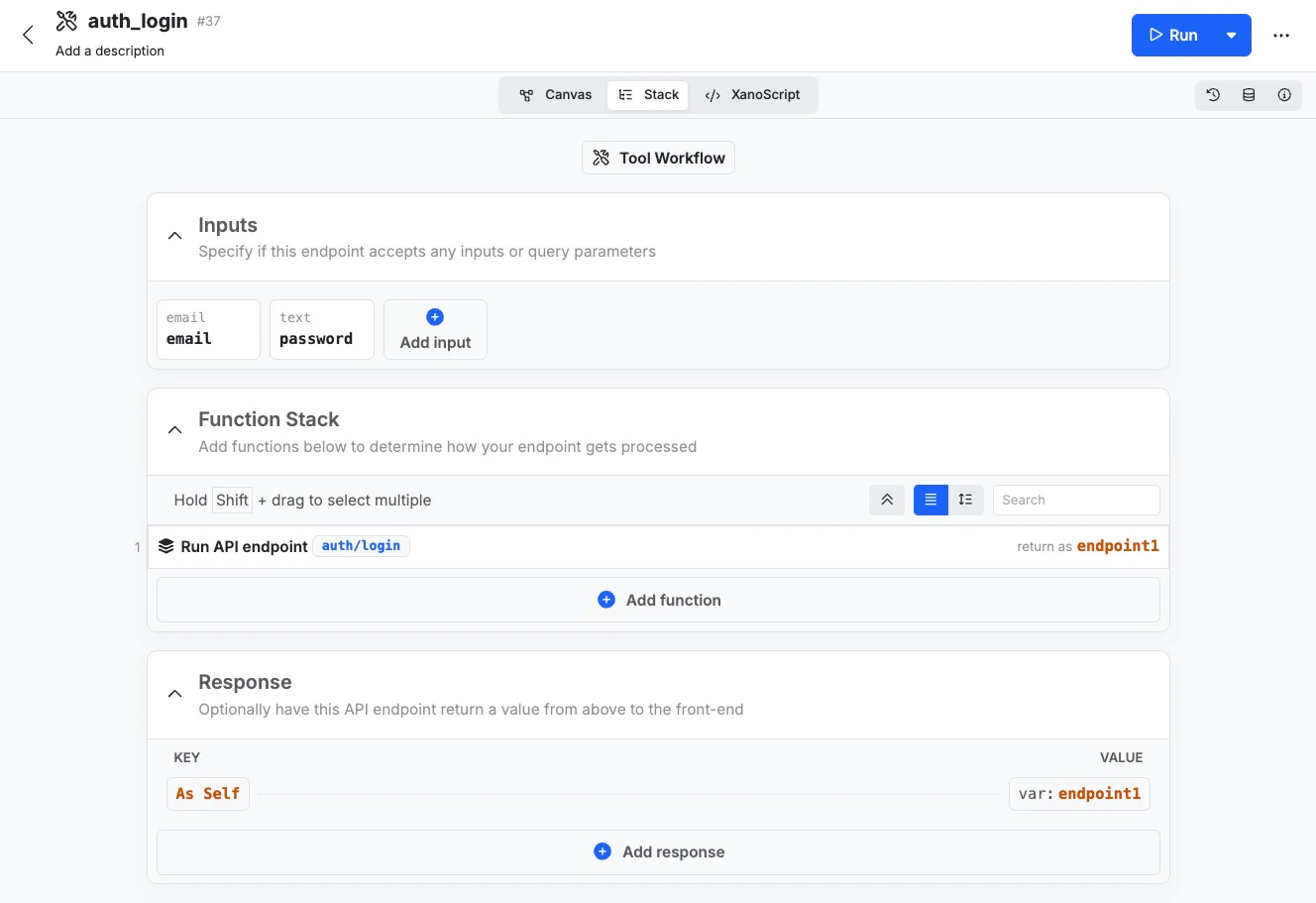
A tool created from an existing API endpoint
Adjust the settings for your newly created tool and add instructions
Creating Tools from Scratch
In your MCP Server, click + Add Tool
Fill out the required information
- Name
- Give your tool a recognizable name. This is also the command that will be used to execute your tool.
- Description
- This is an internal-only field just for you to describe the purpose of the tool.
- Allow Connections
- Enable or disable connection to this specific tool
- Add Tag
- Tag your tools for easier search across your Xano workspace
- Authentication
- Determine if this tool requires an authentication token
- Tool Instructions
- These instructions are what your clients will use to understand how to send requests to the tool, and what the expected result will be. Markdown format is recommended.
Build your tool's function stack
When you're ready, publish your changes
MCP Authentication
Your MCP tools can require authentication, and there are two ways a client can satisfy it.A bearer token on the Authorization header
Set a tool’s Authentication on, and Xano validates the token the same way it does for the secure APIs you’re already building. You paste that token into your client’s config and it rides along with every request. This is the quick path, and it’s all most header-capable clients need — Claude Code, Cursor, VS Code, Windsurf, Antigravity, Raycast, Warp, Gemini CLI, Codex CLI. See Connecting Clients for the per-client setup.OAuth, for per-user identity and OAuth-only clients
Xano MCP servers don’t expose an OAuth authorization server of their own — no/authorize, no /token, no discovery document for a client to find. You can supply that missing front end with a small Cloudflare Worker that sits in front of your server: it speaks OAuth to the client, exchanges the sign-in for that user’s own Xano user-table JWT, and forwards that JWT upstream. Every request then arrives as the person who made it, and $auth scopes data per user natively.
You need this when:
- Your client can’t send a header at all. Claude Web, Claude mobile, Claude Desktop’s Add custom connector dialog, ChatGPT developer mode, and Microsoft 365 Copilot are OAuth-only.
- You need per-user identity — on any client, including the header-capable ones.
wrangler commands, and the log-reading to verify it. Each step ships a ready-made prompt you can hand to a coding agent, and it all runs on Cloudflare’s free plan.
Add OAuth to a Xano MCP server
Manual setup
URL parameters
You can pass URL parameters as part of your connection URL, such as?beta=true, and read them in your tool function stacks as the params variable to change how the tools behave.
Connecting to your MCP Server
Now that you’ve built an MCP server and added some tools to it, you can connect with your client of choice. Choose from the list below for a quick getting started guide. If you’re new to MCP servers, we recommend starting with Cursor.Cursor
Claude Code
Video walkthroughs
Best Practices
There are some best practices when building tools that we recommend following for the best experience.- Use enum inputs wherever possible so the AI model understands what options are available for your inputs.
- Use clear naming conventions and instructions.
- Try to find a balance when writing instructions between being clear and descriptive, but also concise. Reducing the amount of tokens sent to an AI model will reduce token cost, improve speed, and improve responses.
- Use error handling with clear error messages. If an AI model fails to use a tool, clear error messages will allow it to retry the tool successfully.
FAQ
What are the benefits of using MCP?
What are the benefits of using MCP?
- Standardization: MCP provides a common way for different applications and LLMs to interact, reducing the need for custom integrations.
- Interoperability: MCP enables different LLMs and applications to work together more easily.
- Flexibility: MCP allows developers to connect LLMs to a wide range of external resources.
- Efficiency: MCP streamlines the process of building AI agents and applications.
Is MCP tied to a specific LLM or platform?
Is MCP tied to a specific LLM or platform?
How does MCP relate to APIs?
How does MCP relate to APIs?
What is the role of “context” in MCP?
What is the role of “context” in MCP?
How is security handled in MCP?
How is security handled in MCP?
Can I build multiple MCP servers?
Can I build multiple MCP servers?