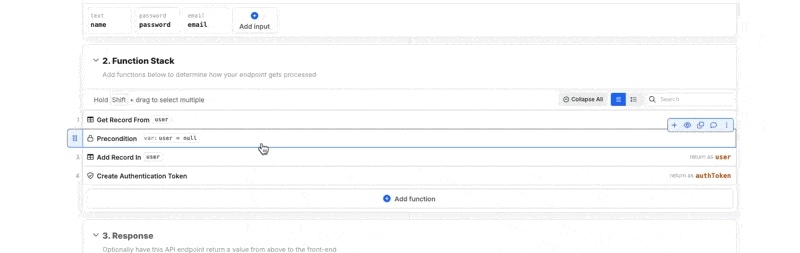
The Anatomy of the Visual Builder
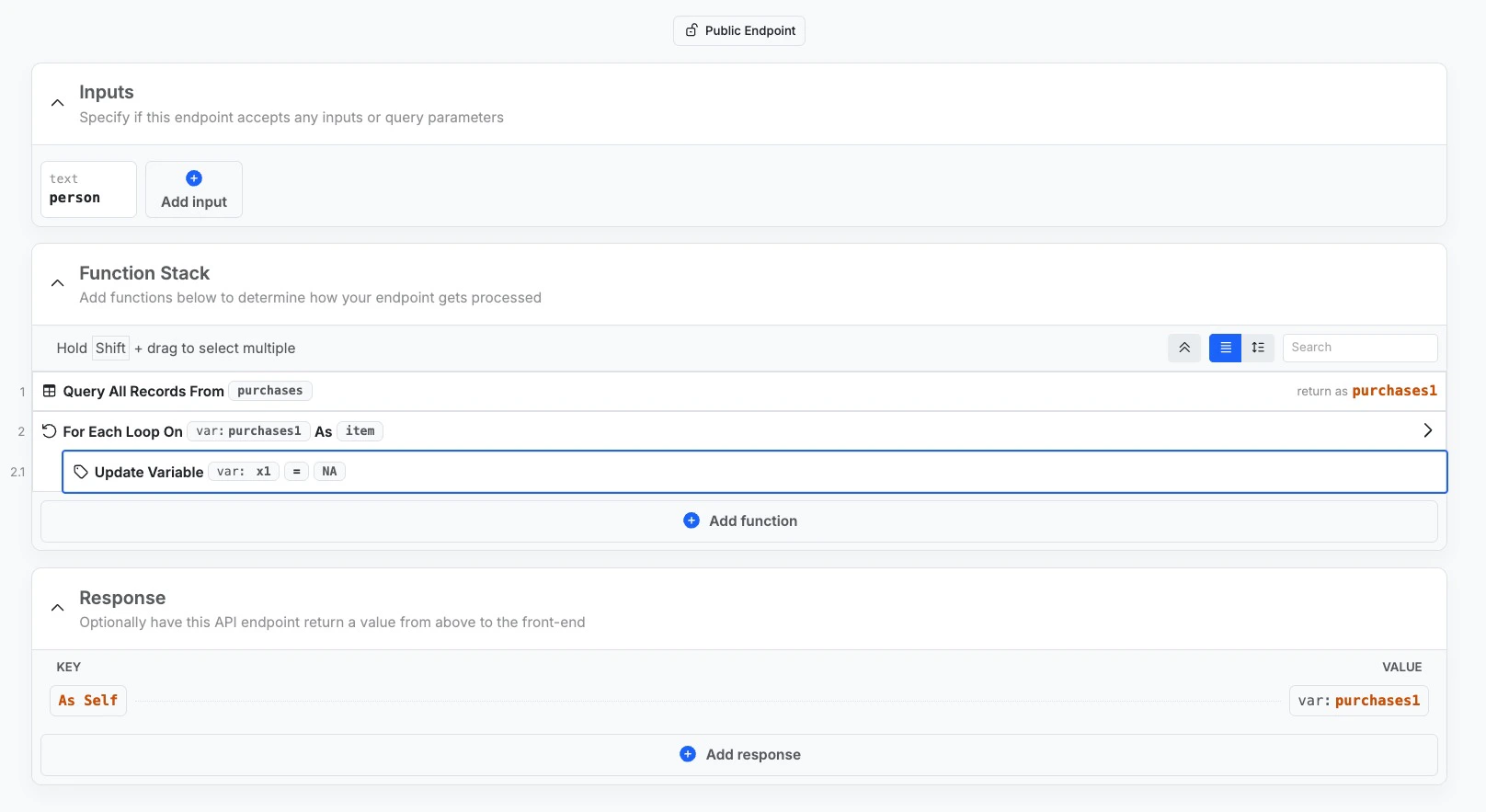
The builder will be comprised of up to three different sections — inputs, the function stack, and the response. Different function stack types may not contain all of the available sections listed below.
The inputs are anything that a function stack needs to run. For example, a function stack that logs in a user probably needs a username or email and a password; these would be the inputs.
🔄 Function stack
This is where all of the magic happens. All of the business logic that is performed lives here.
As you add functions to your function stack, it will suggest next steps based on most popular user activity.
⬆️ Response
Once the function stack has done its job, it needs to know what to return. This lives in the Response section.
What can I build?
APIs
An API is a piece of logic or a workflow that can be called to run from external sources. Think about when you tap a button or link anywhere in an application; there are API calls happening behind the scenes to make sure those taps perform the expected action.
📖 Learn more about APIs
AI Agents
An AI Agent is like a custom-built robot designed to take a set of tools and perform an action, or a set of actions. Powered by the LLM of your choice, like OpenAI’s ChatGPT or xAI’s Grok, you can use Agents to build powerful and truly dynamic workflows, supercharged with the thinking and reasoning of an AI model.
📖 Learn more about AI Agents
MCP Servers
An MCP Server is a collection of tools that you can connect to using your favorite MCP client of choice, such as Anthropic’s Claude, Cursor, or Windsurf, to chat with your Xano backend. Use it to generate high-quality sample data or perform tasks inside of your workspace. Xano offers its own MCP server to control your workspace programmatically, and you can build your own custom MCP server as well inside of Xano.
📖 Learn more about Xano’s MCP Server
📖 Learn more about building your own custom MCP Server
Custom Functions
A custom function is similar to an API, but it is reusable logic that you can insert into any other function stack. Build and maintain that logic in a single location, and use it everywhere.
📖 Learn more about custom functions
Background Tasks
A background task is a workflow that runs automatically based on a schedule that you define.
📖 Learn more about background tasks
Triggers
A trigger is a workflow that runs every time something else happens. Xano supports many different kinds of triggers for the database, realtime connections, AI agents, and more.
📖 Learn more about triggers
Middleware
Think of middleware as an extra security guard at the entrance and exit of your other function stacks. You can build and deploy middleware to run either before a function stack, or right before it delivers a response. This is useful for things like input or output sanitization, custom error logging, security, and more.
📖 Learn more about middleware
Using the Visual Builder
You can use both mouse and keyboard navigation when working in the builder.
Adding Functions
Click + Add Function to add functions to your function stack. You can search for, choose, and favorite functions in the panel that appears on the right.
You can also hover over an existing function and click the + sign to add a new function directly under it.
Creating a Draft
Once you start editing your API, a draft will automatically be created. Drafts keep track of each micro-change you (or your team members) make to a Function Stack called Revertible Changes, which you can easily roll back.
Revertible Changes
Revertible changes show each micro-change, when they were made, what the change was, and who made it.
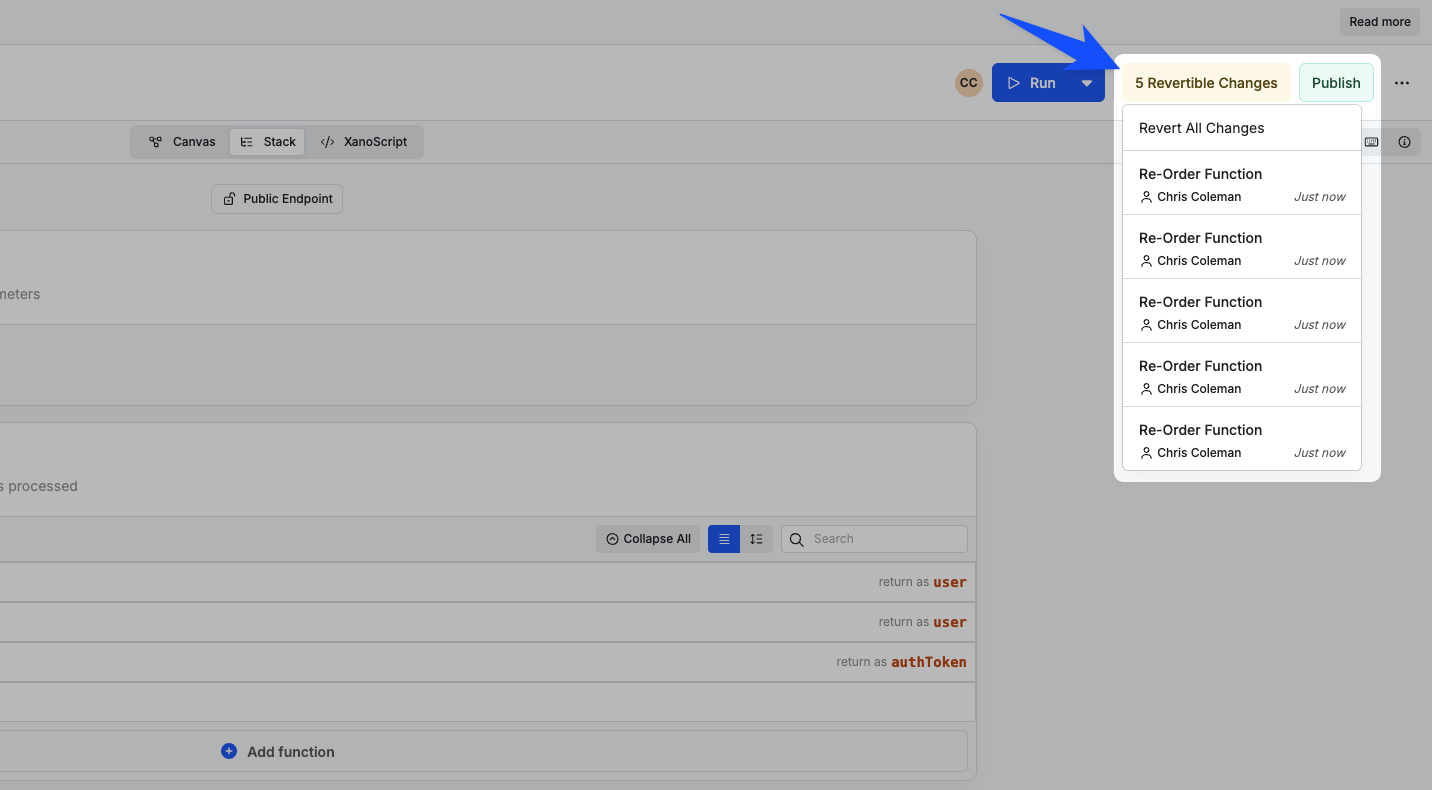 To revert a change, select the change you wish to revert back to. You can also revert all changes to revert all changes in the draft and return to the original version of the Function Stack.
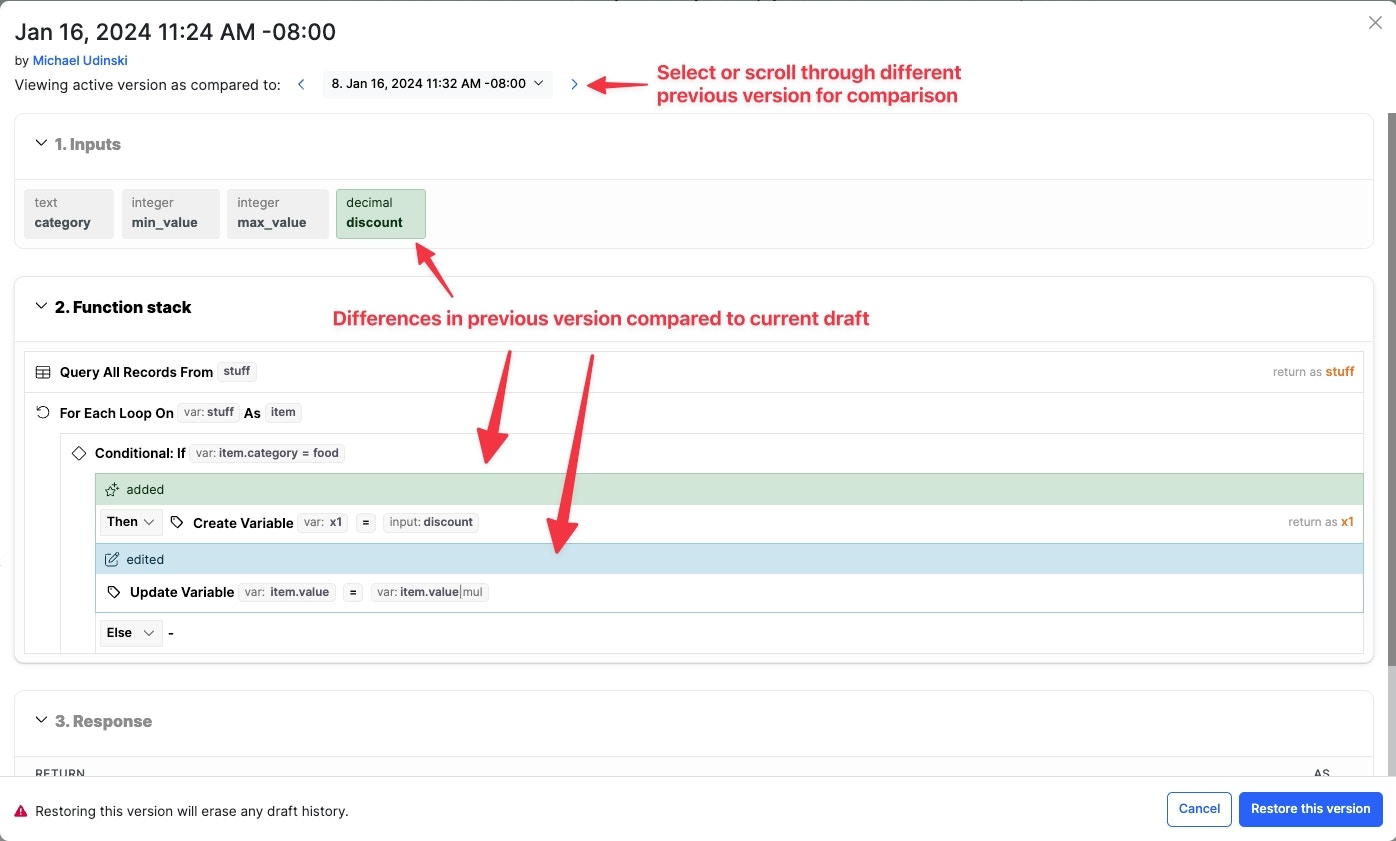
Compare Differences
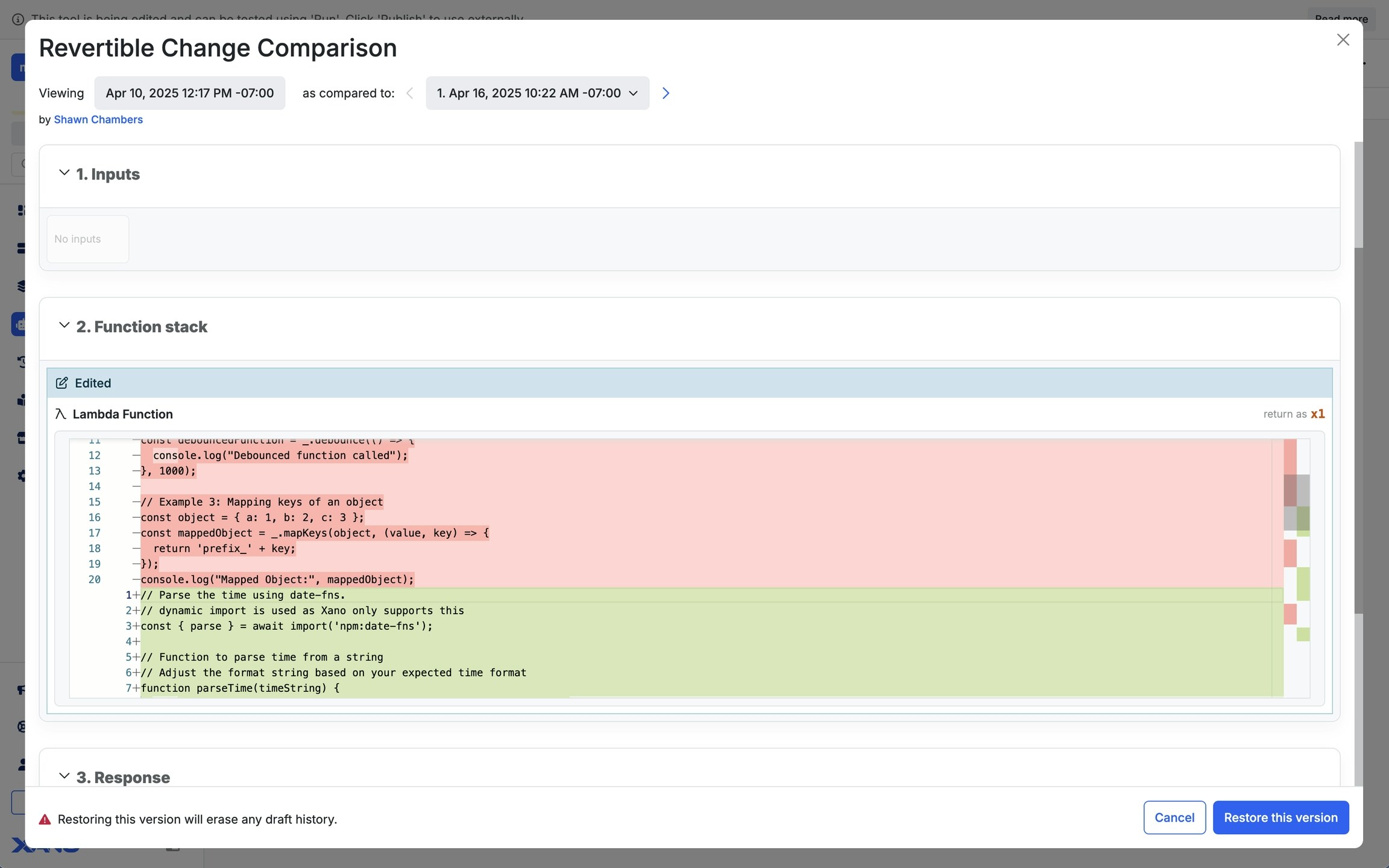
Before reverting a change, you are able to see a difference comparison snapshot of the previous draft version. This provides context in the differences of the previous version compared to the current draft you are on.
Comparing versions in function stacks using Lambda Functions or Template Engine will show your specific code changes in a specialized format for easy readability.
Once you’re ready to revert, select Restore this version.
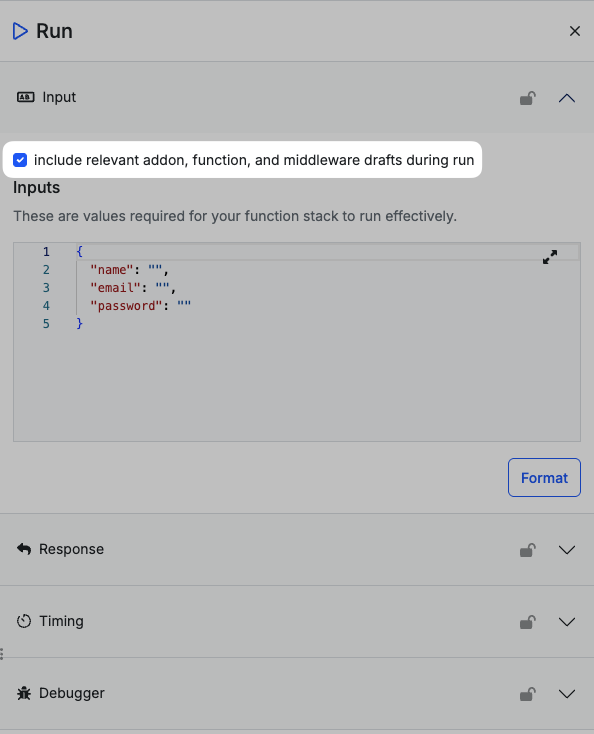
Testing a Draft
Testing the API with Run & Debug will use the draft you are editing while calling the API from the front-end will use the live (published version) of the API.
If you have other drafts across your workspace that may interact with the current API or Function Stack you are editing, you can include the relevant drafts while testing in Run & Debug.
Publishing
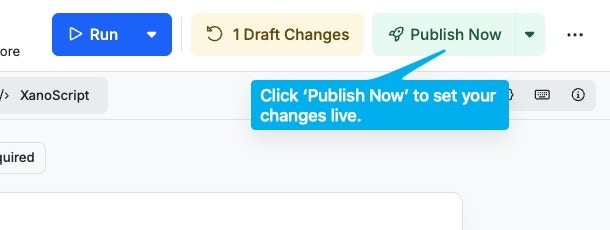
Once you’re ready to publish the changes, you can simply select publish.
You can include a description of the changes you are publishing. Additionally, you have the option to publish other active drafts in your workspace. This might be useful if you are working with multiple workspace objects that interact or depend on one another and need to be certain everything works harmoniously before publishing.
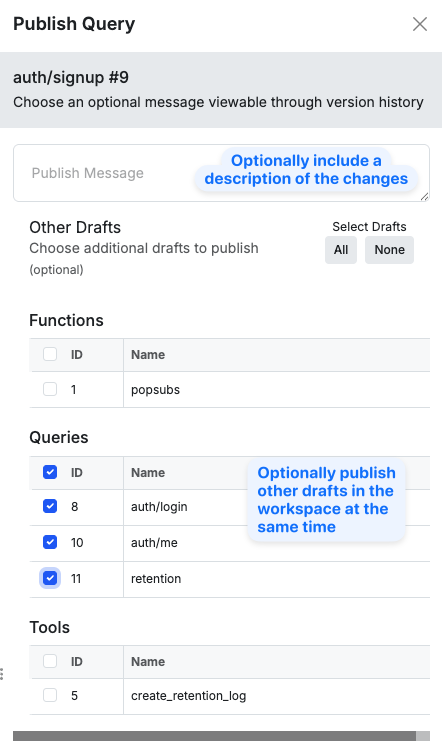 Once a draft is published, the changes will become live. Meaning if the API endpoint is called from a front-end, the changes will be reflected. Publishing a draft will create a new version of the API Endpoint, which allows you to roll back to previously published versions.
How do I know if I have drafts to publish?
You can see drafts available for testing and publish via the Publish dialog on any of your function stacks, or in a notification on the dashboard. If you find that you have made changes but are not seeing the expected results via your front-end, ensure that you have published these changes.
Once a draft is published, the changes will become live. Meaning if the API endpoint is called from a front-end, the changes will be reflected. Publishing a draft will create a new version of the API Endpoint, which allows you to roll back to previously published versions.
How do I know if I have drafts to publish?
You can see drafts available for testing and publish via the Publish dialog on any of your function stacks, or in a notification on the dashboard. If you find that you have made changes but are not seeing the expected results via your front-end, ensure that you have published these changes.
Working with Data
Filters
Filters are additional functions that can be applied directly to other pieces of data in Xano. For example, a filter could be used for a mathematical operation, adjust text formatting, create new datasets from existing data, and more.
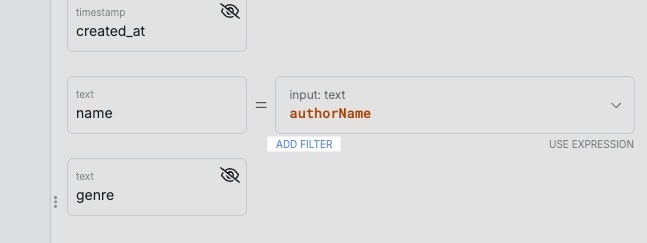
To apply a filter, just hover over a value box and click Add Filter.
To learn more about the available filters in Xano, head to the Filters section here.
Dot Notation
Dot Notation is used to navigate inside of variables and target specific pieces of data.
Let’s use the following object as an example. This object is contained in a variable called author.
{
  "id": 2,
  "created_at": 1736364473744,
  "name": "john Smith",
  "genre": "Western"
}
name field with whatever our adjustments are.
Auto-Complete / Subpath
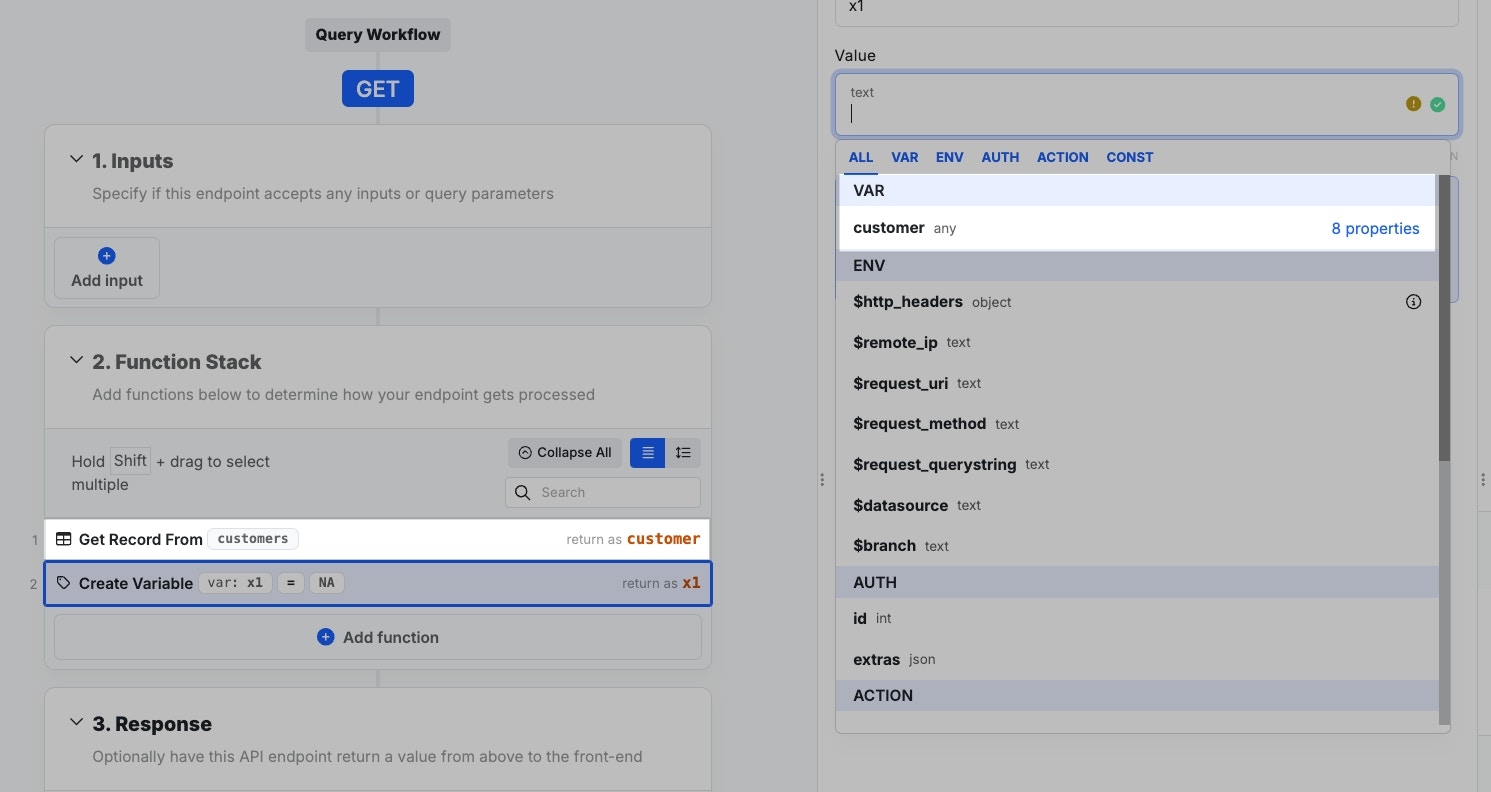
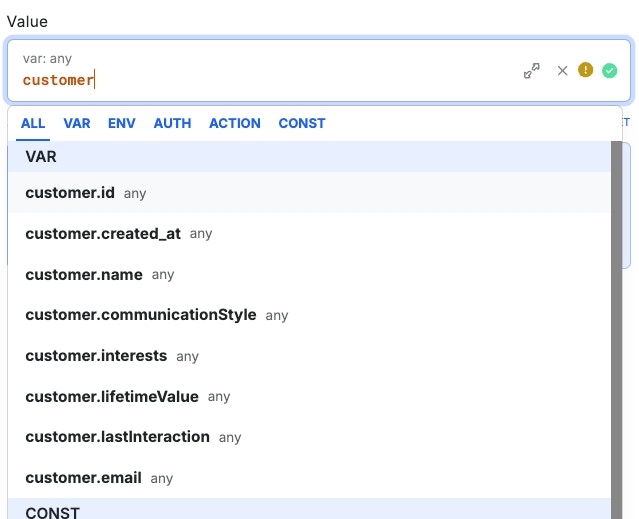
Xano keeps an understanding of the contents inside of your variables once you’ve run your workflow, which makes targeting data inside them easy.
Even if you’re not done building, you can run your workflow at any time, even
if an error is generated at the end, to make sure Xano has context of the
variable contents.
Copy and Paste
You can copy and paste function stacks in Xano, enabling speedy development across environments.
Copy and paste works inside of your own function stacks, as well as copying and pasting between workspaces and instances.
HintIf you need to reuse logic in more than one place, it is recommended to utilize Custom Functions. Selecting Functions
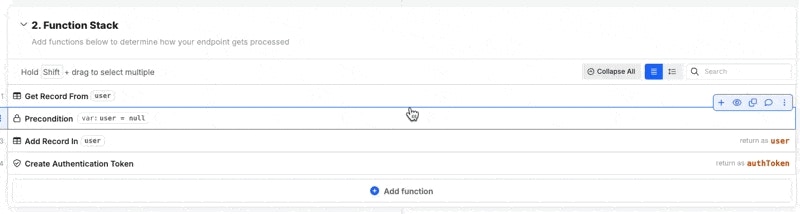
You can hold Shift and click on individual functions to select them.
Alternatively, you can also hold Shift and click + drag to select multiple functions.
Click your desired option or use keyboard shortcuts for your operating system of choice. Crtl+C / Crtl+X on Windows, or Cmd+C / Cmd+X on Mac.
When you’re ready to paste, you can do so with the same standard keyboard shortcut: Crtl+V / Cmd+V.
Keyboard Navigation
| Section | Key | Action |
|---|
| Function Stack | ↑ ↓ | Navigate Function Stack rows inputs and response values |
| Function Stack | Shift ↑ ↓ | Select multiple rows |
| Function Stack | A | Add row below highlighted row or inside highlighted empty row |
| Function Stack | Delete | Delete highlighted row or selection of rows |
| Function Stack | Enter | Edit the highlighted row |
| Function Stack | D | Edit the description of highlighted row |
| Function Stack | Cmd/Ctrl C | Copy the highlighted row or selection |
| Function Stack | Cmd/Ctrl X | Cut the highlighted row or selection |
| Function Stack | Cmd/Ctrl V | Paste function stack clipboard contents below currently highlighted row |
| Function Stack | Cmd/Ctrl Z | Undo last change |
| Function Stack | Cmd/Ctrl / | Disable/enable highlighted row |
| Function Stack | F | Convert a selection of rows into a function |
| Function Stack | G | Group a selection of rows |
| Function Stack | C | Clone highlighted row |
| Function Stack | Option/Alt ↑ ↓ | Move highlighted row |
| Inputs and Response | Enter | Edit highlighted input/response |
| Inputs and Response | Delete | Delete highlighted input/response |
| Inputs and Response | C | Clone highlighted response |
| Page Actions | Cmd/Ctrl Z | Undo last action |
| Page Actions | Cmd/Ctrl Enter | Open the Run & Debug panel |
| Page Actions | Cmd/Ctrl P | Open the Publish panel`; |


 Xano
Xano